Automatically Detect PDF Form Fields on a Flat PDF
A flat PDF has no form fields at all. Learn how to automatically detect PDF form fields in your browser for free, with the file never leaving your device.
 Aleksandar Jovanovic 10 min read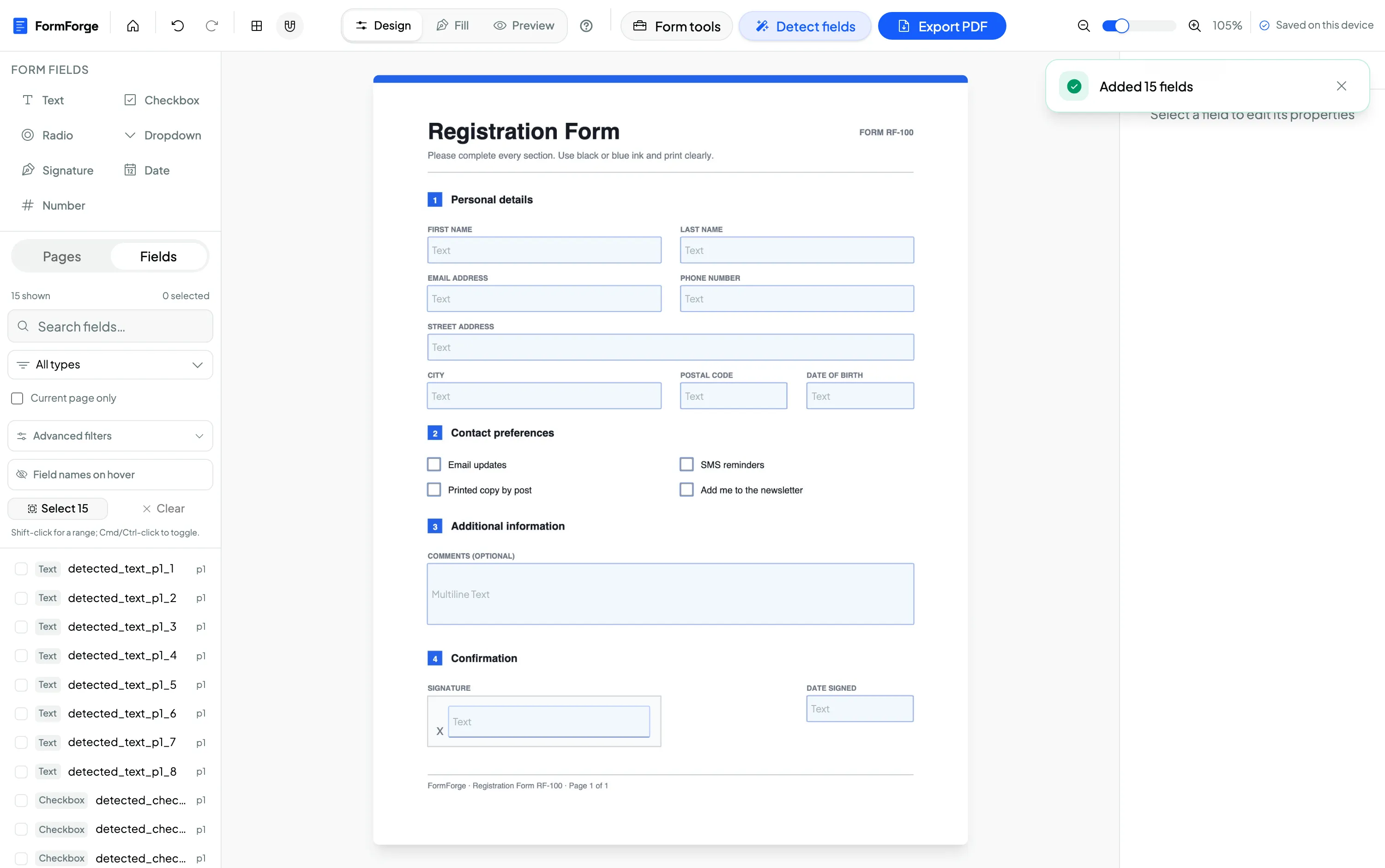
A flat PDF is a PDF with no interactive form fields in it — it looks like a form, but there is nowhere to click and nowhere to type. FormForge can automatically detect PDF form fields on a flat document in your browser, drawing text boxes, checkboxes and signature areas for you instead of making you place every single one by hand.
This guide explains what detection actually does, how to run it, what it will and will not find, and what to clean up afterwards. If you want to try it first and read later:
Why a flat PDF has no fields
Every fillable PDF carries an extra layer called an AcroForm: a list of interactive widgets — text boxes, checkboxes, radio groups, dropdowns, signature areas — anchored to coordinates on the page. Adobe Reader, macOS Preview, Chrome and Firefox all read that layer, which is why a proper fillable PDF lets you tab from field to field and type.
A flat PDF has none of that. The lines that look like text boxes are just lines. The little squares that look like checkboxes are just squares. Nothing is clickable because there is nothing to click — the page is a picture of a form rather than a form. You get flat PDFs from scanners, from File → Save as PDF in Word, from print-ready design files, and from most public-sector templates.
”Detected automatically” means two very different things
This distinction matters, because two features share a confusing name.
- Importing an existing AcroForm. When you open a PDF that already contains form fields, FormForge reads them out of the file and shows them in the editor, complete with names, tooltips, font sizes and colours. Nothing is guessed — the fields were already there.
- Detecting fields on a flat PDF. When the file contains no fields, there is nothing to read. This is where AI PDF form field detection comes in: a model looks at the rendered page the way a person would, spots the places that look like inputs, and creates brand-new fields at those coordinates.
The first is bookkeeping. The second is inference. This article is about the second one — the case where you have a flat document and no appetite for drawing forty boxes by hand. If you would rather place every field yourself, the complete guide to creating a fillable PDF form covers the manual route step by step, and AcroForm vs XFA explains the underlying format.
How to auto-detect form fields on a PDF
The whole flow takes about a minute once the model is cached.
1. Open your flat PDF in the editor
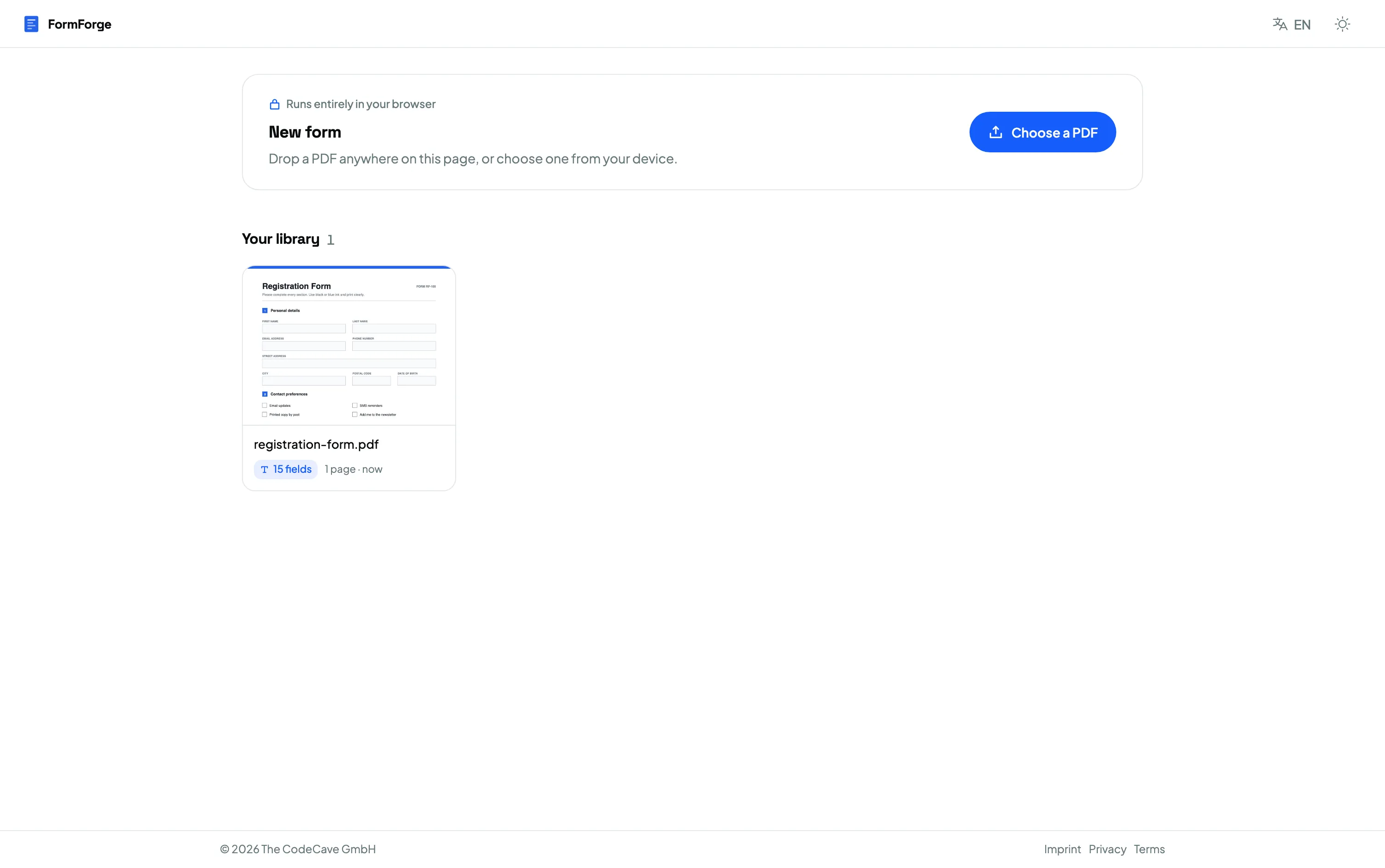
Open the editor and drag your PDF onto the canvas, or click to browse for a file. The document is parsed and rendered locally in your browser, and the canvas zooms to fit the window so you can see the whole page.
2. Open the “Detect form fields” dialog
Click Detect fields in the toolbar. A dialog titled Detect form fields opens, where you choose which model to run and how much of the document to cover.
3. Pick a detection model
There are two, and the difference is a straight trade between speed and accuracy:
- FFDNet-S — 6M parameters, the faster of the two and the default. About 50 MB on the first run. Reach for it on clean, well-ruled forms.
- FFDNet-L — 25M parameters, more accurate. About 114 MB on the first run. Worth the extra download on dense, scanned or awkwardly laid-out pages.
Those download figures are the honest totals. The weights themselves are 38 MB and 102 MB, but the ONNX Runtime WebAssembly binary — another 11.8 MB — is always fetched alongside them, so the first run costs you roughly 50 MB or 114 MB of bandwidth. After that, nothing: the files are cached with a one-year immutable header, so it is a one-time download per browser and later runs work with the network switched off entirely.
4. Choose the scope and run detection
Pick Current page or All pages. Read the warning before you click through, because detection replaces the existing fields inside the scope you chose — the dialog tells you exactly how many will be removed. Choosing Current page leaves every other page untouched.
Detection then runs in a background Web Worker so the interface stays responsive, and a notification reports how many fields it found and how long it took.
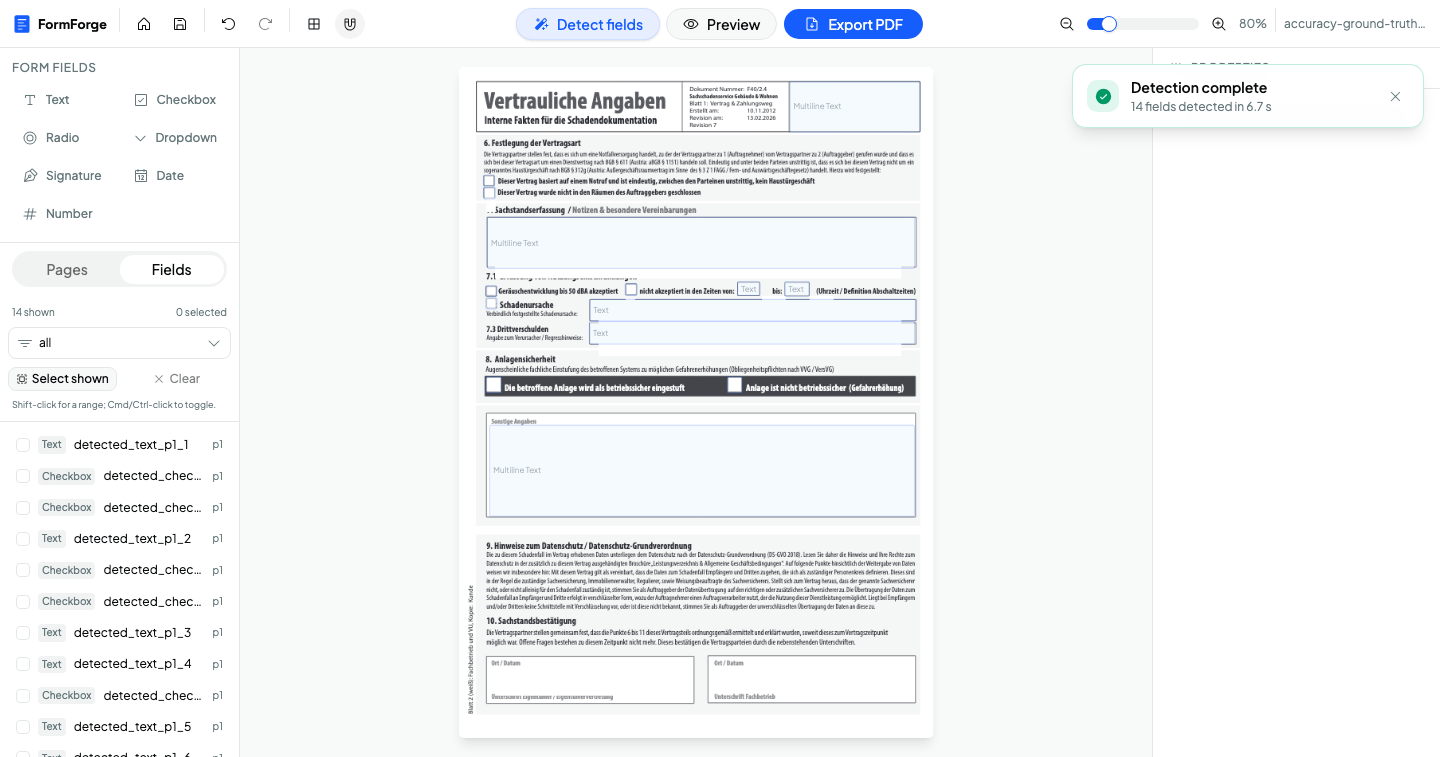
If the result is not what you wanted, one Cmd+Z or Ctrl+Z undoes the entire run and puts back whatever was there before. The whole detection is recorded as a single undo step, so you never have to delete fields one at a time to get back to where you started.
What actually runs — and why nothing is uploaded
This is the part that separates FormForge from the server-side “AI PDF” tools you will find elsewhere. Most of those work by uploading your document, running a model on their infrastructure, and sending fields back. For an HR file or a benefits application, that is a data-protection conversation nobody wants to have.
FormForge does it the other way round: the model comes to your document, not the other way round.
- The model runs in your browser. The FFDNet models are compiled to ONNX and executed by ONNX Runtime Web 1.23.0 on the WebAssembly execution provider, single-threaded, inside a dedicated Web Worker. No GPU is used and no server-side inference is involved.
- Your PDF never leaves your browser. Pages are rendered to images and analysed in the same tab you are working in. Nothing about the document is transmitted anywhere.
- The weights come from FormForge servers. The models are third-party — the open FFDNet-S and FFDNet-L models published by jbarrow on Hugging Face — but they are vendored at pinned revisions and served from FormForge’s own origin. The Content Security Policy restricts network requests to that origin, so there is no third-party CDN call at runtime.
- It works offline afterwards. Once the model is cached, you can disconnect and keep detecting fields.
That is why detection is usable for the paperwork that never gets to touch a random web service — the kind HR teams and public-sector offices handle daily. The full technical write-up lives on the AI field detection feature page.
What detection can and cannot do
Automatic detection is a strong first pass, not a finished form. Being straight about the edges saves you a frustrating afternoon.
It detects exactly three things:
- Text boxes — anything that looks like a line or box to write in.
- Choice buttons — every one becomes a checkbox.
- Signature fields — the ruled areas at the bottom of an agreement.
It does not detect:
- Radio groups. A “pick exactly one” cluster comes back as a row of independent checkboxes. If you need mutual exclusivity, delete them and place a radio group yourself.
- Dropdowns. There is nothing on a flat page that reliably says “this is a list of options”, so dropdowns are never inferred.
- Date and number fields. These come back as plain text boxes. Swap in the proper type where the input needs it.
Three more things worth knowing:
- It replaces, it does not merge. Running detection wipes the fields in the chosen scope and puts its own results there. If you have already hand-placed fields on page 3, run detection on the current page elsewhere rather than on all pages.
- The confidence threshold is fixed. There is no slider — the cut-off is set at 0.4 and applies to every run. If a faint box is missed, draw it in by hand; if something spurious appears, delete it.
- Names are generated, not meaningful. Fields arrive as
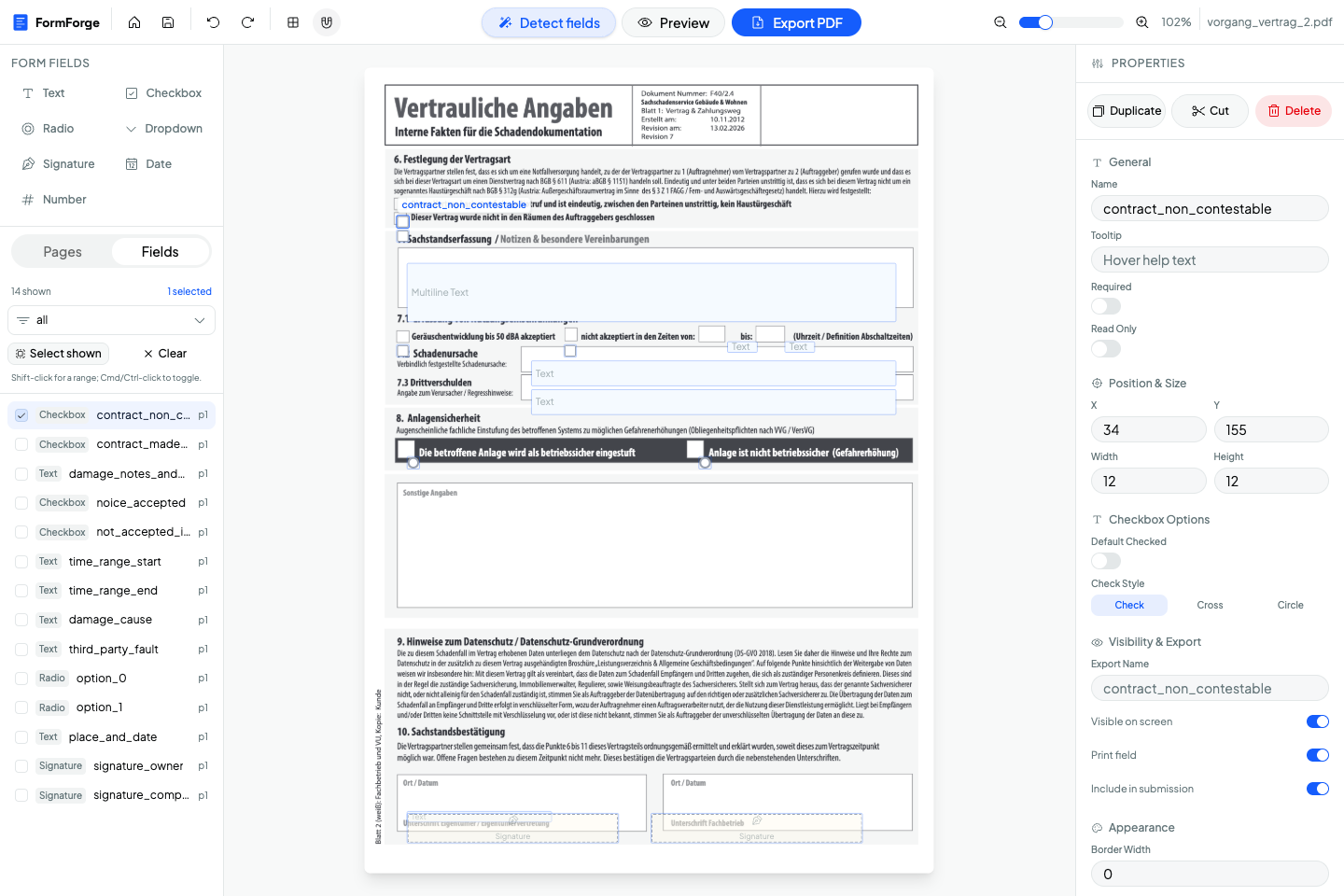
detected_text_p1_1,detected_checkbox_p1_2and so on, in reading order, with sensible tab order, automatic font sizing and multiline switched on for tall boxes. Useful defaults, but nobody wantsdetected_text_p1_7in their exported data.
After the run: names first, then batch edits
Two clean-up passes turn a detection result into a form you would actually send out.
Rename the fields that matter
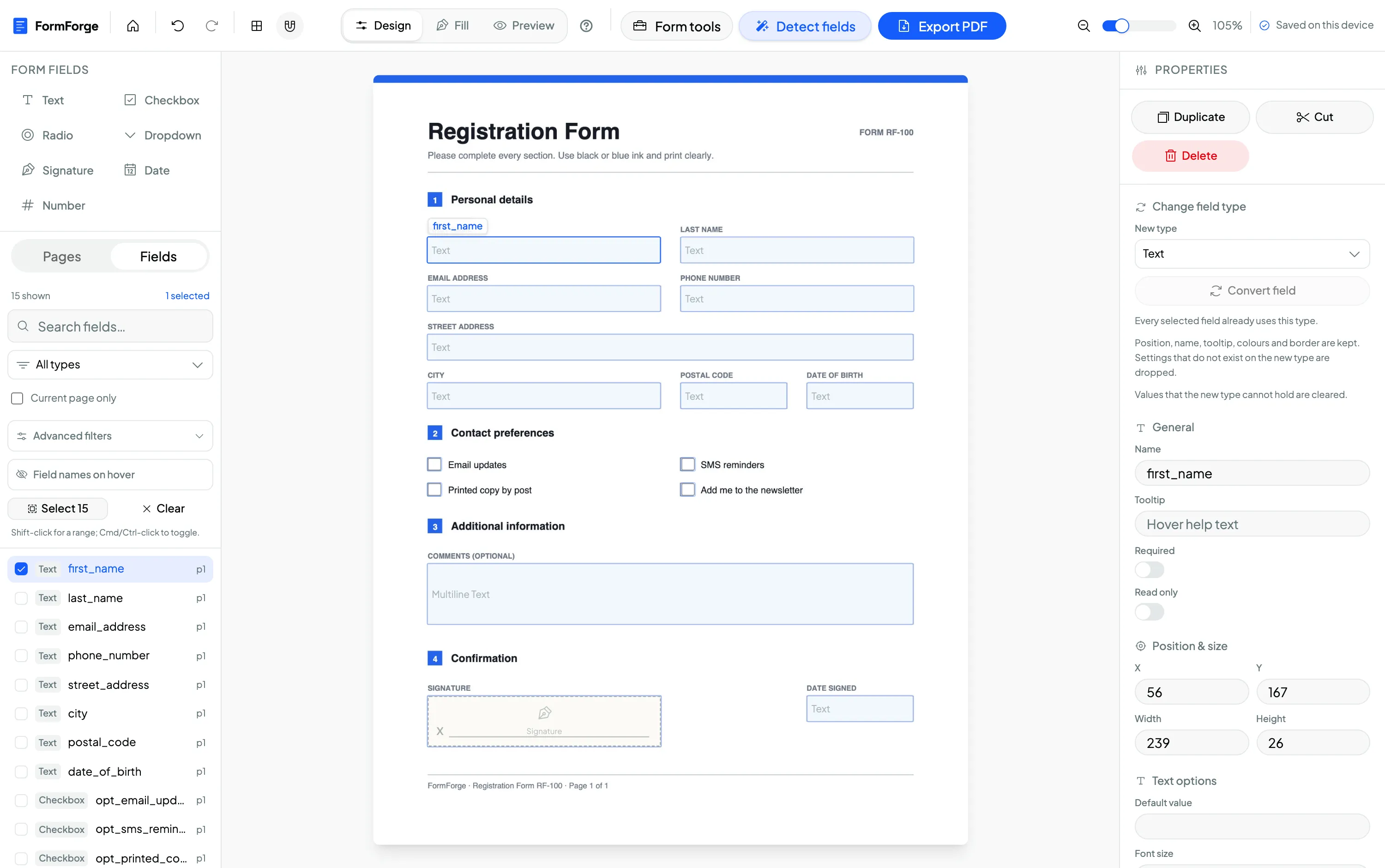
Select a field on the canvas or in the field list and give it a real name in the Properties panel — contract_non_contestable, damage_cause, signature_owner. The field name is what appears in the exported form data, so this is the difference between a submission you can read and a puzzle. The list panel lets you filter by field type and shift-click a range, which makes working through twenty text boxes quick.
Set the shared properties in one go
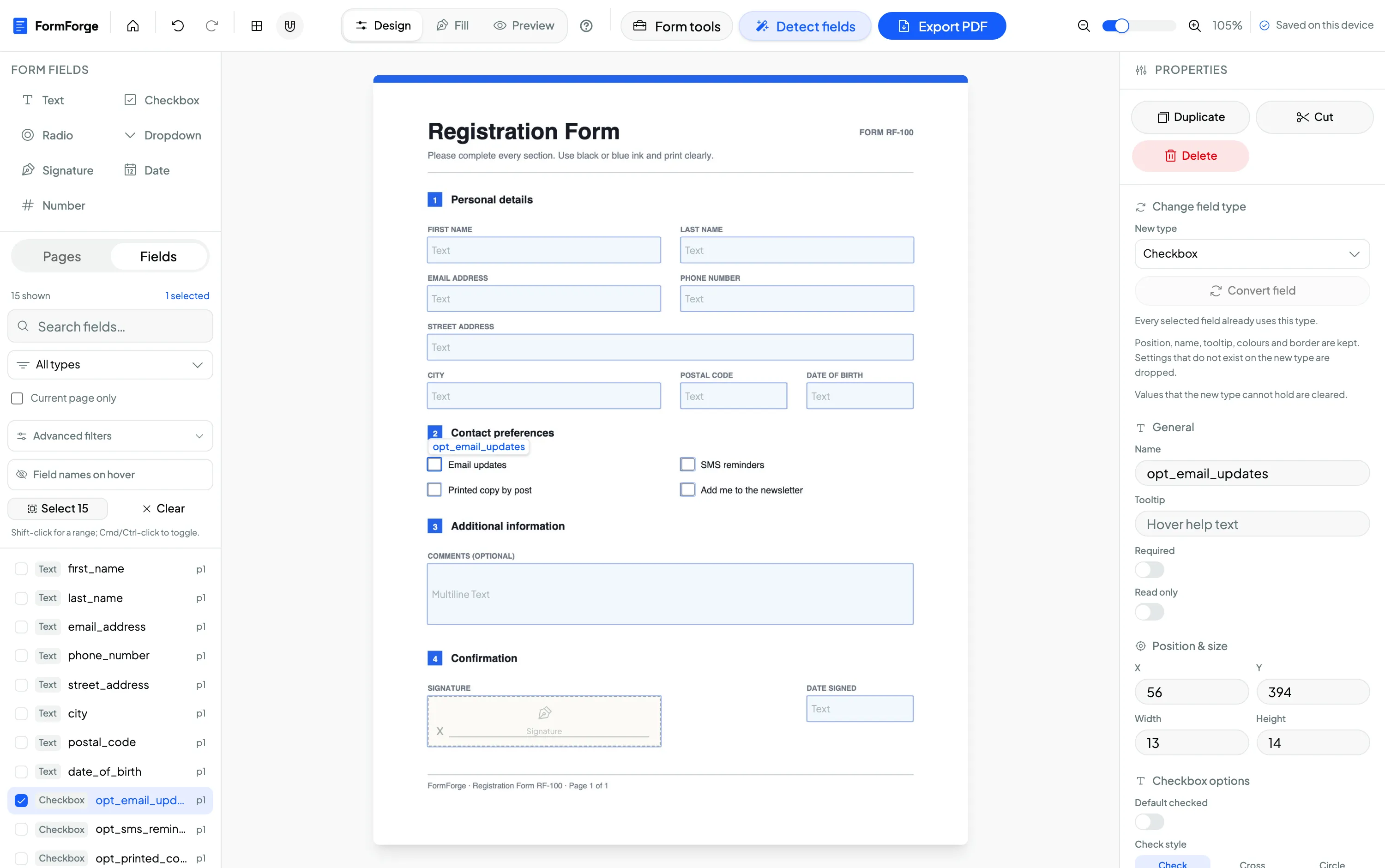
Names are per-field, but almost everything else is not. Select more than one field — marquee-drag across the page, shift-click, or hit Cmd/Ctrl+A — and the Properties panel switches to batch mode, headed with a count and a type breakdown such as 6 × Text.
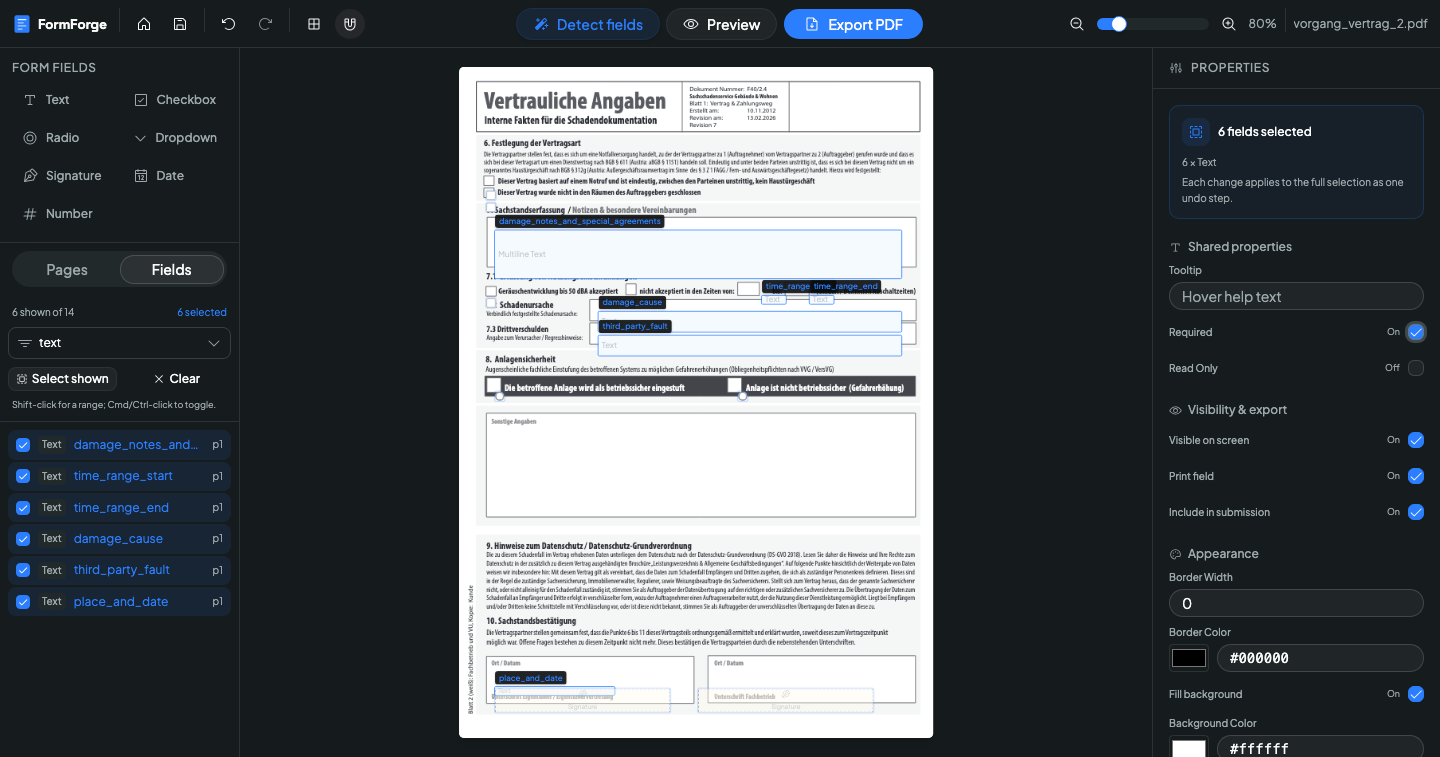
From there you can set the tooltip, the required and read-only flags, print and submission behaviour, border width and colour, background fill, width and height across the entire selection — and every change lands as one undo step. When the whole selection is the same type you get the type-specific settings too, such as font size and alignment for text fields or the check style for checkboxes. Details are on the batch editing feature page.
Then preview the form, fix anything that sits a pixel off, and export. You now have a standard AcroForm PDF that opens in Adobe Reader, Preview and every major browser — built from a flat document without placing a single box by hand. If you are comparing approaches, make a PDF fillable without Acrobat covers the wider picture.
Detect fields on your PDF — free
Frequently asked questions
What is a flat PDF?
A flat PDF is a PDF with no interactive form fields in it — just text and graphics painted onto the page. It looks like a form, but there is nowhere to click and nowhere to type. Scans, exported Word documents and print-ready templates are almost always flat.
How does FormForge detect form fields automatically?
It renders each page to an image in your browser and runs an FFDNet object-detection model over it with ONNX Runtime Web on the WebAssembly execution provider, inside a background Web Worker. The model returns boxes for text inputs, choice buttons and signature areas, and FormForge turns those boxes into real AcroForm fields.
Is my PDF uploaded for AI field detection?
No. Detection runs entirely on your own machine, so your PDF never leaves your browser. The only thing downloaded is the model itself, which is served from FormForge servers, and after the first run it is cached so detection works offline.
How big is the model download?
About 50 MB for FFDNet-S and about 114 MB for FFDNet-L. Both figures include the 11.8 MB ONNX Runtime WebAssembly binary, which is always fetched alongside the weights. It is a one-time download per browser, cached for a year.
Which field types can be detected automatically?
Three, and only three: text boxes, choice buttons and signature fields. Every choice button becomes a checkbox. Radio groups, dropdowns, date fields and number fields are never detected, so add those by hand after the run.
Can I undo automatic field detection?
Yes. A single Cmd+Z or Ctrl+Z undoes the entire detection run and restores whatever fields were there before, because the whole run is recorded as one undo step.
Next steps
- AI field detection — the feature page, with the full technical detail
- Batch editing — set shared properties across many fields at once
- How to create a fillable PDF form for free — the manual route, start to finish
- Add checkboxes to a PDF form — turning detected checkboxes into proper choice groups
Or just open the editor and point it at your flat PDF.
Build your fillable PDF now — free
Import any PDF, drag on the fields you need, and export an Adobe-ready form. It runs entirely in your browser — no uploads, no account.
Try FormForge Free