How to Add Checkboxes to a PDF Form
Add working checkboxes to any PDF form for free. Learn to place, group and export interactive checkbox fields in your browser — no Acrobat or signup needed.
 Aleksandar Jovanovic 4 min read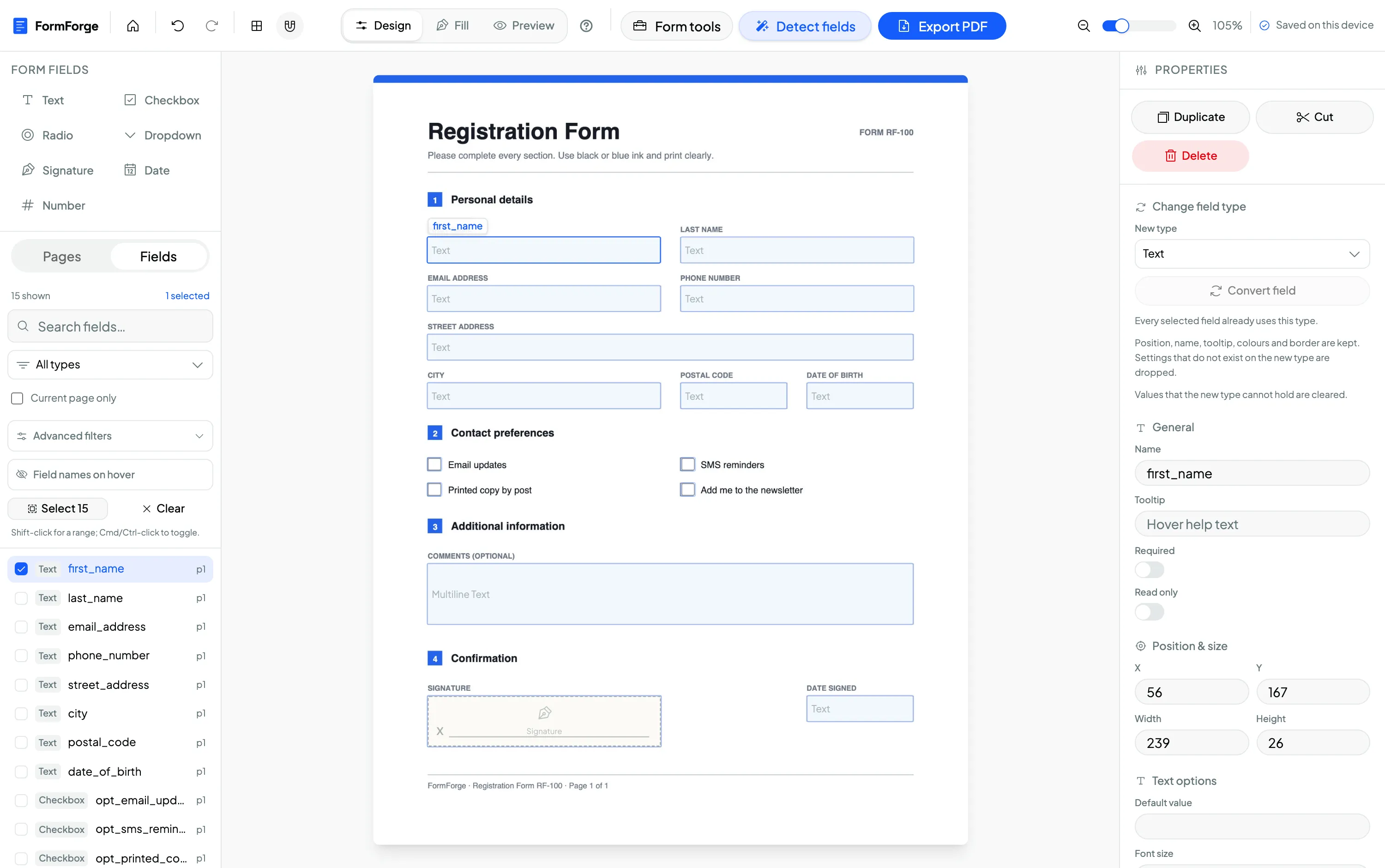
To add a checkbox to a PDF form for free, open your PDF in a browser-based editor, choose the Checkbox field, and draw it next to the option it represents. Repeat for each option and export — you’ll get a PDF with real, clickable checkboxes that work in Adobe Reader, macOS Preview and any browser, with no Acrobat and no account.
Checkboxes look simple, but there’s a right and a wrong way to use them — especially the difference between a checkbox and a radio group. This guide, part of the wider how to create a fillable PDF form series, covers both the how and the when.
Checkbox vs radio button — pick the right one
This is the single most common form-building mistake, so get it right up front:
- Checkbox — the recipient can tick any number of options, including none. Use it for “select all that apply”: interests, add-on services, a list of documents attached, or a single “I agree to the terms” box.
- Radio group — the options are mutually exclusive, so only one can be selected. Use it for “pick exactly one”: a satisfaction rating, a payment method, a yes/no where the two can’t both be true.
If you find yourself telling people “tick only one of these boxes,” you almost certainly want a radio group instead. FormForge supports both — along with text, dropdown, signature, date and number fields — so you can match each question to the right control.
Step 1 — Add your checkboxes
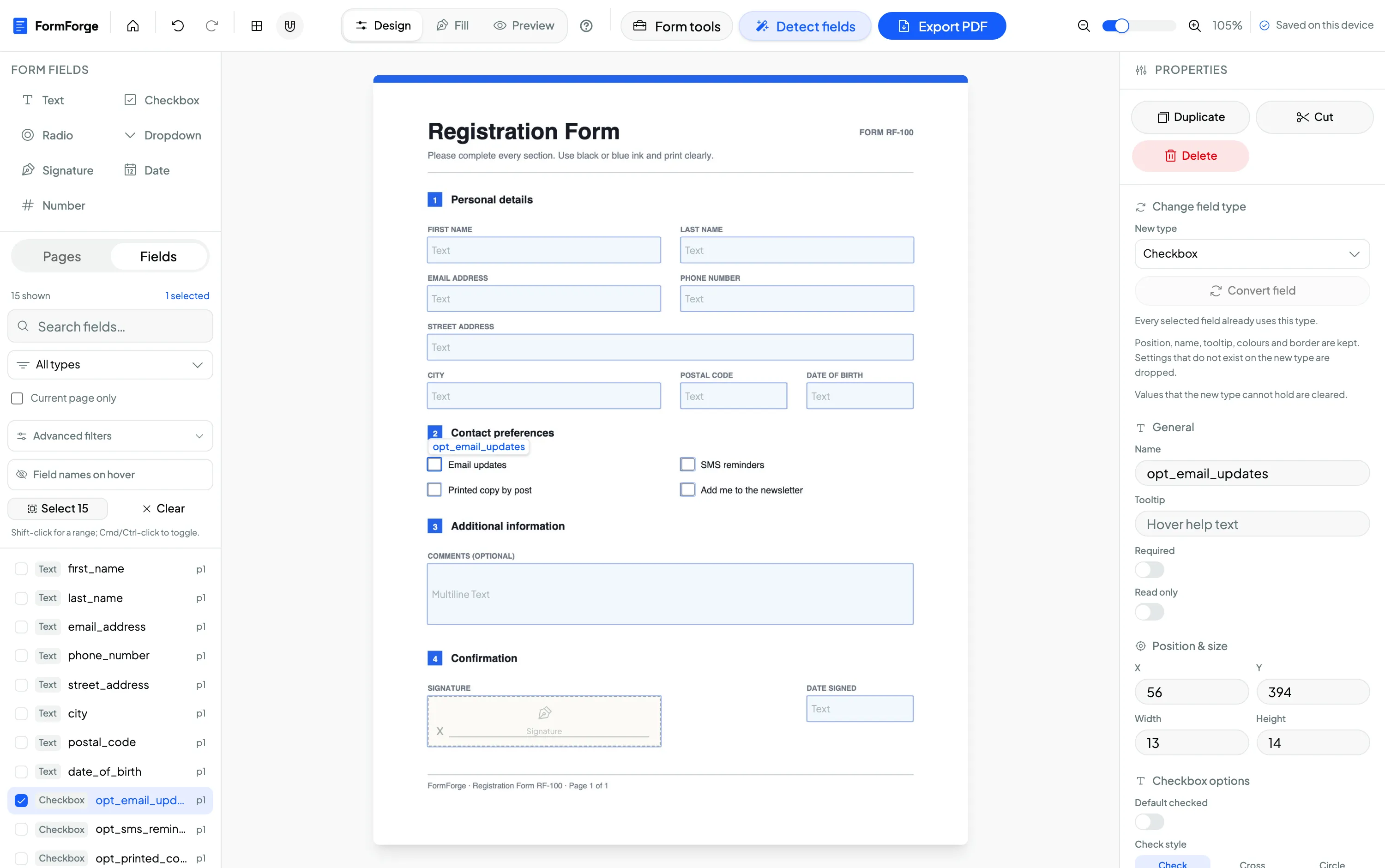
Open the editor, import your PDF, then select Checkbox from the Form Fields toolbar and draw a box beside each option. Keep them aligned and evenly spaced — the properties panel lets you type exact coordinates and sizes so a column of checkboxes lines up perfectly.
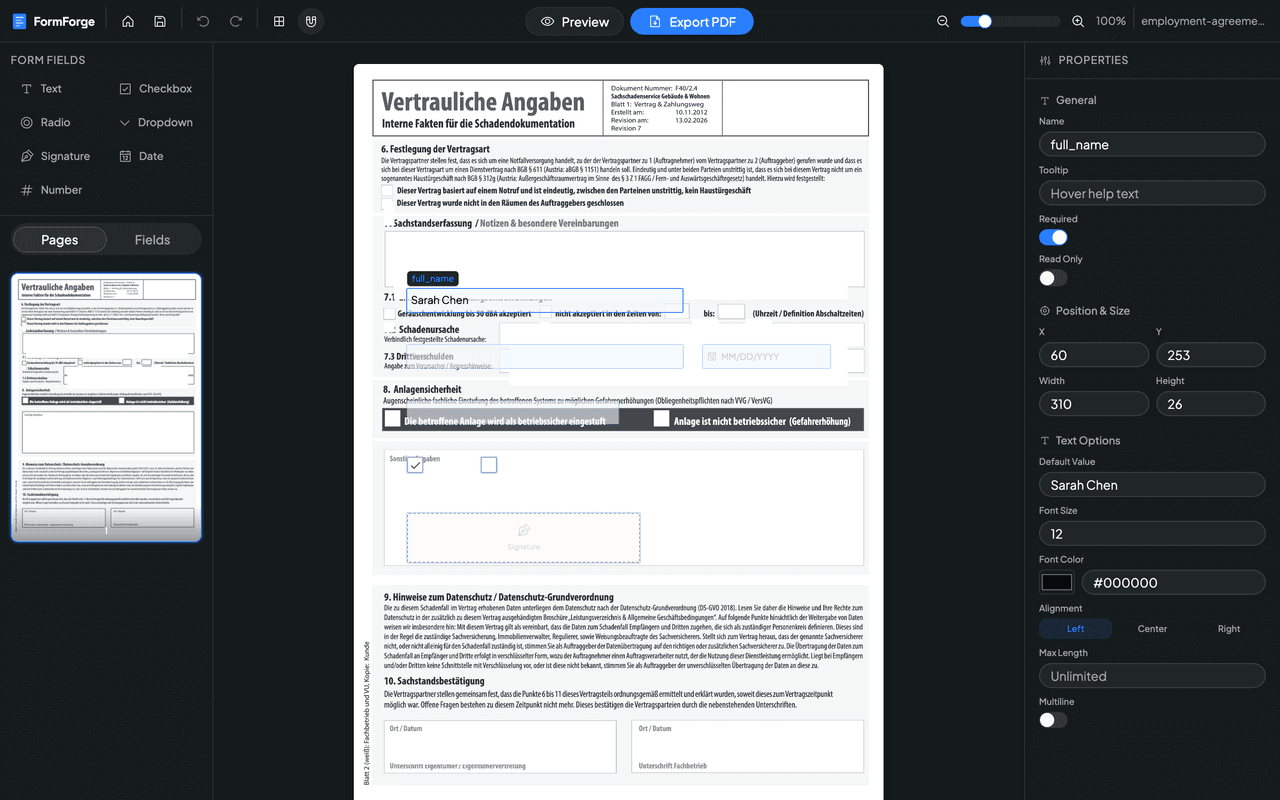
Give each checkbox a descriptive name that reflects the option, like consent_marketing or doc_passport, rather than checkbox3. Clear names make the exported form data far easier to read later — which matters most for software teams that process submitted PDFs.
Step 2 — Configure the check style and required state
Select a checkbox and open the Properties panel. Two settings matter most here:
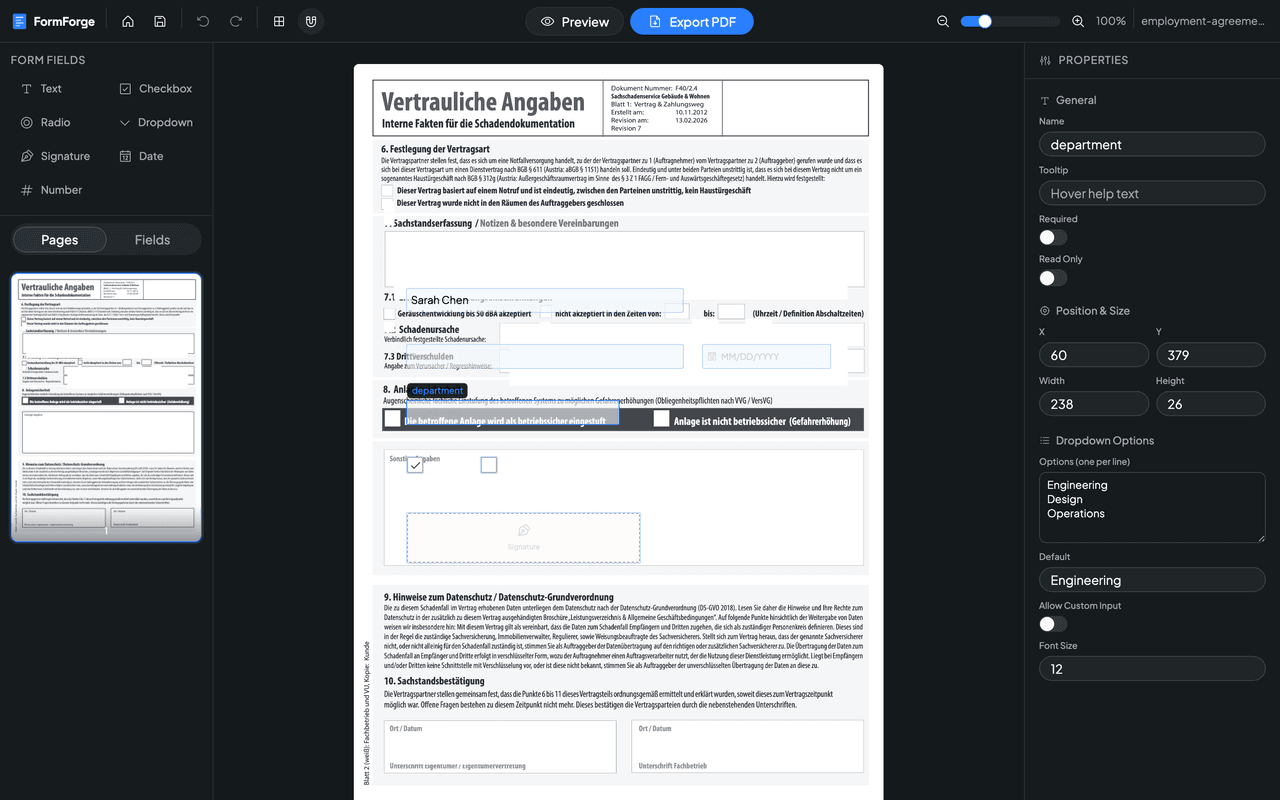
- Check style — choose whether the ticked state shows a check mark, a cross or a circle, so it matches the look of your form.
- Required — for a consent box like “I accept the terms,” toggle Required so the form isn’t complete until it’s ticked.
For a “tick all that apply” list, add several independent checkboxes and let the label do the explaining. For “choose exactly one,” switch to a radio group instead.
Step 3 — Preview and export
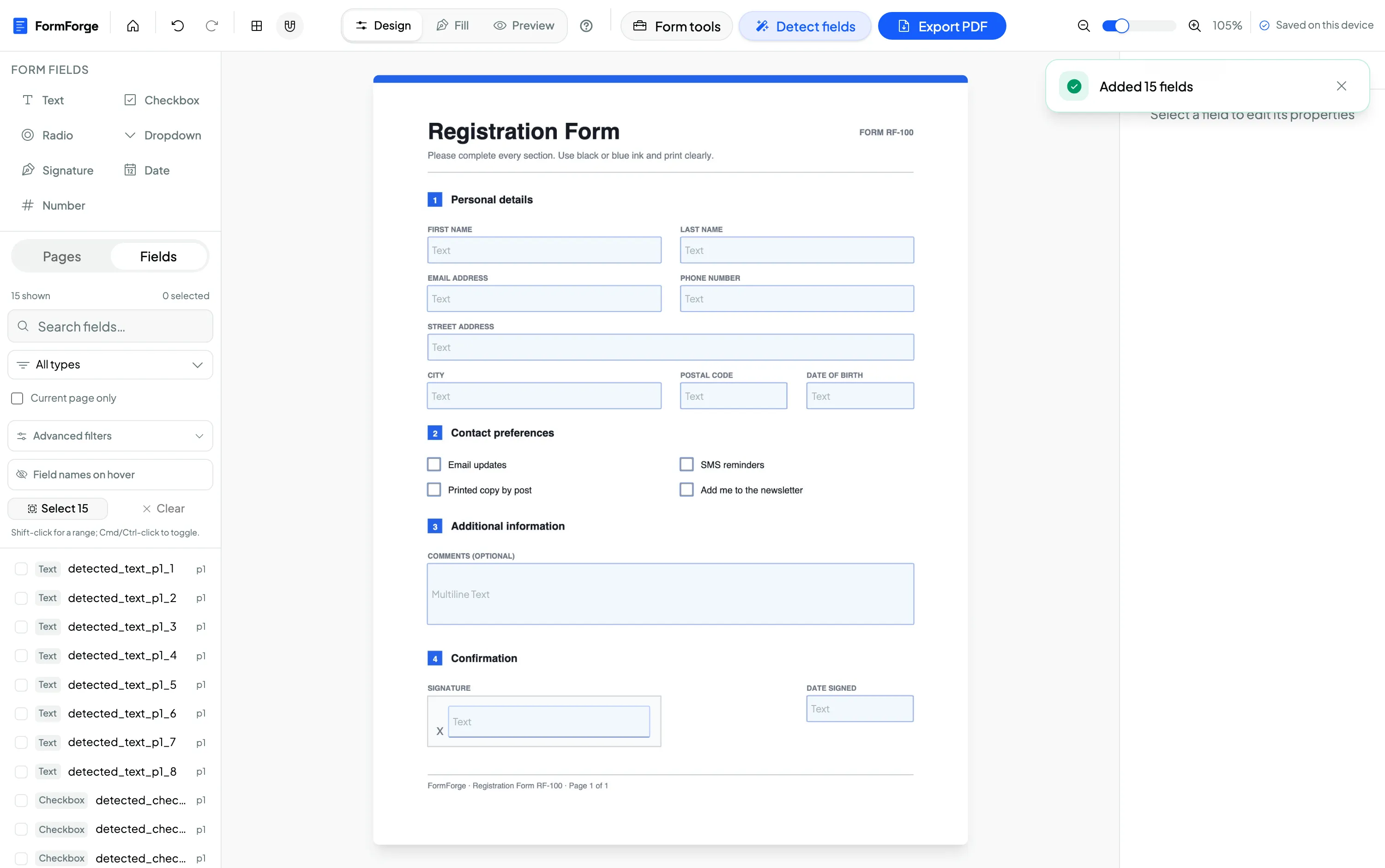
Switch to preview mode and click each checkbox to confirm it toggles cleanly and the check style looks right. Then click Export PDF. FormForge writes standard AcroForm checkbox fields into the document, so they work everywhere — Adobe Reader, Acrobat, Preview, Chrome, Firefox and most mobile viewers.
Checkboxes and consent boxes show up constantly in real-world forms: eligibility questions on a government application, document checklists in HR onboarding, and terms acceptance on small-business waivers and agreements.
Frequently asked questions
How do I add a checkbox to a PDF form for free?
Open your PDF in FormForge, select the Checkbox field from the toolbar, and draw it next to the option it represents. Repeat for each option, then export. The result is a PDF with real, clickable checkboxes that work in Adobe Reader, Preview and any browser — free, no account.
What’s the difference between a checkbox and a radio button?
Checkboxes let people select any number of options, including none — use them for “tick all that apply.” Radio buttons in a group are mutually exclusive, so only one can be selected — use them for “pick exactly one,” like a single rating or payment method.
How do I make a checkbox required?
Select the checkbox and toggle Required in the properties panel. Note that a single required checkbox typically means it must be ticked (useful for “I agree” boxes). For “choose at least one from a list,” use several checkboxes and make the meaning clear in the label.
Can I change how the check mark looks?
Yes. FormForge lets you choose the check style — a check mark, a cross or a circle — in the field’s properties, so the ticked state matches your form’s style.
Will the checkboxes work in Adobe Reader and on mobile?
Yes. FormForge exports standard AcroForm checkbox fields, which are supported by Adobe Reader, Acrobat, macOS Preview, Chrome, Firefox and most mobile PDF viewers.
Next steps
- How to create a fillable PDF form for free — the full pillar guide
- How to make a PDF fillable without Acrobat
- Add a signature field to a PDF
Or open the editor and add your checkboxes now.
Build your fillable PDF now — free
Import any PDF, drag on the fields you need, and export an Adobe-ready form. It runs entirely in your browser — no uploads, no account.
Try FormForge Free