How to Add a Signature Field to a PDF
Add a signature field to any PDF for free. This quick guide shows how to place a reusable signature box and export a signable PDF right inside your browser.
 Aleksandar Jovanovic 6 min read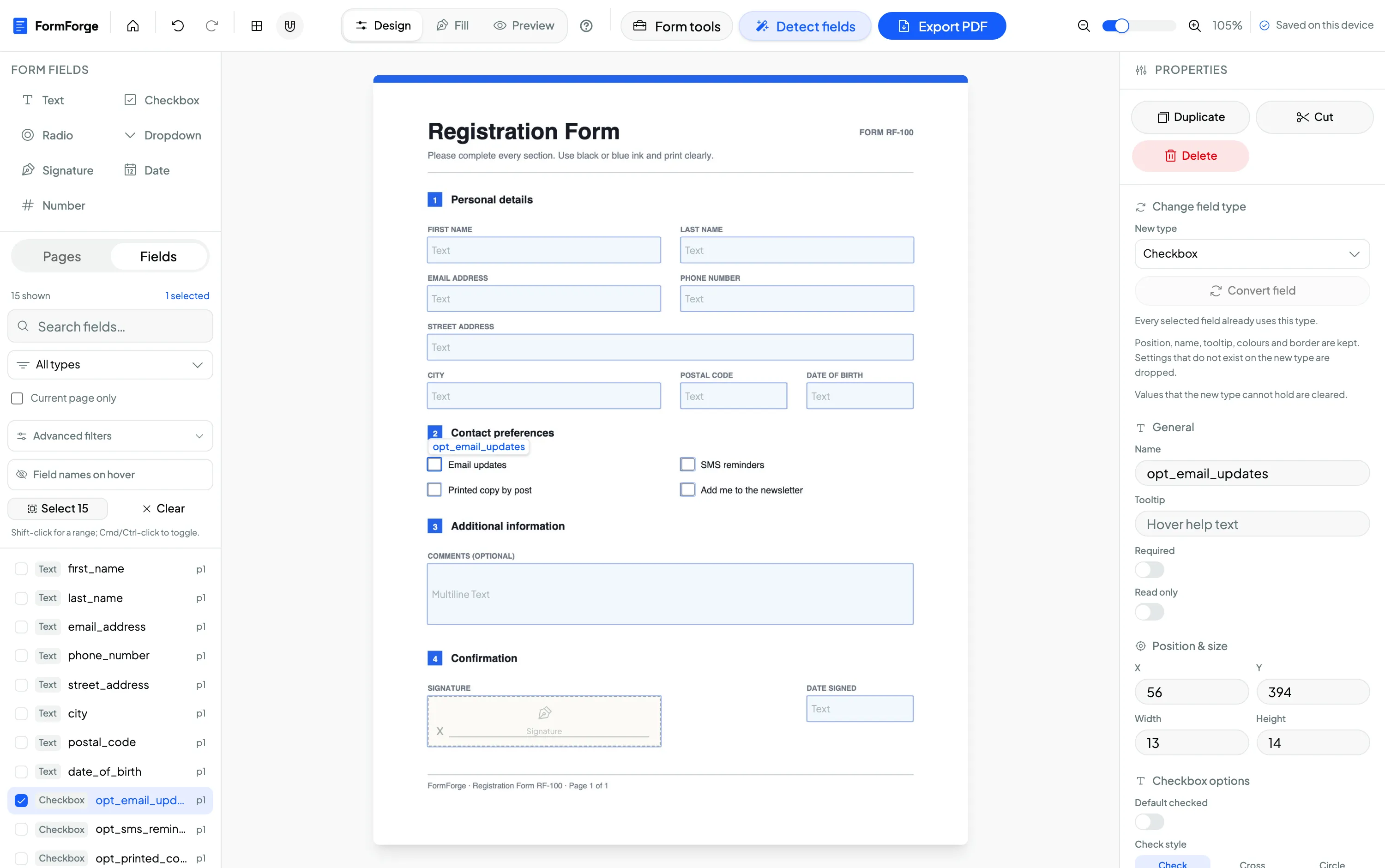
To add a signature field to a PDF for free, open the document in a browser-based editor, choose the Signature field type, and draw the signature box where it needs to go. When you export, the PDF contains a standard signature area that recipients can sign in Adobe Reader, macOS Preview or a browser — no Acrobat and no account required.
Before you start, there’s one distinction worth getting right, because it trips up a lot of people: a signature field is not the same thing as a digital certificate signature. This guide covers both — FormForge can add either, and they answer different questions. It builds on the full how to create a fillable PDF form walkthrough.
Signature field vs digital signature — the honest difference
These two terms get used interchangeably, but they’re very different things:
- A signature field is a designated area on the form — a box that says “sign here.” It’s part of the AcroForm layer, like a text box or checkbox. FormForge adds this. The recipient signs it by typing, drawing or applying their saved signature in their PDF reader.
- A digital (certificate-based) signature is a cryptographic seal over the whole file. It proves the document hasn’t been altered since signing and, depending on the certificate, ties it to a verified identity. Nothing is drawn on the page — it’s invisible, and the reader reports on it. FormForge can apply one at export; so can Adobe Reader/Acrobat with a digital ID, or a service like DocuSign or Adobe Sign.
FormForge does both, and they’re independent. Placing the signature field gets a document ready for someone to sign. Sealing is a separate, opt-in choice in the export dialog: it’s off by default, and when you switch it on FormForge embeds a standards-compliant detached PAdES signature (SubFilter ETSI.CAdES.detached, SHA-256 with RSA) that Adobe Acrobat, Apple Preview and other compliant readers verify. Change one byte afterwards and they report the file as modified.
You choose an identity at that point. Create a signing ID generates a self-signed certificate in your browser in about a second — recipients see “unchanged since signing”, but you show as not verified until they choose to trust your certificate, which you can export once and send them. Use my digital ID file imports a .p12 or .pfx from your employer or a certificate authority, and then your verified name shows too. Either way the private key is generated or unwrapped on your device and is never uploaded, and there’s no account — most online signing tools want your document and your key on their server.
What it still won’t do: a self-signed ID doesn’t earn Adobe’s automatic green trust check. That needs a certificate from an Adobe Approved Trust List authority, and those mandate hardware-protected keys. There’s no identity verification of the signer and no hosted audit trail either, so a workflow that needs countersigning, reminders and an evidence log remains e-signature-service territory.
Step 1 — Open your PDF and place the signature field
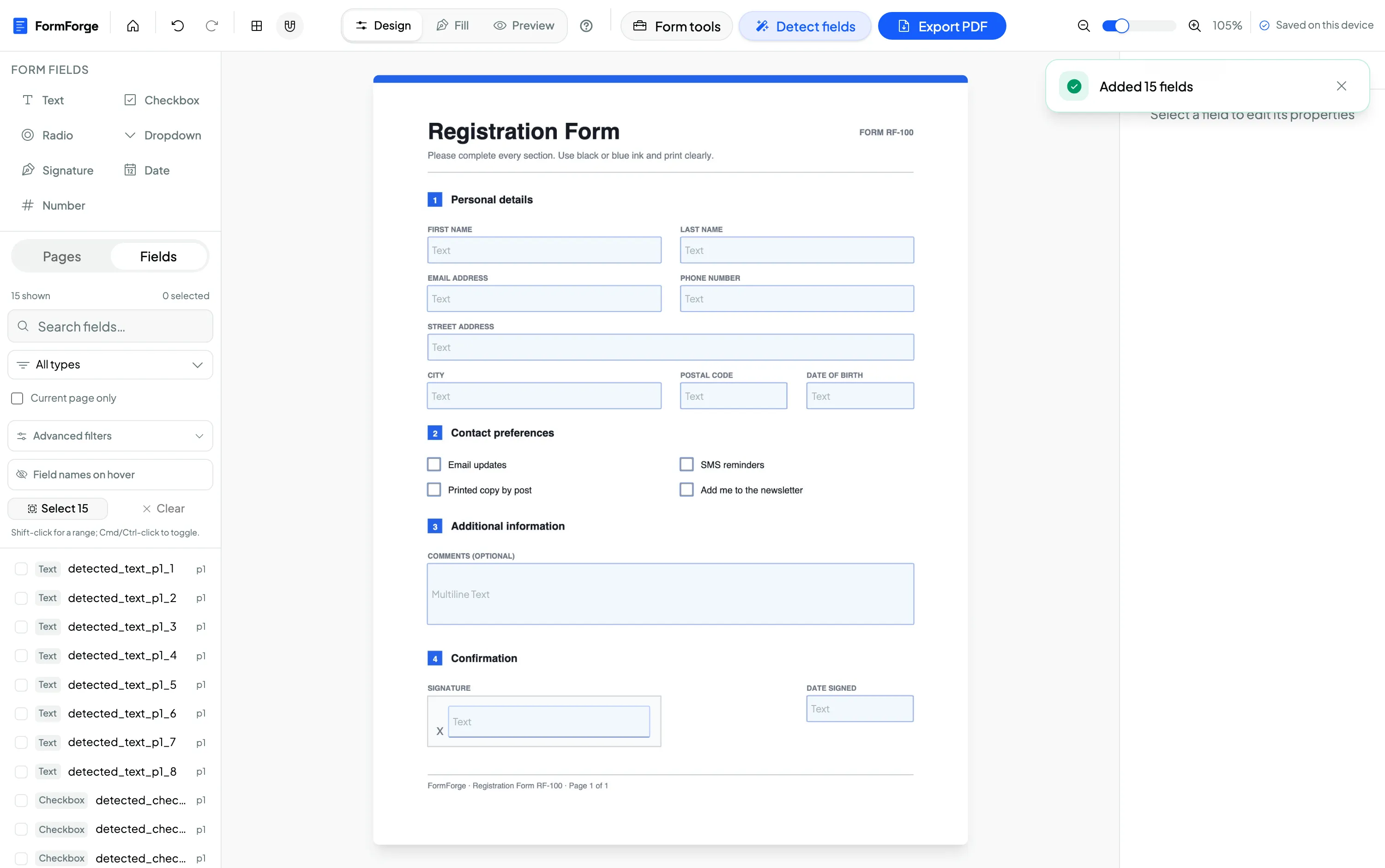
Open the editor and import your PDF by dragging it onto the canvas. Everything is processed locally in your browser, which is exactly why sensitive contracts and agreements are safe to prepare here — nothing is uploaded.
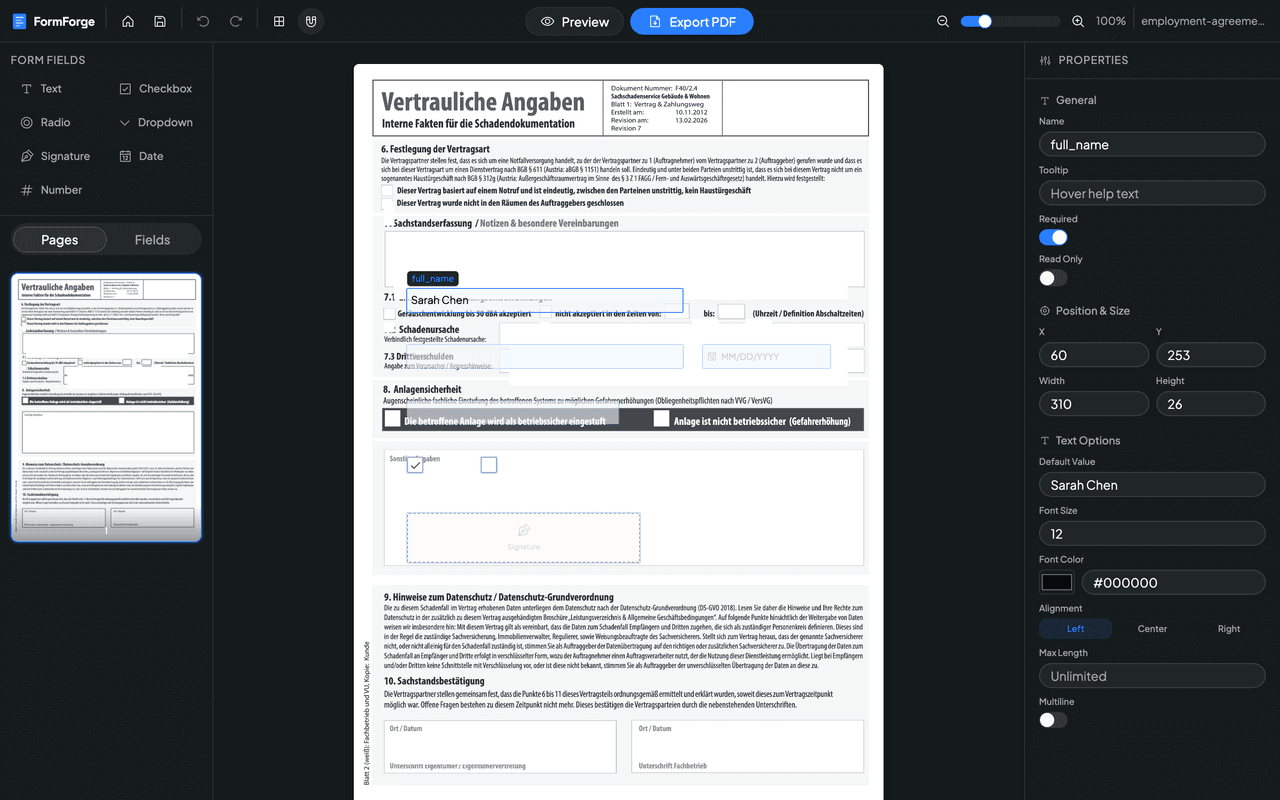
Select Signature from the Form Fields toolbar and draw a box where the signer should sign — usually above a printed signature line or next to a name.
Step 2 — Name and configure the field
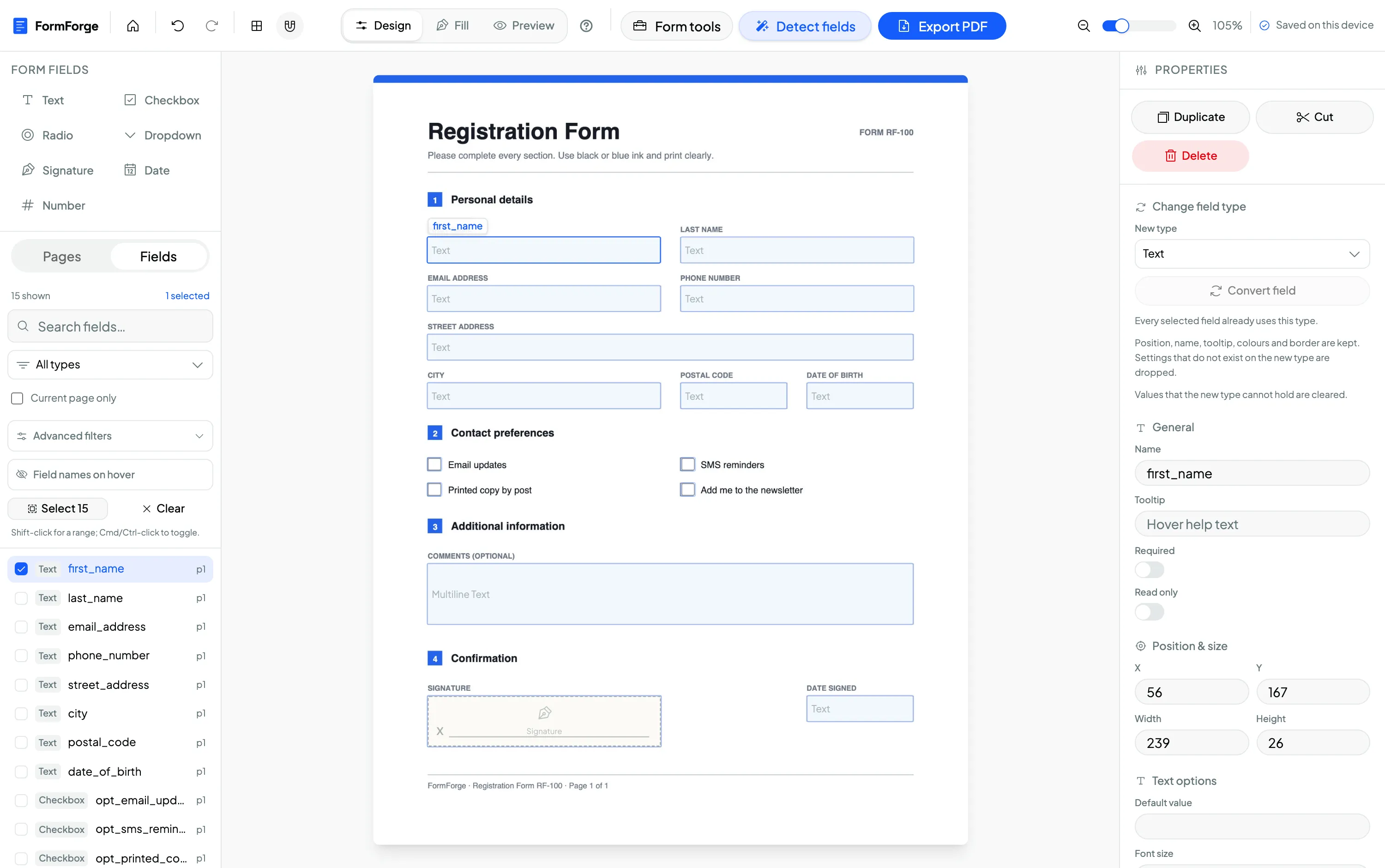
Select the signature field and open the Properties panel. Give it a descriptive name like signature_client or signature_witness — helpful when a document needs more than one signer. You can mark it required so the form can’t be considered complete without it, and position it precisely with the coordinate inputs or arrow-key nudging.
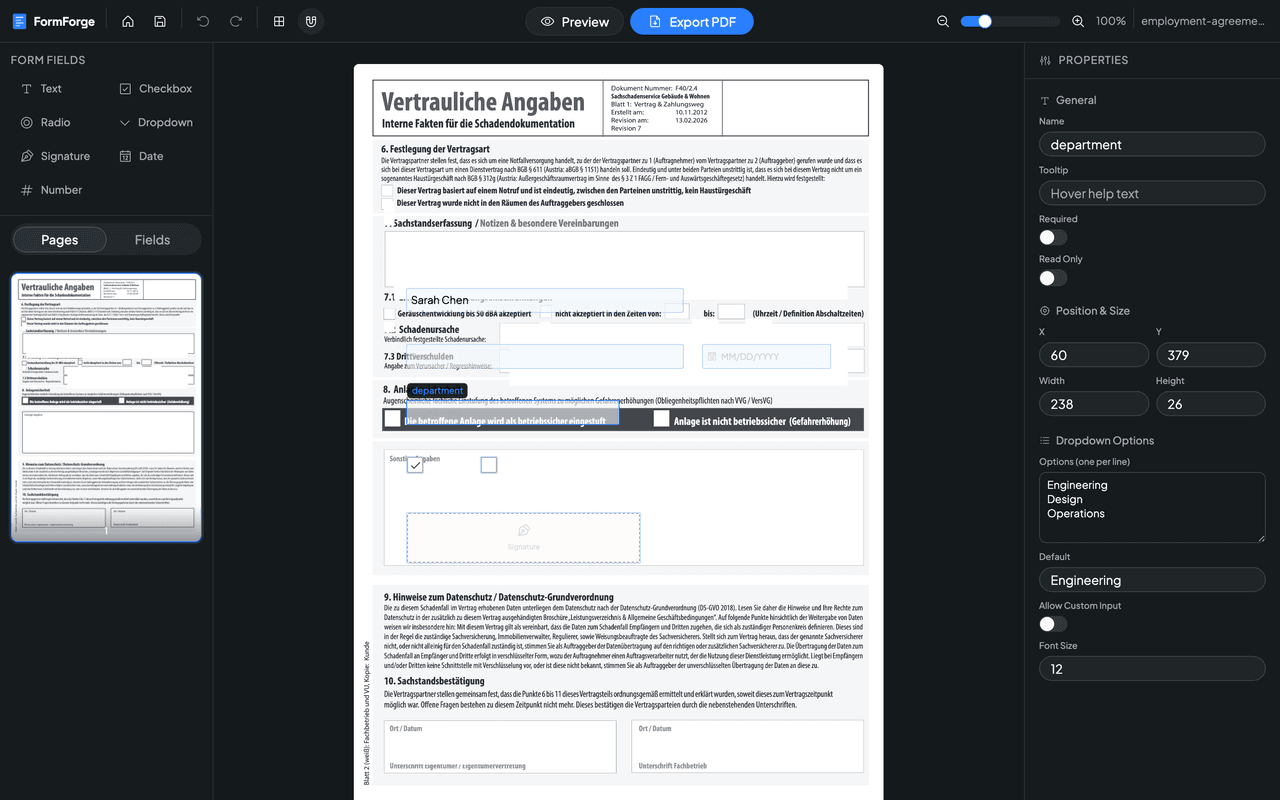
For a document with multiple parties — say a client and a witness — add one signature field per signer and pair each with a text field for the printed name and a date field for when they signed.
Step 3 — Export your signable PDF
Click Export PDF. FormForge writes the signature field into the document as a standard AcroForm field and downloads a signable PDF. The recipient opens it in Adobe Reader, Acrobat or Preview, adds their signature to the field, and saves — no special software on their end.
The export dialog is also where the optional digital seal lives. Leave it off for a form you’re sending out to be completed: a seal covers the file as it stands, so filling the fields afterwards changes the bytes and readers will flag it. Seal the finished, filled document instead.
Add a signature field now — free
Where signature fields are used most
A signature field turns a static document into something people can actually complete and return. It’s the finishing touch on:
- Legal documents — engagement letters, NDAs and intake forms. See how legal professionals build these privately in the browser.
- HR paperwork — offer letters, policy acknowledgements and onboarding sign-offs, covered on the HR use-case page.
- Small-business agreements — quotes, waivers and service contracts for freelancers and small businesses.
In each case, pairing the signature field with a date field and a printed-name text field produces a clean, professional block that leaves no ambiguity about who signed and when.
Frequently asked questions
How do I add a signature field to a PDF for free?
Open your PDF in FormForge, choose the Signature field from the toolbar, and draw the signature box where it belongs. Export the file and you get a PDF with a dedicated signature area that recipients can sign in Adobe Reader, Preview or a browser. It’s free and runs in your browser.
Is a signature field the same as a digital signature?
No, and FormForge does both. A signature field is a place on the form to sign — a designated box the recipient fills in. A digital signature is an invisible cryptographic seal that proves the file hasn’t been altered since it was signed. FormForge places the field, and can optionally seal a finished PDF at export time with a signing ID whose private key never leaves your device.
Can recipients sign the PDF without special software?
Yes. Because FormForge exports a standard AcroForm signature field, recipients can add their signature using Adobe Reader, Acrobat or macOS Preview — all free and widely installed.
Is a PDF signature legally binding?
A typed or drawn signature in a form field can be legally valid in many contexts, but requirements vary by country and document type. Sealing the export with a digital signature adds cryptographic proof that nothing changed after signing; to prove who signed as well, use a digital ID issued by your employer or a certificate authority rather than a self-signed one. For contracts that also need identity checks and a hosted audit trail, a service such as DocuSign or Adobe Sign still does more.
Are my documents uploaded when I add a signature field?
No. FormForge processes everything in your browser, so your PDF and any details on it never leave your device.
Next steps
- How to create a fillable PDF form for free — the full pillar guide
- How to make a PDF fillable without Acrobat
- Add checkboxes to a PDF form
Or open the editor and add your signature field now.
Build your fillable PDF now — free
Import any PDF, drag on the fields you need, and export an Adobe-ready form. It runs entirely in your browser — no uploads, no account.
Try FormForge Free