Detect PDF form fields automatically with AI
FormForge can look at a flat PDF and place the form fields for you: an AI model runs inside your own browser tab and marks the text boxes, checkboxes and signature areas the page expects you to fill in. It is free to use, and your PDF never leaves your browser — the model travels to the document, not the other way round.
Try field detection — free- Runs in your browser
- No upload
- One-time model download
- Undo in one keystroke
AI field detection at a glance
FormForge runs an FFDNet object-detection model over the pages you choose and turns what it finds into real AcroForm fields. The behaviour below is fixed, so you always know what you are getting.
- Models
- FFDNet-S (default) or FFDNet-L
- Runtime
- ONNX Runtime Web 1.23.0, WebAssembly
- Where it runs
- A Web Worker in your browser
- First-run download
- About 50 MB (S) or 114 MB (L)
- Field types found
- Text, checkbox, signature
- Scope
- Current page or all pages
- Confidence threshold
- 0.4, fixed
- Undo
- One Cmd/Ctrl+Z for the whole run
- Price
- Free
Detecting fields is not the same as importing them
FormForge has always read the fields out of a PDF that already contains a form: open the file and its existing AcroForm widgets appear in the editor, ready to edit. AI field detection solves the opposite problem — a flat PDF with no fields at all, where something first has to work out where the fields belong.
Importing an existing form
The PDF already carries AcroForm fields. FormForge reads them straight out of the file, including names, positions, colours and flags. No model, nothing to download.
AI field detection
The PDF is flat — a scan, an export, or a printed form that is only lines and boxes. The model looks at the rendered page and infers where fields should go.
How to detect the fields on a flat PDF
Four steps from a static page to editable form fields. Only the first run downloads anything; after that the model is cached and detection works offline.
- 1
Open the dialog
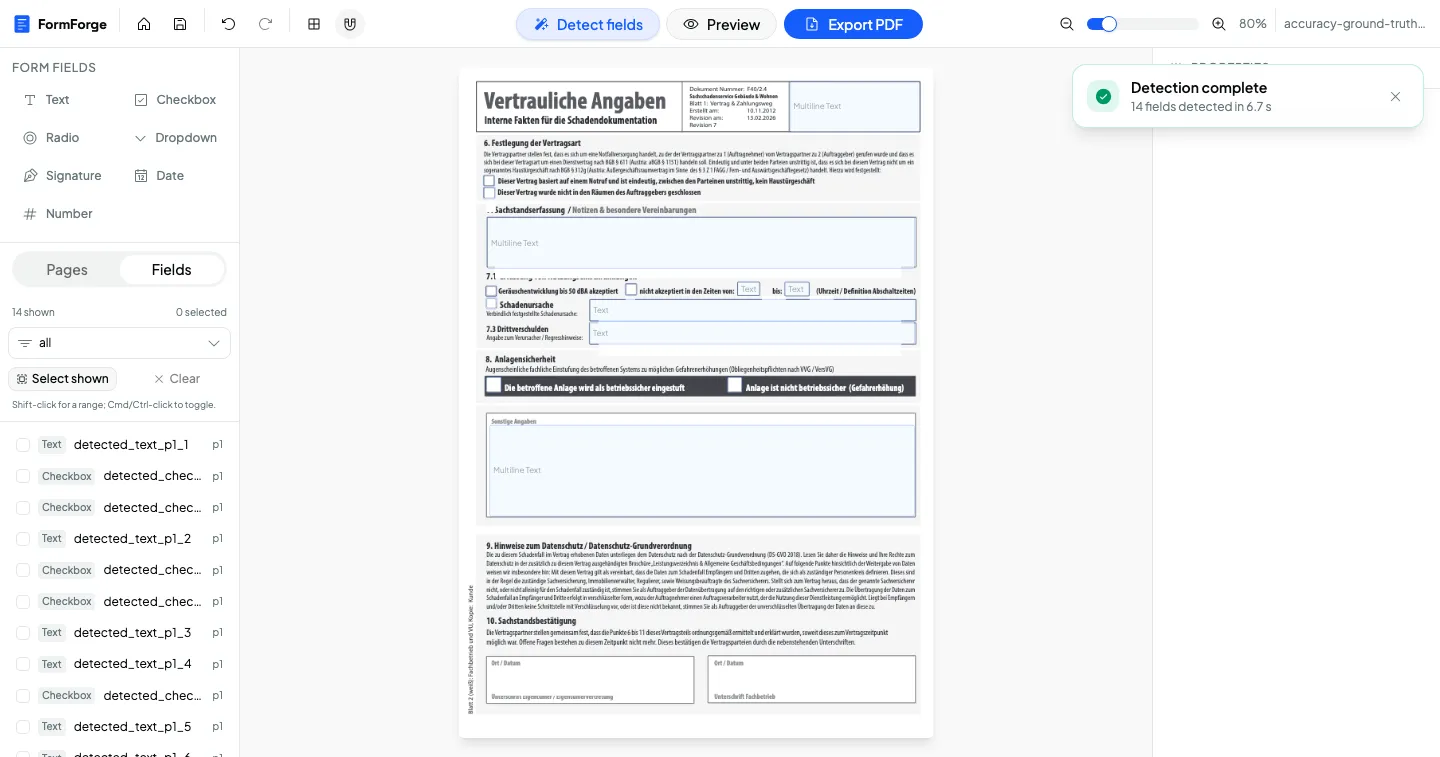
Load your PDF and click "Detect fields" in the toolbar. The "Detect form fields" dialog puts the model, the scope and the warning about existing fields on one screen.
- 2
Pick a model
FFDNet-S is the default: 6 million parameters and 38 MB of weights, and the faster of the two. FFDNet-L has 25 million parameters and 102 MB of weights and is the more accurate option for dense pages.
- 3
Choose the scope
Run detection on the current page or on all pages. It replaces the fields that already exist inside that scope, and the dialog shows you exactly how many that is before you confirm.
- 4
Review the result
Fields arrive with generated names such as detected_text_p1_1, a tab order that follows reading order, automatic font size and multiline switched on for tall boxes. One Cmd/Ctrl+Z removes the entire run.
Three classes of field, and what happens to each
The model detects exactly three things on a page. Knowing which three saves you a pass of guesswork afterwards.
Text boxes
Detected class
- Placed on the line, box or shaded area the model found
- Multiline switched on automatically when a box is tall enough for a paragraph
- Font size set to auto, so the text fits whatever the field ends up holding
- Named in reading order: detected_text_p1_1, detected_text_p1_2, and so on
Choice buttons
Detected class
- Every choice button becomes a checkbox
- Tick boxes beside statements, consent lines and yes/no pairs are the typical hit
- Turn a set into a radio group by hand afterwards when only one answer is allowed
Signature fields
Detected class
- Signature lines and signature blocks, usually at the foot of a page
- Added as FormForge signature fields, which export as text fields in the PDF
- Move, resize and rename them like any other field once they are on the page
Your PDF never leaves your browser
Most tools with "AI" on the box upload your document to a server and run the model there. FormForge does it the other way round: the page is rendered and analysed inside a Web Worker in your own browser tab, so the document itself is never transmitted. Only the model weights travel — and they come from FormForge's own origin, with same-origin enforced in code and by a Content-Security-Policy of connect-src 'self', so no third-party CDN is contacted while detection runs.
The document stays local
Rendering and inference both happen on your device. There is no upload step and no copy of your PDF on anyone else's server.
Weights from our own origin
The model files are served by FormForge itself rather than fetched from a third-party host at runtime, which the CSP enforces.
Cached for a year
The weights carry a one-year immutable cache header, so it is a one-time download per browser — and detection then works offline.
What AI field detection does not do
Detection is a fast first pass, not a finished form. These are the boundaries, stated plainly so you can plan around them instead of discovering them halfway through a document.
- It finds three classes only: text boxes, choice buttons and signature fields.
- Every choice button becomes a checkbox. Radio groups are not detected — build those by hand when a question allows a single answer.
- Dropdowns, date fields and number fields are not detected either. Add them yourself, or convert a detected text box afterwards.
- Running detection replaces the fields that already exist in the chosen scope. The dialog warns you and shows the exact count before you confirm.
- A single Cmd/Ctrl+Z undoes the entire run, including every field it created and every field it removed.
- The confidence threshold is fixed at 0.4. There is no slider and no per-class tuning.
- Inference runs single-threaded on the CPU through WebAssembly. It does not use your GPU, so a long document takes longer than a single page.
- The first run downloads about 50 MB for FFDNet-S or about 114 MB for FFDNet-L, because the 11.8 MB ONNX Runtime WebAssembly binary is always fetched alongside the weights.
- The FFDNet models are third-party work — jbarrow/FFDNet-S-cpu and FFDNet-L-cpu on Hugging Face, vendored at pinned revisions. FormForge did not train them.
Treat the result the way you would treat OCR: quick, useful and worth a look-over. Check the names and positions in the field list before you export.
Questions about AI field detection
Can FormForge detect PDF form fields automatically?
Is my PDF uploaded when I use AI field detection?
How big is the model download?
Which field types does the detection find?
Does it detect radio buttons, dropdowns, dates or numbers?
What happens to the fields I already placed?
Should I use FFDNet-S or FFDNet-L?
Does AI field detection cost anything?
What to do with the fields it finds
Detection is step one. These pages cover the clean-up, the teams that need it most, and the full workflow.
Batch editing
Fix tooltips, borders, sizes and flags across every detected field in one move.
Government & Administration
Turn scanned public forms into fillable PDFs without a vendor ever touching the file.
Legal Professionals
Intake forms and engagement letters, made fillable entirely on your own machine.
How to create a fillable PDF form for free
The step-by-step guide to placing fields and exporting an Adobe-ready form.
Point it at a flat PDF and see what it finds
Detection runs in your browser, warns you before it replaces anything, and undoes in one keystroke. Free to use, no account needed.
Open FormForge — free