Edit multiple PDF form fields at once
Select more than one field and FormForge switches its properties panel into batch mode, so a tooltip, a required flag, a border colour or a size applies to the entire selection in one move. Every batch change is a single undo step, and the whole editor is free and runs in your browser.
Try batch editing — free- Any mix of field types
- One undo step per change
- Mixed values stay mixed
- No account
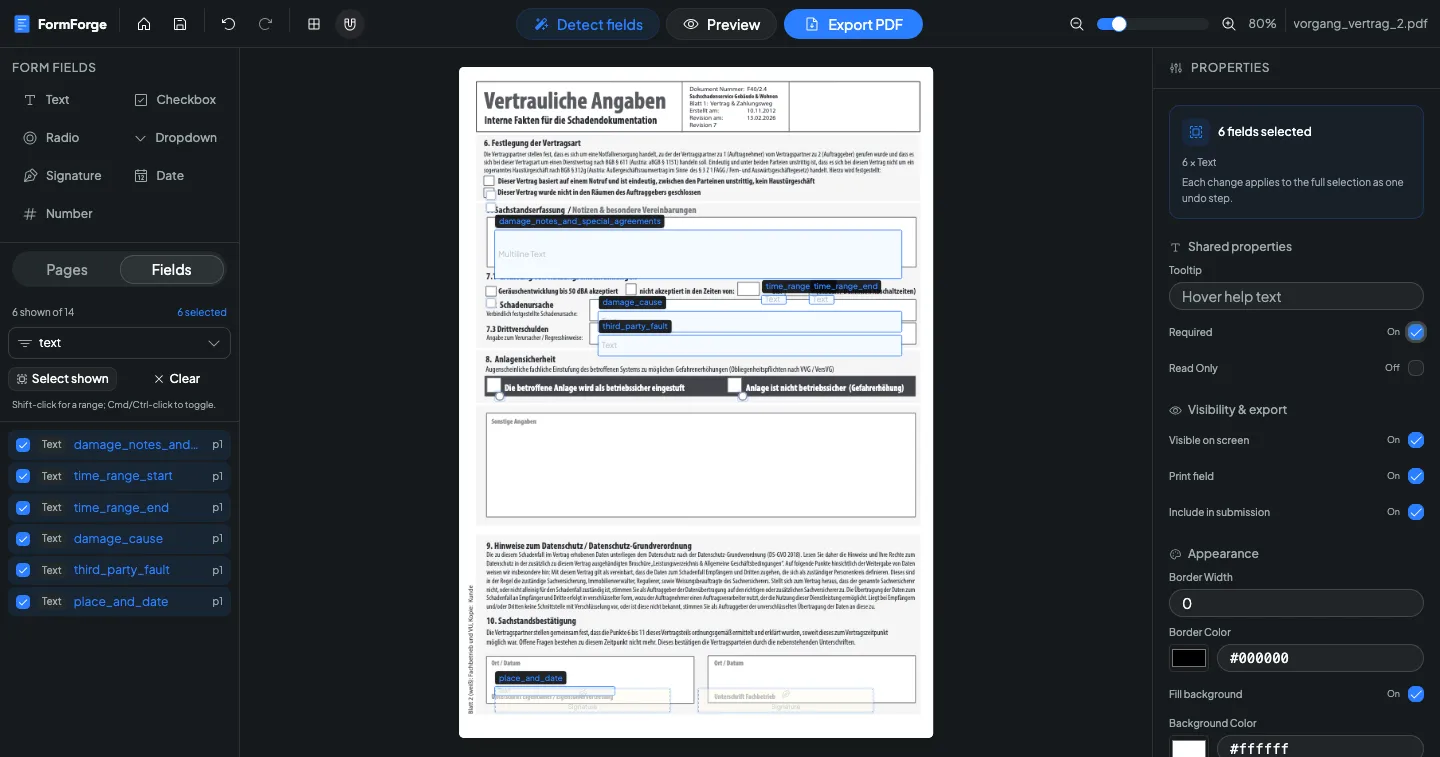
Batch editing at a glance
The properties panel changes the moment a second field joins the selection. This is exactly what that mode gives you.
- Batch mode starts at
- More than one field selected
- Panel header
- Count plus type breakdown
- Shared properties
- 12, on any mix of types
- Type-specific sets
- Text, number, date, dropdown, checkbox, radio
- Undo
- One step per change
- Mixed values
- Shown as Mixed; Escape reverts
- Select all fields
- Cmd/Ctrl+A
- Nudge
- 1 pt, or 10 pt with Shift
- Price
- Free
From a selection to a bulk change
Four steps. Nothing is written until you leave the input, and nothing costs more than a single undo to take back.
- 1
Select on the canvas
Drag a marquee across the page: it takes every field the box touches and keeps going across page boundaries. Hold Shift, Cmd or Ctrl to add to a selection, or press Cmd/Ctrl+A to take the whole document.
- 2
Or work from the field list
The field list filters by type and counts "shown" and "selected" live. Select shown takes the current filter in one click, shift-click picks a range, Cmd/Ctrl-click toggles a single row, and Clear starts over.
- 3
Read the header
The properties panel tells you how many fields are selected and what they are — for example 3 × Text · 2 × Checkbox — so you always know whether you are about to change a clean set or a mixed one.
- 4
Change a property
Edit any shared property and it lands on every selected field as one undo step. Text inputs commit when you leave them or press Enter, and Escape puts the old values back before anything is written.
Twelve shared properties, plus a set for each field type
Some properties make sense for anything on the page. The rest appear only when your whole selection is a single type.
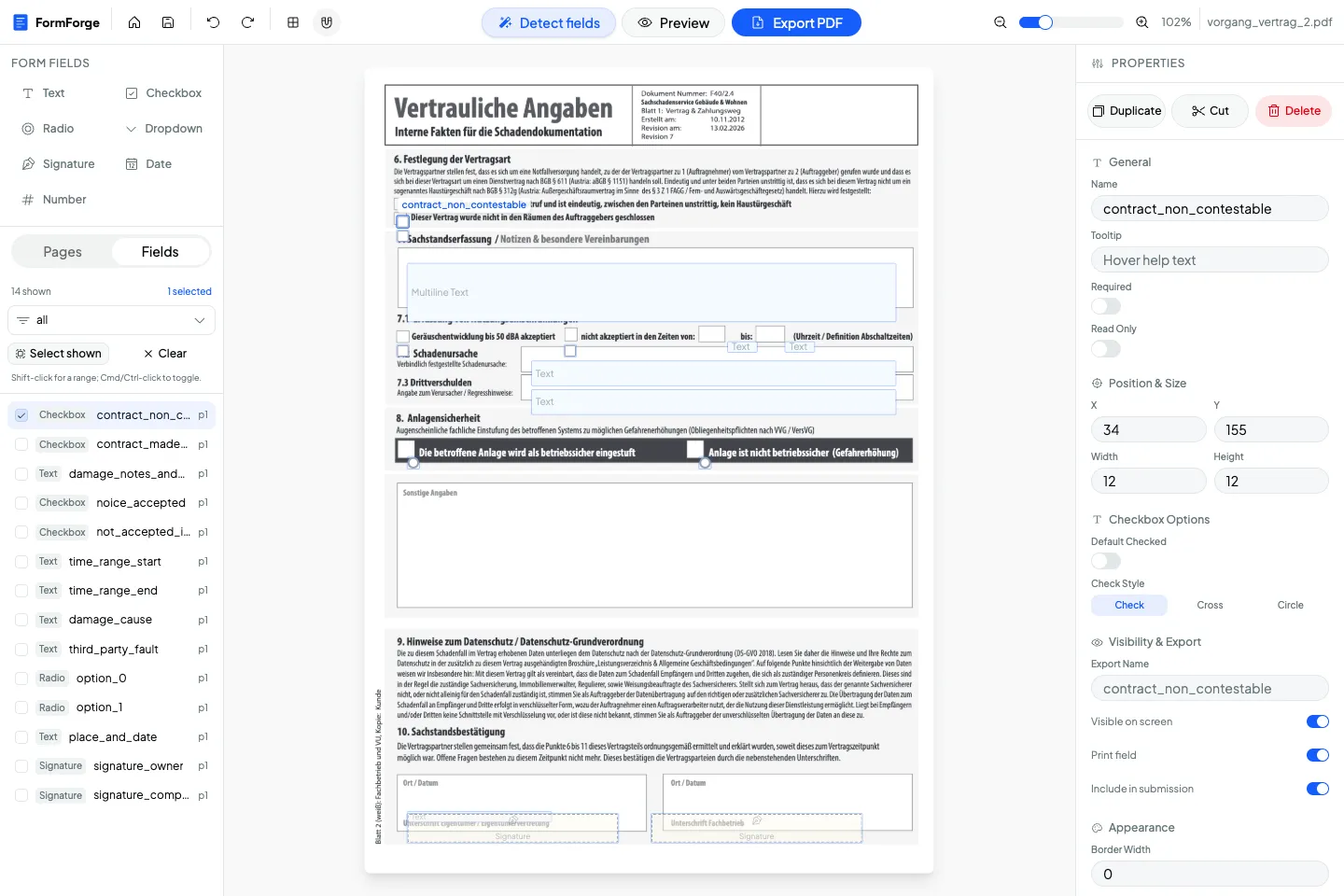
Any mix of types
Always available
- Tooltip
- Required
- Read only
- Visible on screen
- Print field
- Include in submission
- Border width and border colour
- Fill background and background colour
- Width and height
Text fields
Uniform selection
- Default value and maximum length
- Font size, font colour and alignment
- Multiline and scroll long text
- Password and spell check
- Comb characters
Number fields
Uniform selection
- Default value
- Minimum and maximum
- Decimal places
- Font size and alignment
Date fields
Uniform selection
- Date format
- Default value
- Font size
Dropdowns
Uniform selection
- Default value and font size
- Allow custom input
- Sort options
- Spell check
- Commit the value immediately on select
Checkboxes and radios
Uniform selection
- Checkbox: default checked
- Checkbox: check style
- Radio: group name
Forty fields changed, nothing uploaded
Batch editing is an editor feature, and the FormForge editor runs entirely in your browser. Selecting, editing and exporting all happen on your own device, so whatever those forms are about — salaries, case numbers, patient details — the document is never sent anywhere to be processed. The clipboard is local too: copied fields are tagged JSON held by your own browser, which is why they can be pasted into another tab or another document without a round trip through a server.
Local processing
The PDF is parsed, edited and exported inside the browser tab. There is no upload step for the file itself.
No account, no sync
Your work autosaves to that browser's local storage on that device, not to a cloud profile you have to sign in to.
Clipboard stays on device
Copying fields between tabs and documents uses your own browser clipboard, not a shared server-side buffer.
What batch editing will not change
Four properties stay per-field on purpose, and a few tools people expect from a design app are simply not there. Better to know before you plan a clean-up pass.
- Field name is never batch-editable — every field needs its own name, so renaming stays a one-at-a-time job.
- Export name is per-field for the same reason.
- The option list of a dropdown cannot be edited across a selection.
- X and Y position are not batch properties. Move a selection by dragging it, or nudge it with the arrow keys: 1 pt per press, 10 pt with Shift.
- There is no align or distribute tool, no bulk rename and no tab-order editor.
- You cannot resize a multi-field selection by dragging a handle. Set width and height numerically in the panel instead.
- Number minimum and maximum, and the date format, are editor-side settings. They are not written into the exported PDF as validation rules.
- Type-specific properties disappear as soon as the selection holds two different field types. Filter the field list by type to get a clean set back.
A stray keystroke cannot overwrite a selection: text inputs commit on blur or Enter, checkboxes are tri-state with an explicit Mixed state, and Escape reverts the edit before it is applied.
Questions about batch editing
Can I edit multiple PDF form fields at once?
How do I select more than one field?
What happens when the selected fields have different values?
Is a batch change a single undo step?
Which properties cannot be changed in bulk?
Can I copy fields from one PDF to another?
Does batch editing work on a mix of field types?
Does batch editing cost anything?
Where batch editing pays off
The feature that creates a lot of fields at once, the teams that clean them up, and the full workflow.
AI field detection
Let a model place the fields on a flat PDF, then tidy the whole batch in one go.
Developers & QA
Prototype AcroForm layouts and set flags across a whole field set at once.
HR & Recruiting
Mark a long onboarding pack required, tooltip and all, without clicking through it.
How to create a fillable PDF form for free
The step-by-step guide to placing fields and exporting an Adobe-ready form.
Stop editing forty fields one at a time
Select them, change the property once, and move on. It runs in your browser, costs nothing and undoes in one keystroke.
Open FormForge — free