How to Create a Fillable PDF From Word
Convert a Word document into a fillable PDF for free. Export from Word, then add text fields, checkboxes and signatures in your browser — no Acrobat needed.
 Aleksandar Jovanovic 4 min read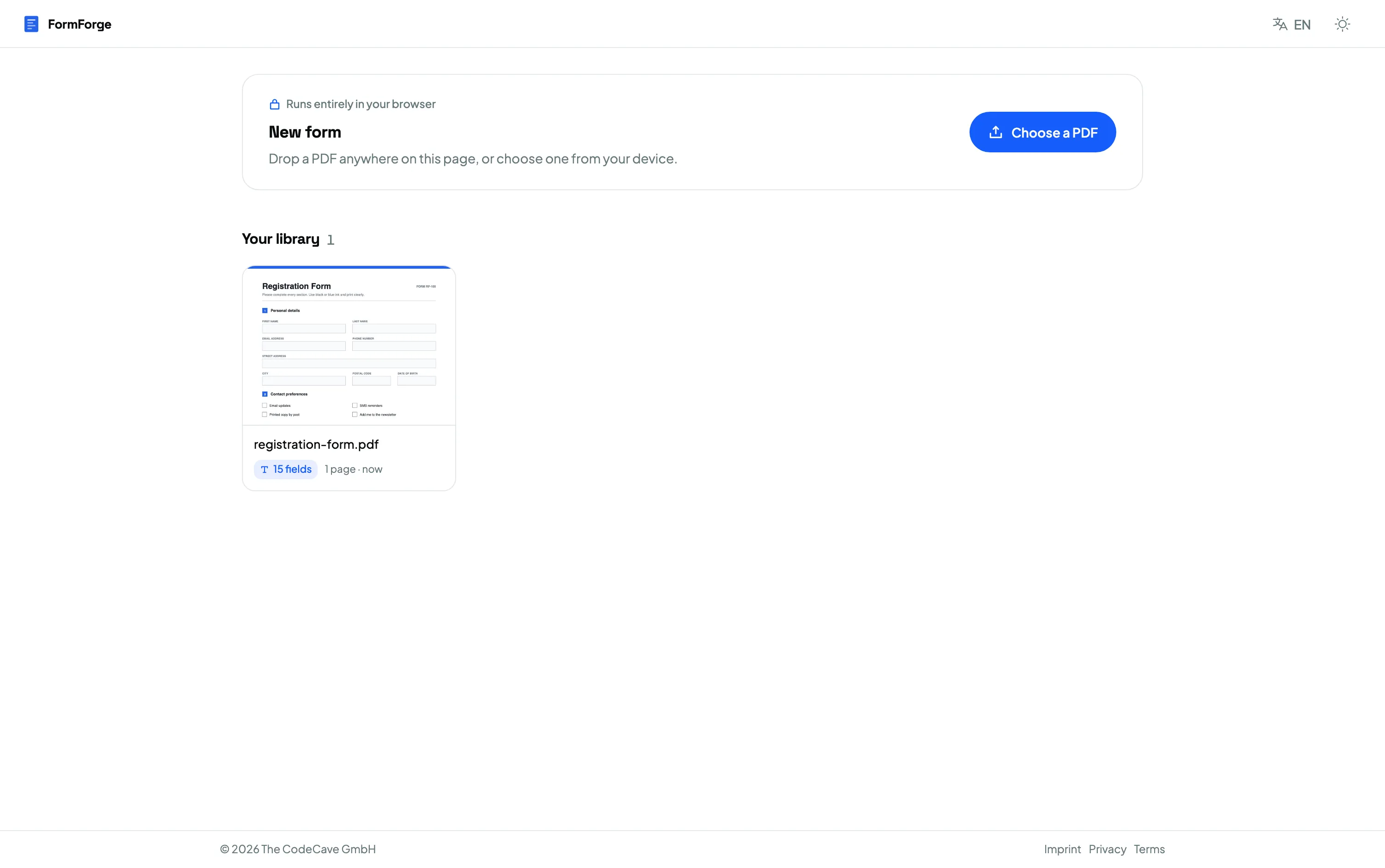
To create a fillable PDF from a Word document, design the layout in Word, export it to PDF (File → Save As → PDF), then import that PDF into a browser-based form editor and draw the fillable fields on top. You’ll finish with a standard fillable PDF that opens in Adobe Reader, macOS Preview and any browser — free, with no Acrobat and no account.
Word is great for laying out a document but surprisingly poor at producing a genuinely fillable PDF on its own. This guide explains why, and walks through the reliable two-step route. It’s a companion to the full how to create a fillable PDF form guide.
Why Word alone doesn’t produce a fillable PDF
Word does have form features — “content controls” and older legacy form fields. The problem is that they’re Word’s form controls, not PDF form fields. When you export to PDF, those controls generally don’t survive as standard AcroForm fields: you get a flat document that looks like a form but has nothing to type into.
That’s why the dependable approach separates the two jobs:
- Word handles the layout — text, tables, branding, spacing.
- A PDF form editor adds the interactive fields — the part that makes it fillable.
Trying to force Word to output real PDF form fields leads to inconsistent results across versions and platforms. Exporting a clean flat PDF and adding fields afterwards works every time.
Step 1 — Prepare and export from Word
In Word, lay out the document as you want it to look, and leave room for inputs: blank lines, empty table cells, or a short run of underscores where each answer goes. Keep labels close to their fields (“Full name:”, “Date:”, “Signature:”). This makes the next step fast and tidy.
Then export to PDF:
- Windows: File → Save As → choose PDF as the file type.
- Mac: File → Save As → File Format: PDF, or File → Print → Save as PDF.
You now have a flat PDF — a faithful picture of your layout with no interactive fields yet.
Step 2 — Import the PDF and add fields
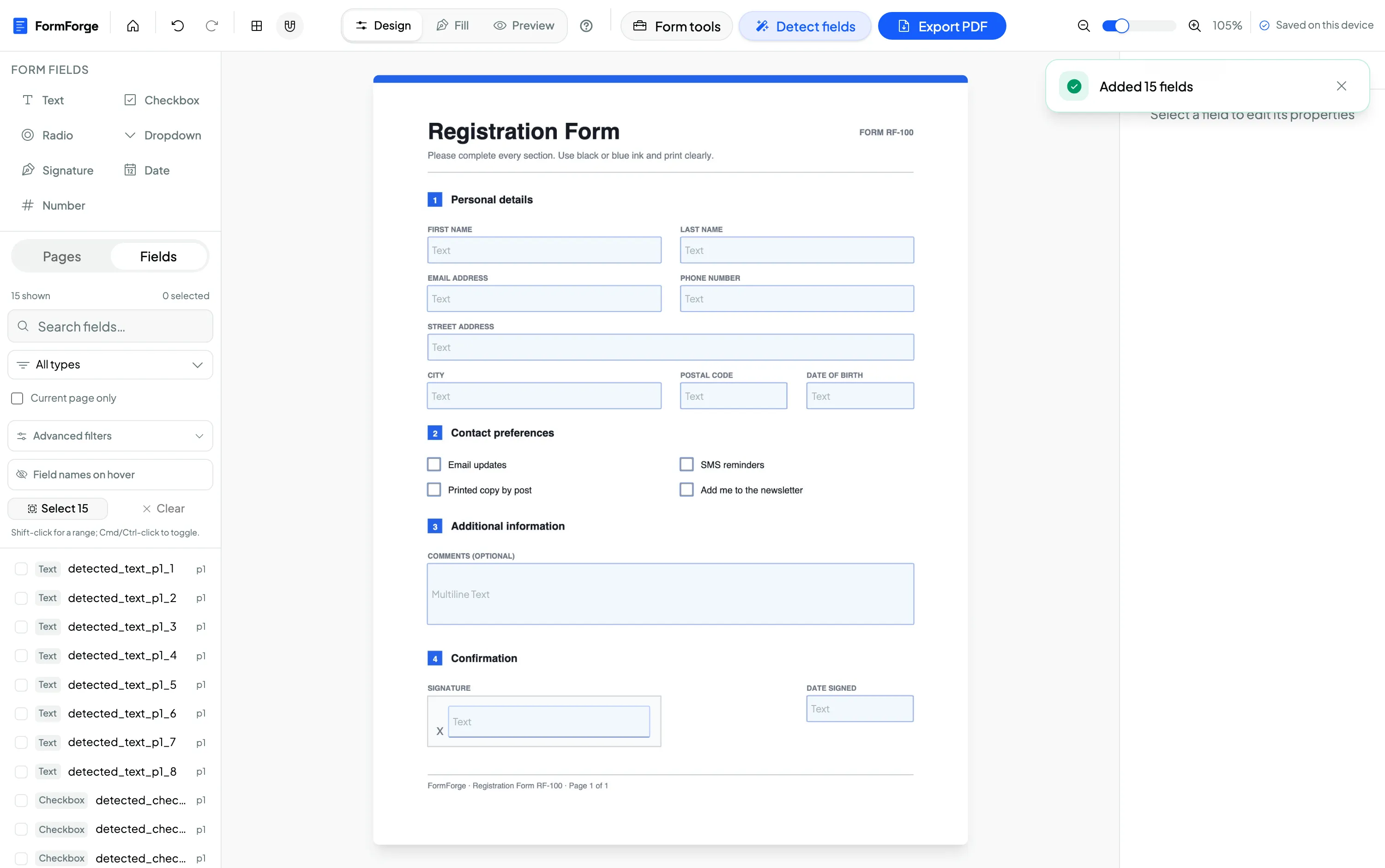
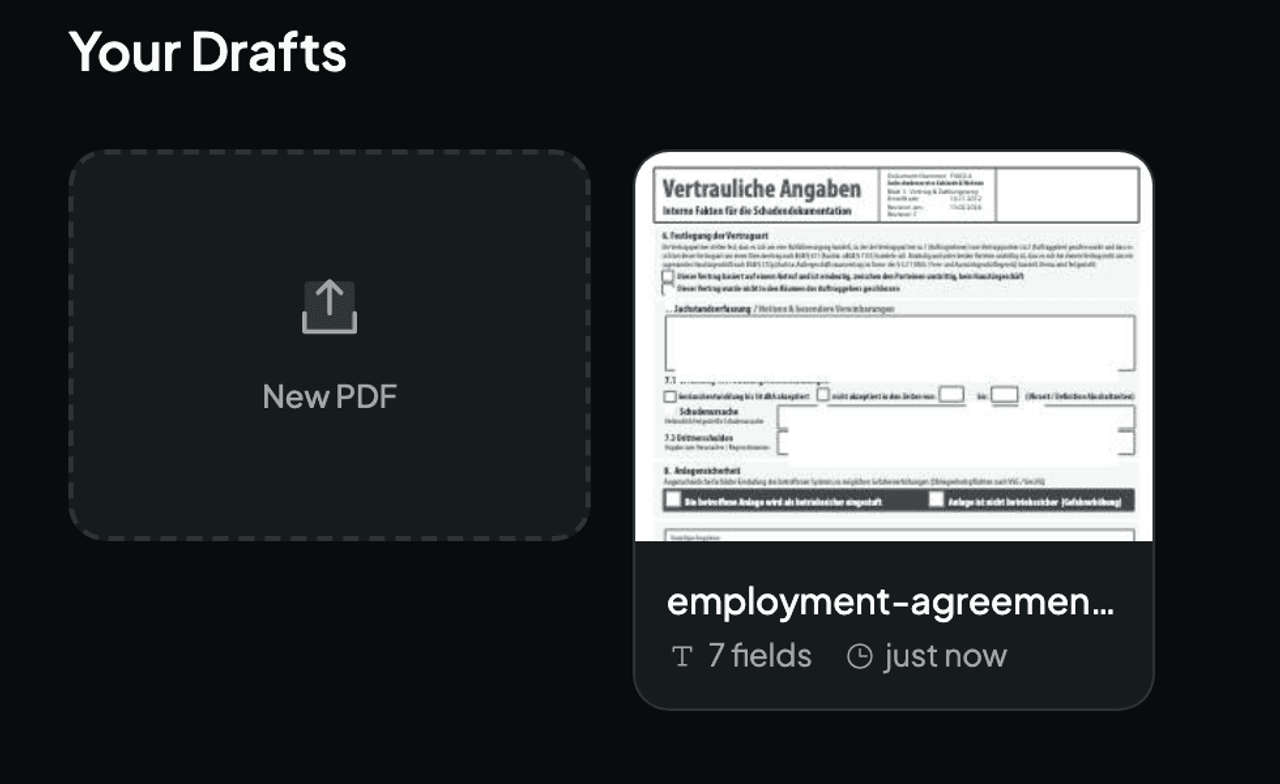
Open the editor and drag your exported PDF onto the canvas. It’s parsed locally in your browser — nothing is uploaded.
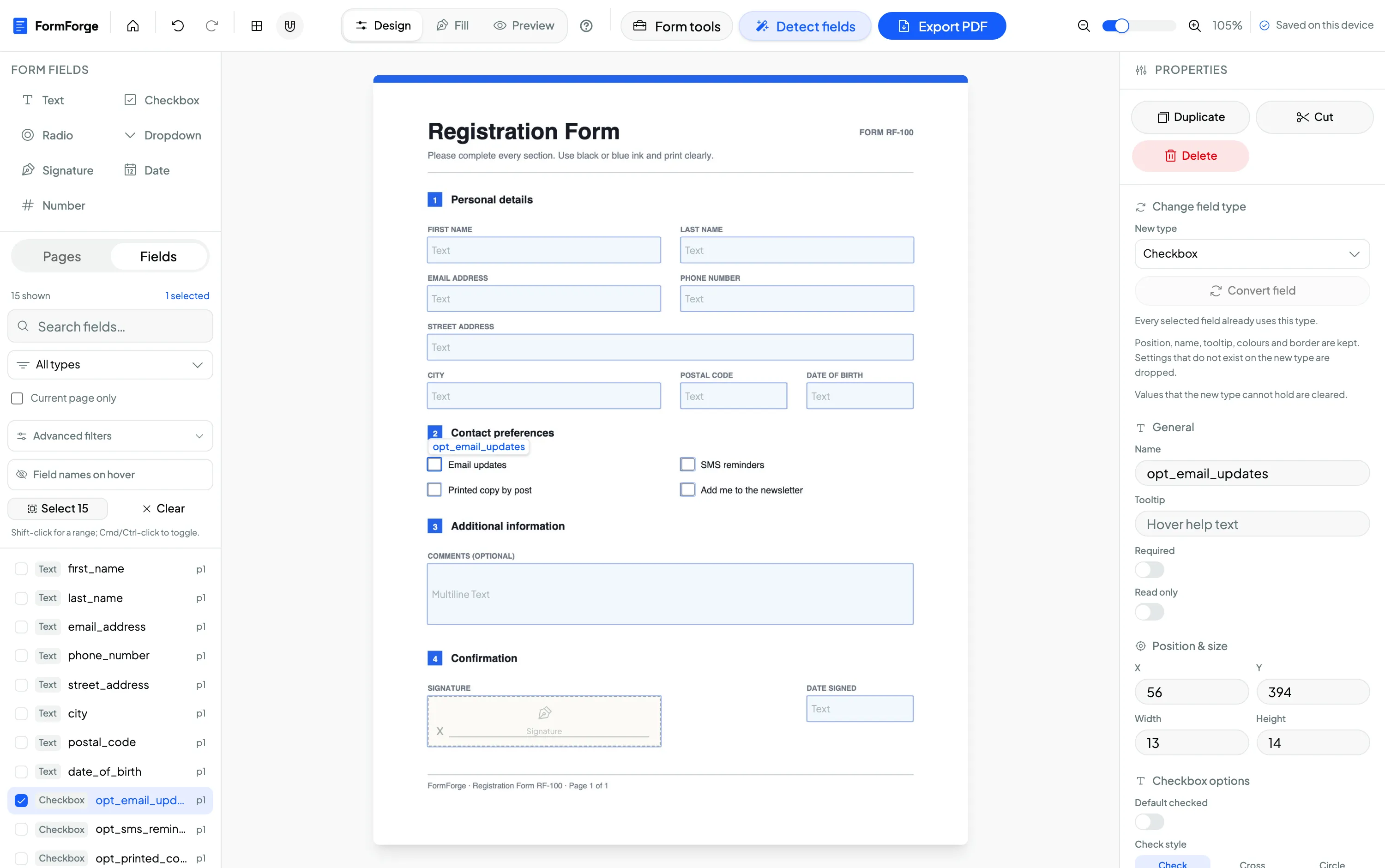
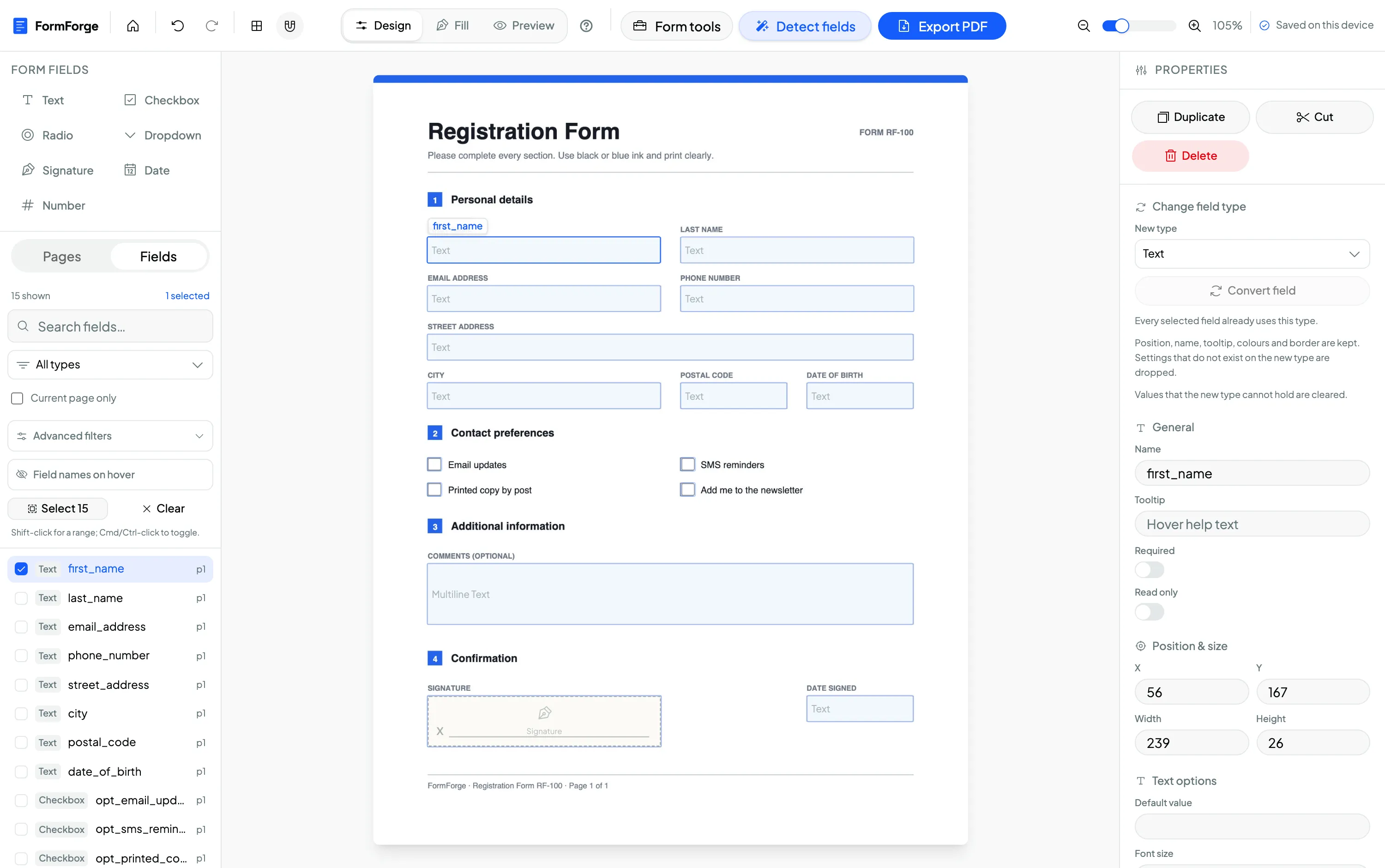
Now drop fields onto the spaces you left in Word. Pick from text, checkbox, radio, dropdown, signature, date and number in the toolbar and draw each one where it belongs.
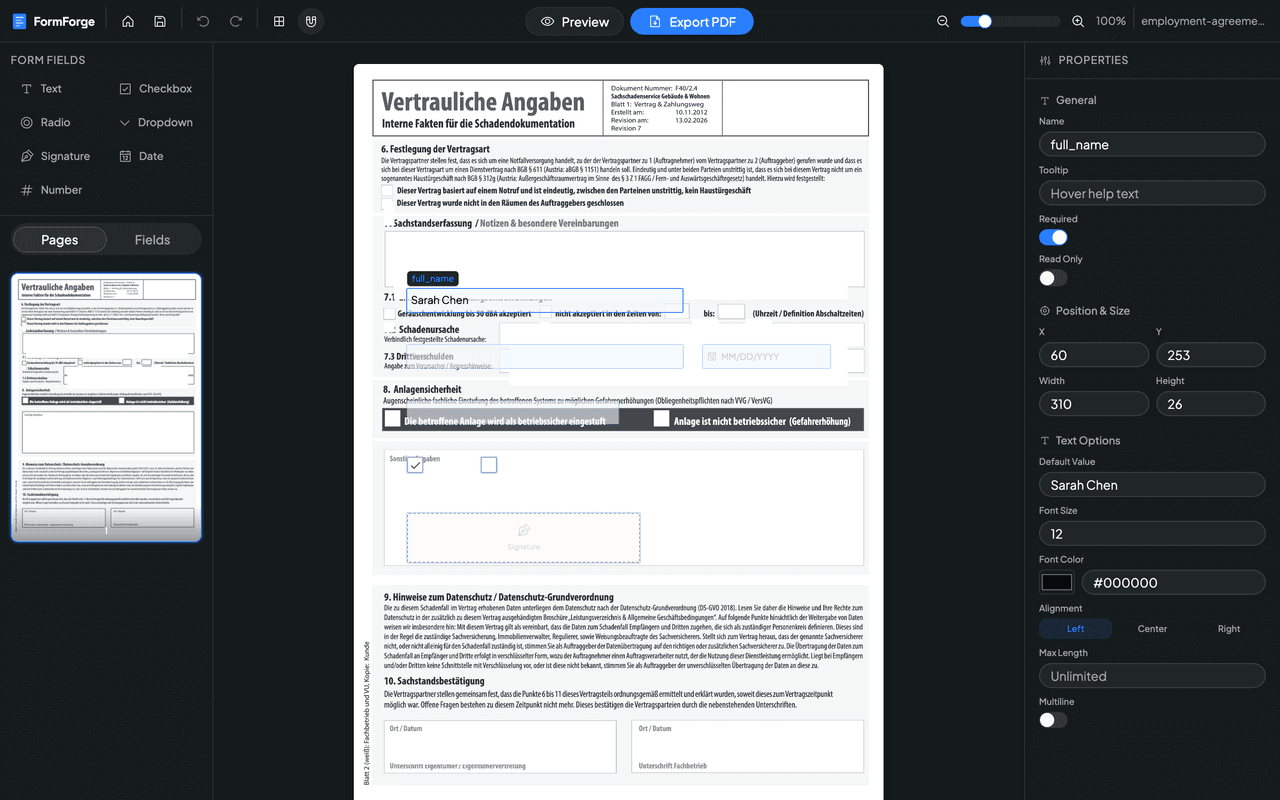
Because you planned the spacing in Word, the fields line up cleanly with your labels. Give each a clear name, mark the important ones required, and add dropdown options where a fixed list of choices keeps answers consistent.
Turn your Word doc into a form — free
Step 3 — Preview and export the fillable PDF
Switch to preview mode, fill the form in as your recipient would, and confirm the tab order and alignment. Then click Export PDF. FormForge writes standard AcroForm fields into the file and downloads a fillable PDF that works everywhere — no Acrobat required, and the document never left your browser.
This Word-to-fillable-PDF route is a daily workflow for HR teams turning policy documents into signable onboarding forms, and for freelancers and small businesses converting quotes, waivers and intake sheets drafted in Word into forms clients can complete on any device.
Frequently asked questions
Can I turn a Word document into a fillable PDF?
Yes. Design the layout in Word, export it to PDF (File → Save As → PDF), then import that PDF into FormForge and draw the fillable fields on top. The result is a standard fillable PDF that works in Adobe Reader, Preview and any browser — free, no account.
Why don’t Word’s form fields carry over to PDF?
Word’s content controls and legacy form fields are Word-specific and don’t reliably convert into standard PDF AcroForm fields when you export. The dependable approach is to export a clean, flat PDF from Word and add the fillable fields in a PDF form editor.
Do I need Acrobat to make a Word document fillable as a PDF?
No. Once you’ve exported your Word file to PDF, FormForge adds the AcroForm fields for free in your browser — no Acrobat subscription and nothing to install.
Should I leave space in Word for the form fields?
Yes. In Word, leave blank lines, table cells or underscores where inputs go, and keep labels clear. That gives you clean, aligned spots to drop text fields, checkboxes and signature areas once the document is a PDF.
Is my document uploaded when I add fields?
No. FormForge parses and edits your PDF entirely in your browser, so the file never leaves your device.
Next steps
- How to create a fillable PDF form for free — the full pillar guide
- How to make a PDF fillable without Acrobat
- Add a signature field to a PDF
Or open the editor and convert your Word document now.
Build your fillable PDF now — free
Import any PDF, drag on the fields you need, and export an Adobe-ready form. It runs entirely in your browser — no uploads, no account.
Try FormForge Free