How to Make a PDF Fillable Without Acrobat
Make any PDF fillable without Adobe Acrobat, free. Follow this browser-based guide to add form fields and export a fillable PDF in minutes — no install needed.
 Aleksandar Jovanovic 6 min read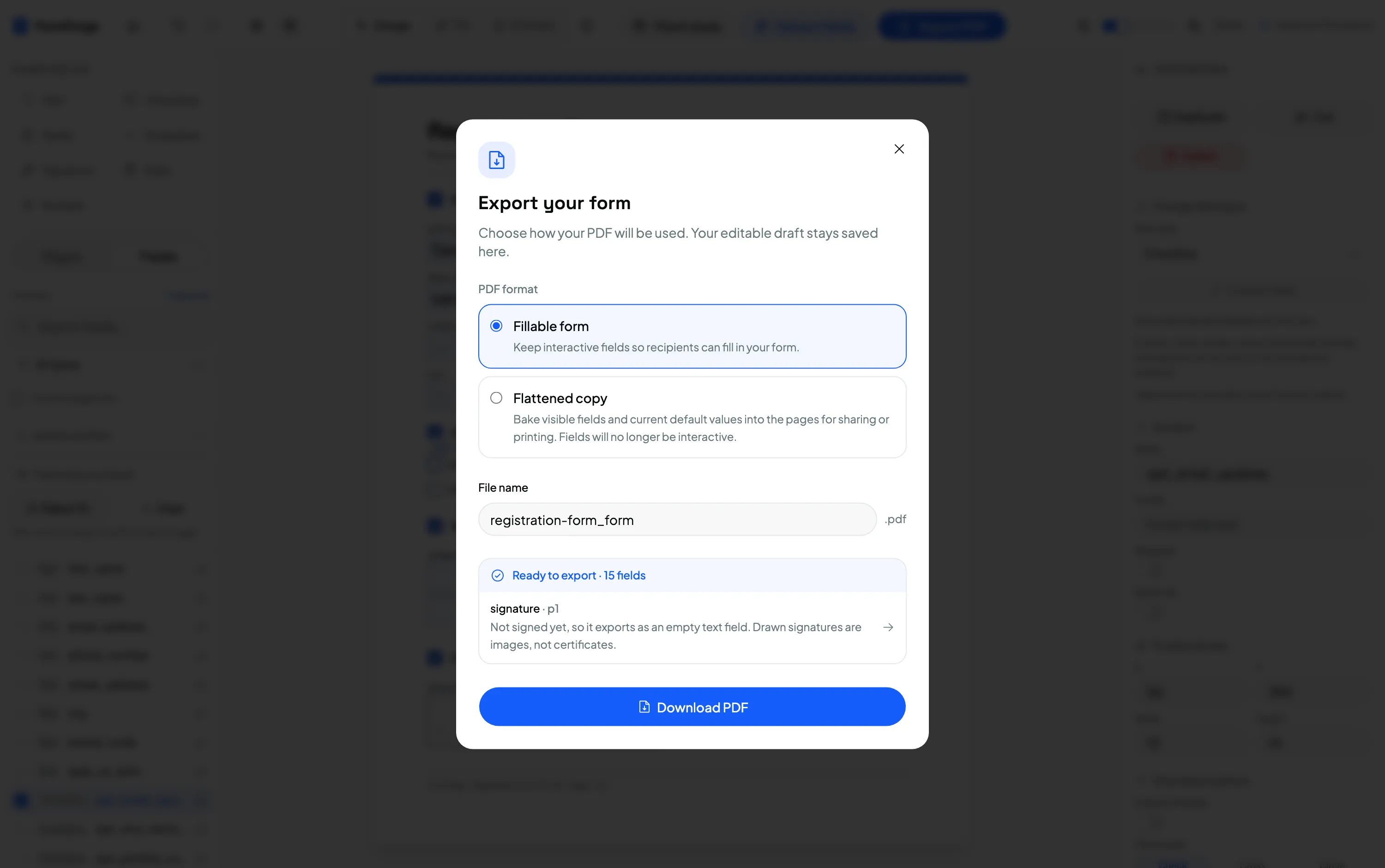
You can make a PDF fillable without Adobe Acrobat by opening it in a free browser-based editor, drawing the fields you need onto the page, and exporting. The result is a standard fillable PDF that opens in Acrobat, Adobe Reader, macOS Preview and every browser — no subscription, no install, and no file ever leaving your computer.
Acrobat Pro is the tool most people assume they need for this, but it’s a paid subscription and complete overkill for the everyday job of turning a static PDF into one people can type into. This guide uses FormForge, a free tool that runs client-side, to do the same job in a few minutes. It’s the “existing file” companion to our full walkthrough on how to create a fillable PDF form for free.
Why you don’t need Acrobat to add form fields
A fillable PDF is just a normal PDF with an extra layer of interactive form fields — text boxes, checkboxes, radio buttons, dropdowns and signature areas. That layer follows the AcroForm standard built into the PDF specification itself. It isn’t proprietary to Adobe: any tool that can write AcroForm fields produces a form that Acrobat, Reader, Preview, Chrome and Firefox all read correctly.
That’s the key point. Acrobat can write those fields, but so can a free browser tool. Once the fields are in the file, the recipient doesn’t need Acrobat either — they just open the PDF in whatever viewer they already have and start typing.
Step 1 — Import your existing PDF
Open the editor and drag your PDF onto the canvas, or click to browse. The document is parsed locally in your browser — you can open your developer tools’ network tab and confirm nothing is uploaded.
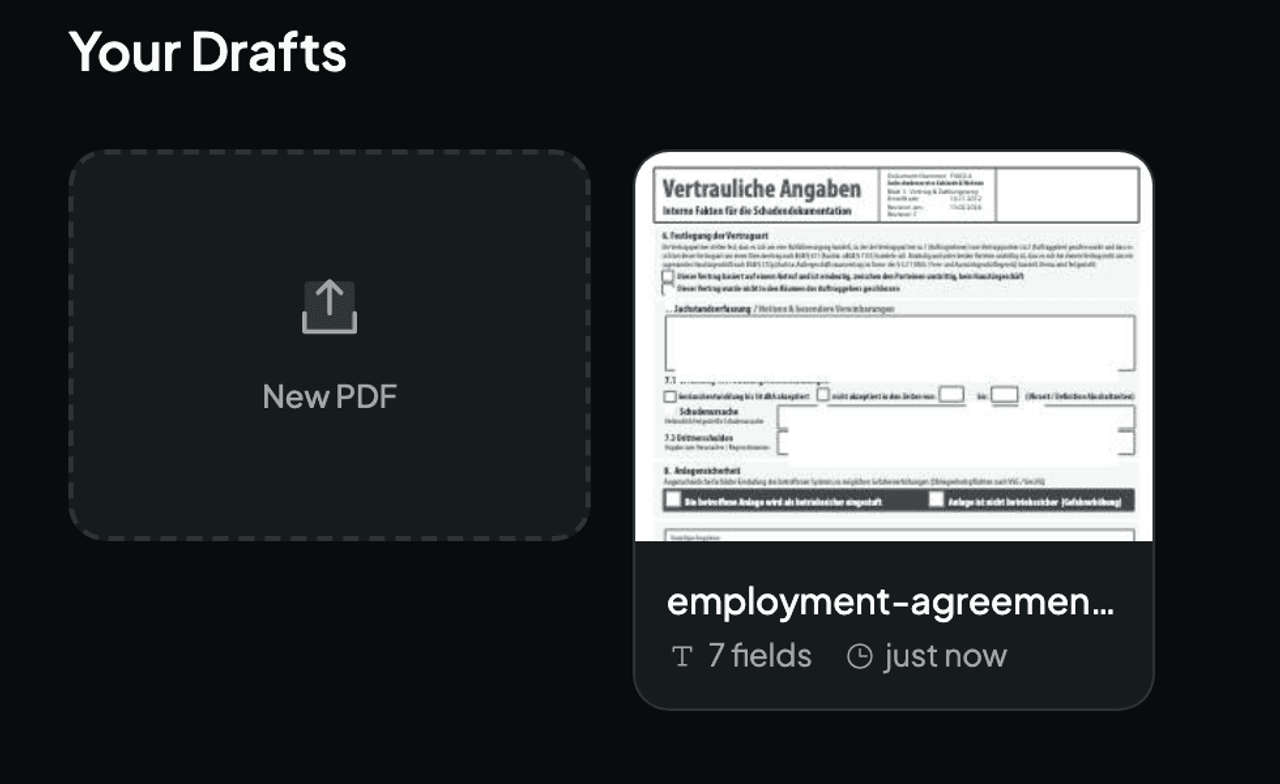
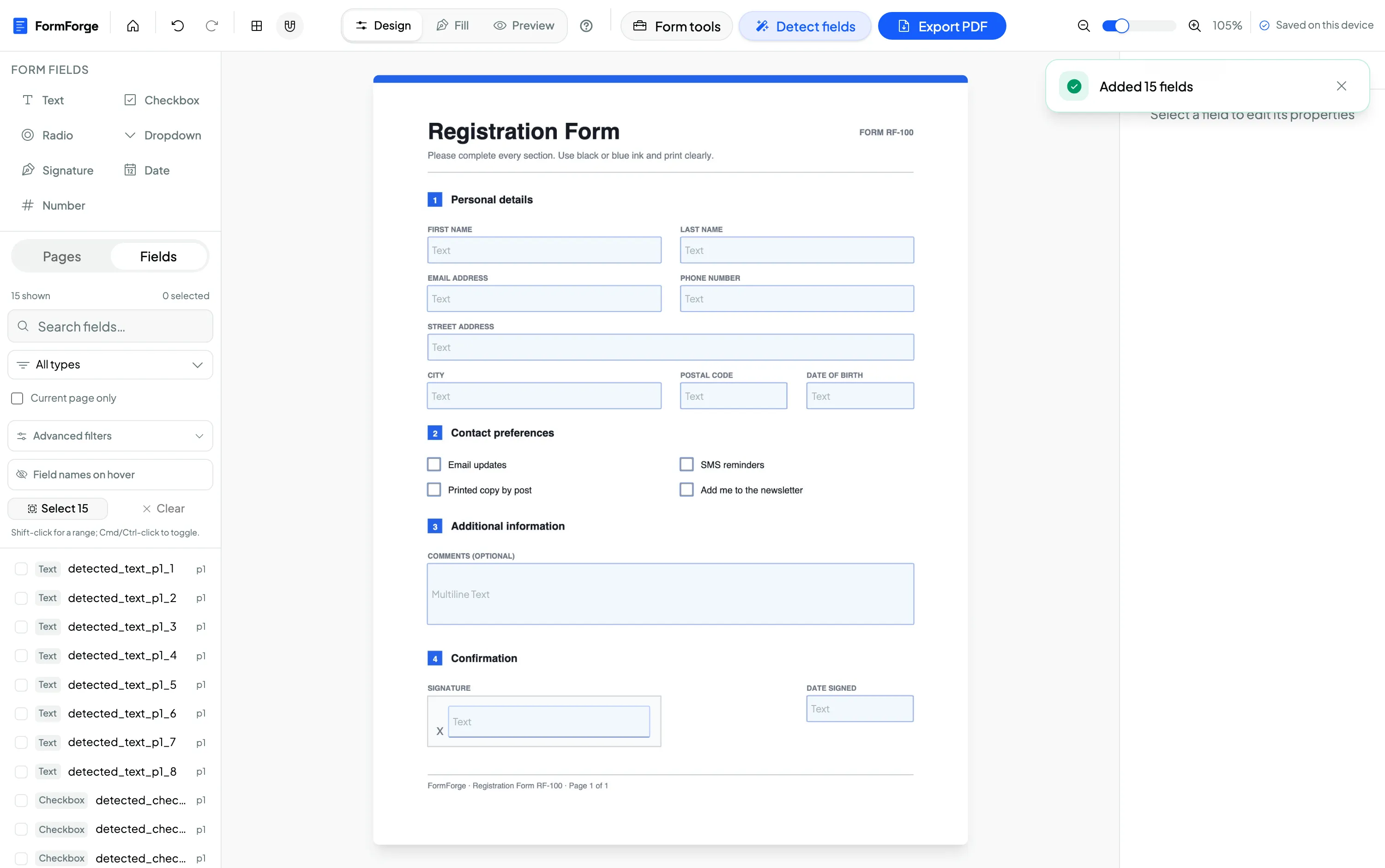
If the PDF already contains form fields — many government, HR and bank templates do — FormForge detects and imports them automatically, so you can edit the existing fields instead of starting from scratch.
Step 2 — Draw your fields
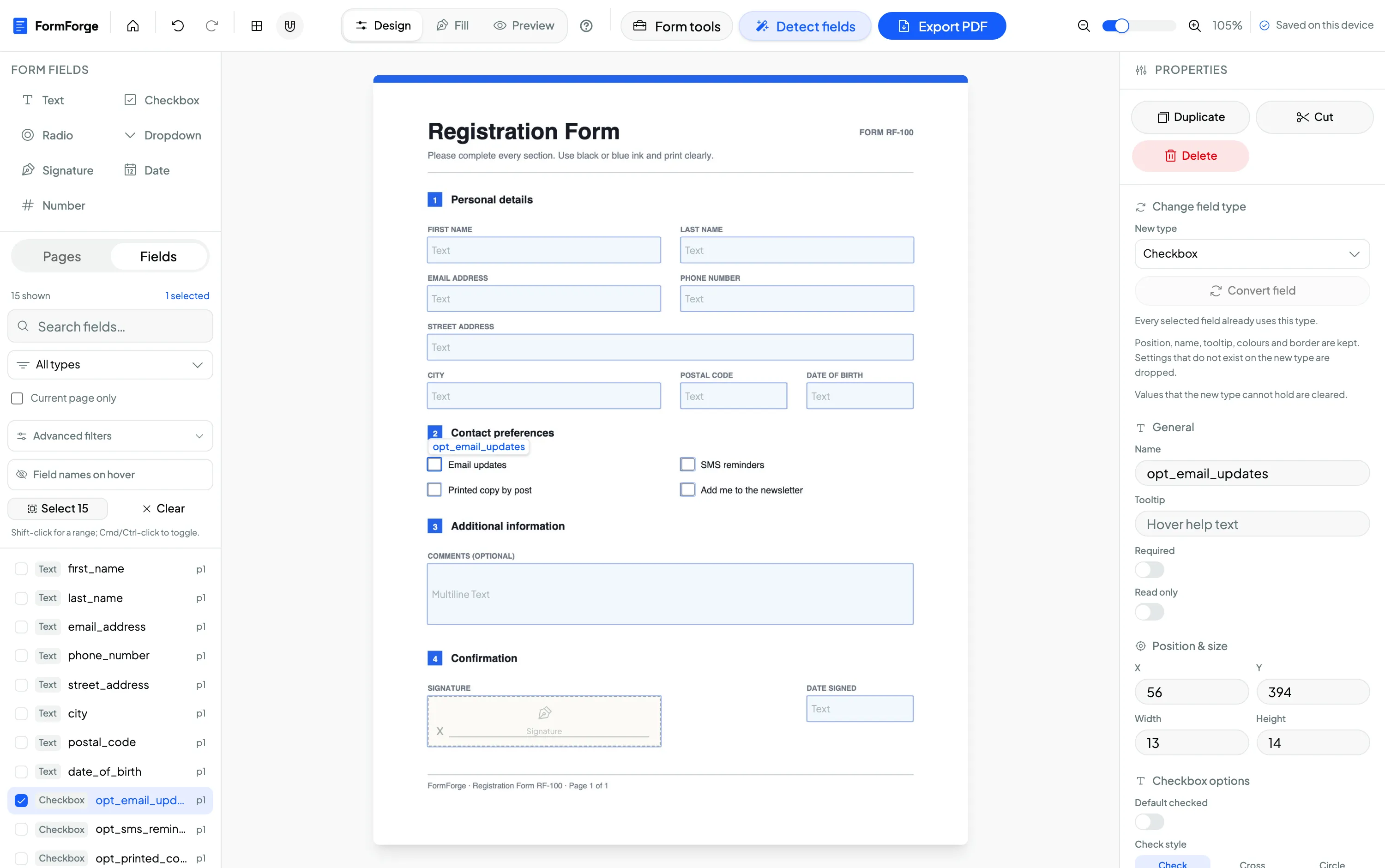
Pick a field type from the toolbar and draw it where it belongs. FormForge supports the seven types that cover almost every real form: text, checkbox, radio, dropdown, signature, date and number.
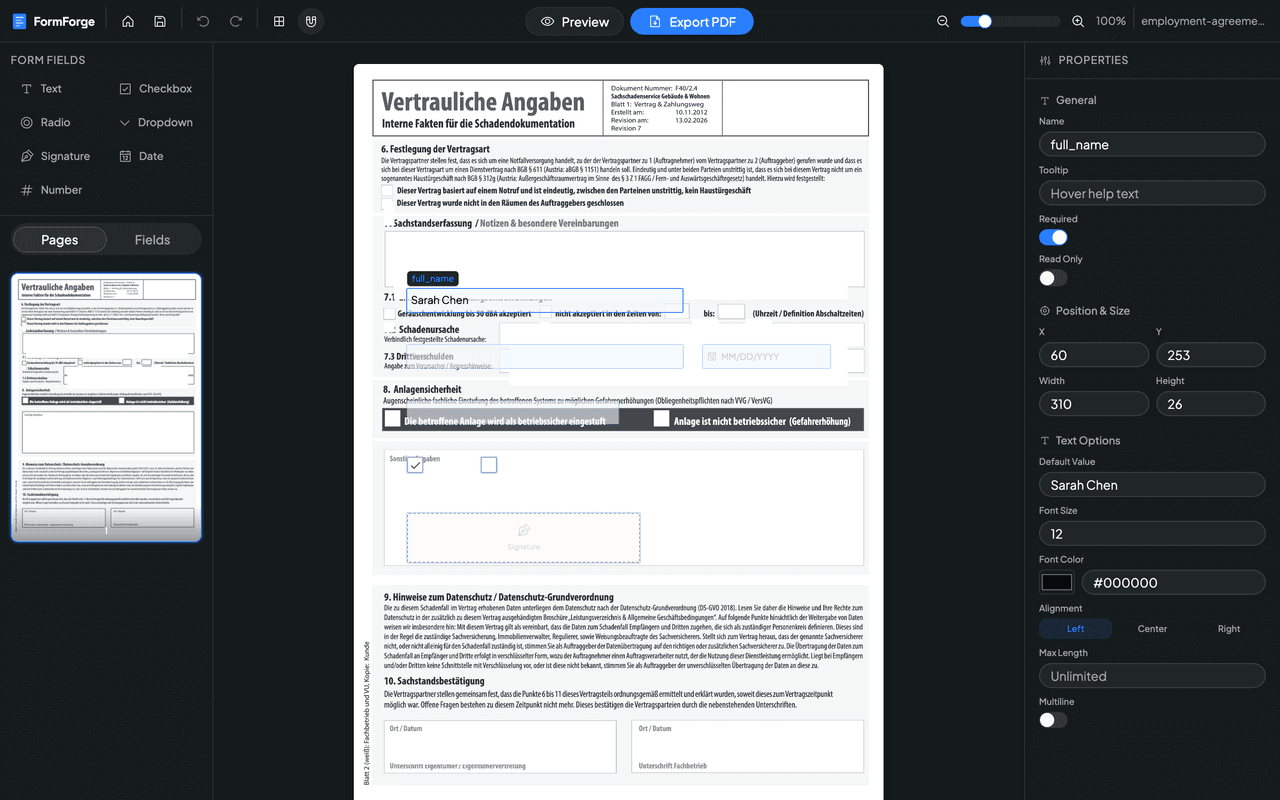
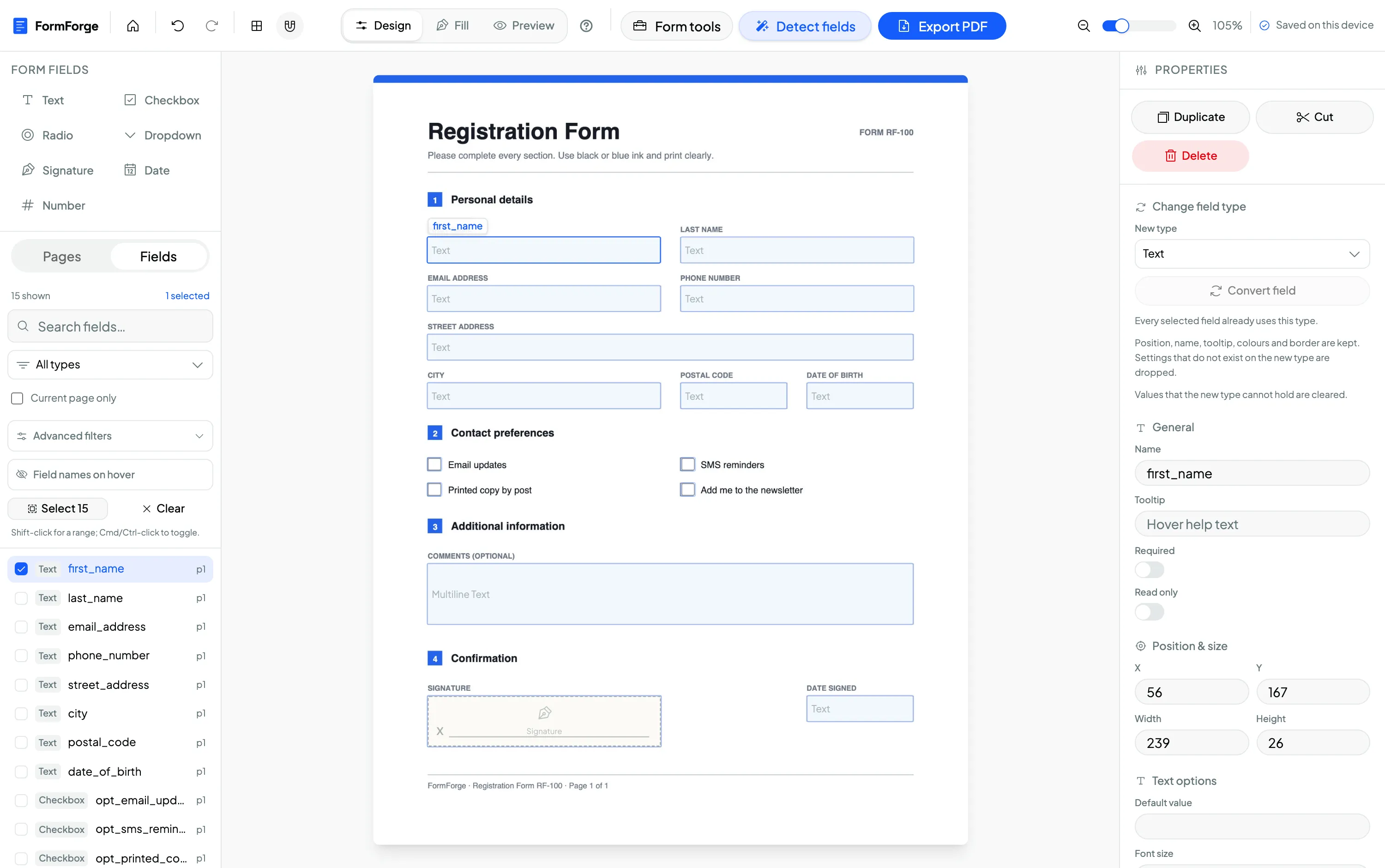
Give each field a clear name (full_name, not field1) and use the properties panel to mark fields required, add tooltips, or list dropdown options. If you need a specific field type, the focused guides on adding a signature field and adding checkboxes go deeper.
Step 3 — Preview and export
Switch to preview mode and fill the form in exactly as your recipient will. When it looks right, click Export PDF. FormForge writes standard AcroForm fields into the file and downloads a fillable PDF.
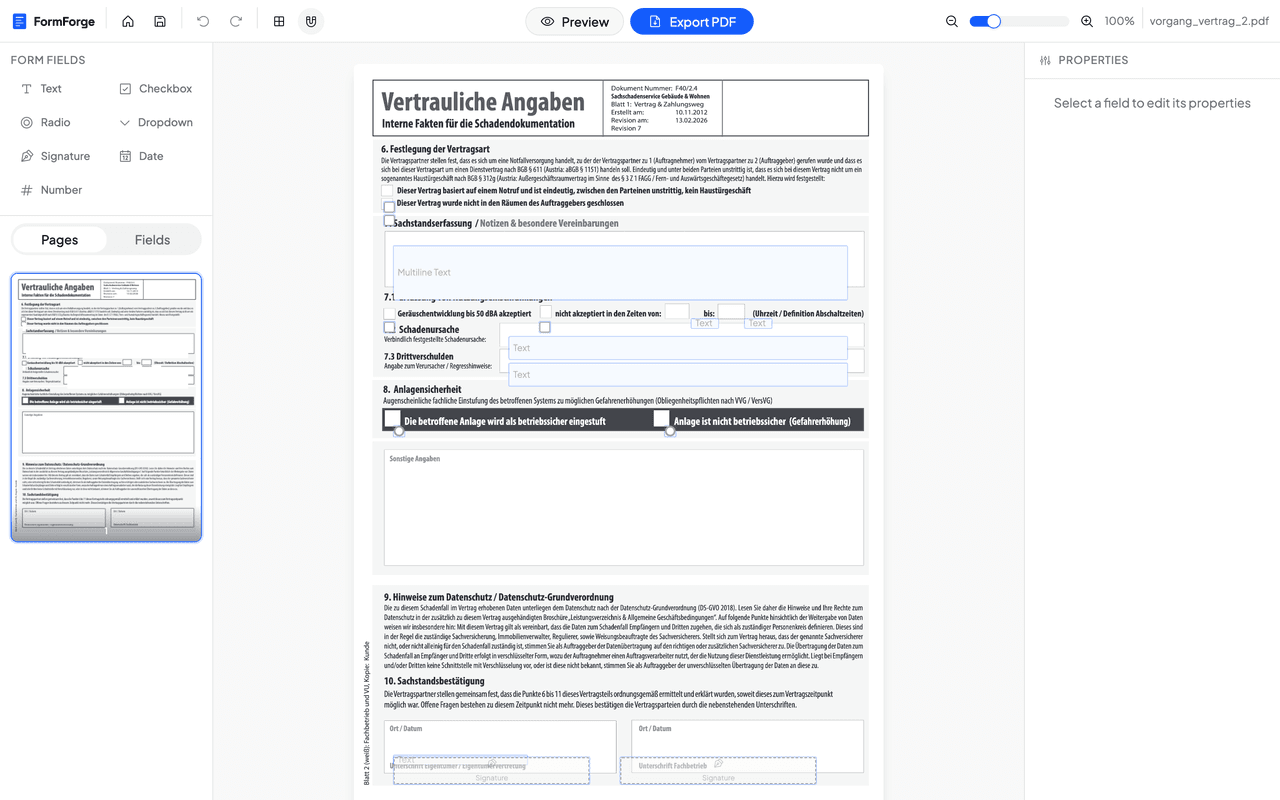
That’s it — a fillable PDF, made without Acrobat, in your browser. This privacy-first workflow is why legal professionals and HR teams use it for sensitive paperwork that shouldn’t be uploaded to a third-party server.
Making a PDF fillable on a Mac (without Acrobat or Preview)
Mac users often try to make a form fillable in Preview first, then hit a wall. Preview is excellent for filling in an existing form and for basic annotation, but it can’t add new AcroForm fields — there’s no “make this box a text field” tool. So if your PDF is flat (just a picture of a form), Preview leaves you annotating with free-floating text boxes that aren’t real, saveable form fields.
Because FormForge runs in the browser, it works the same on macOS as anywhere else: open Safari or Chrome, import the PDF, draw real fields, and export. No Acrobat, no Preview limitations, nothing to install from the App Store.
What a browser editor deliberately doesn’t do
Being honest about the limits saves you time. A free browser editor is the right tool for adding a fillable field layer, but it isn’t a full PDF suite:
- It doesn’t run OCR. A scanned PDF stays as an image; you can lay fields over it, but the scanned text won’t become editable text.
- It doesn’t rewrite page content. Form editors add an interactive layer; they don’t edit the underlying paragraphs or graphics. For that you need a full PDF editor.
- It doesn’t verify who signed. FormForge can seal an export with a certificate-based digital signature, so any compliant reader can tell the file is unaltered, and a signature field gives someone a place to sign. Proving the signer’s identity to a stranger, and keeping an audit trail, is still a dedicated e-signature service’s job — more on that in add a signature field to a PDF.
- It doesn’t do scripted calculations. Auto-totalling cells and complex validation logic are where Acrobat Pro still earns its subscription.
For the ordinary “I just need people to type into this PDF” task, none of that matters — and everything else is free.
Frequently asked questions
Can I make a PDF fillable without Adobe Acrobat?
Yes. Acrobat is only one way to add form fields. A browser-based editor like FormForge writes the same standard AcroForm fields for free, and the file it exports opens in Adobe Reader, Acrobat, macOS Preview and every major browser.
Is there a free alternative to Acrobat for filling and creating PDF forms?
Yes. FormForge creates fillable PDF forms free in your browser with no account. For simply filling in an existing form, free viewers like Adobe Reader, macOS Preview and Chrome already work — you only need an editor when you want to add the fields yourself. If you’re weighing tools, see the best free fillable PDF form creators.
Do I need to install anything to make a PDF fillable?
No. FormForge runs entirely in your browser, so there is nothing to download or install. Your PDF is parsed locally and never uploaded to a server.
Will a form made without Acrobat still open in Acrobat?
Yes. FormForge exports standard AcroForm fields defined in the PDF specification, so the form opens and fills correctly in Acrobat, Adobe Reader, Preview, Chrome and Firefox.
Can I make a scanned PDF fillable without Acrobat?
Yes, as long as the scan is saved as a PDF. Import it and draw fields on top of the scanned page. Note that a browser editor does not run OCR, so it will not turn scanned text into editable text — it adds an interactive field layer over the image.
Next steps
- How to create a fillable PDF form for free — the full pillar guide
- Add a signature field to a PDF
- Add checkboxes to a PDF form
- Best free fillable PDF form creators (2026)
Or just open the editor and make your PDF fillable now.
Build your fillable PDF now — free
Import any PDF, drag on the fields you need, and export an Adobe-ready form. It runs entirely in your browser — no uploads, no account.
Try FormForge Free