Best Free Fillable PDF Form Creators (2026)
Compare the best free fillable PDF form creators of 2026 on privacy, field types and ease of use — so you can pick the right tool and start building today.
 Aleksandar Jovanovic 7 min read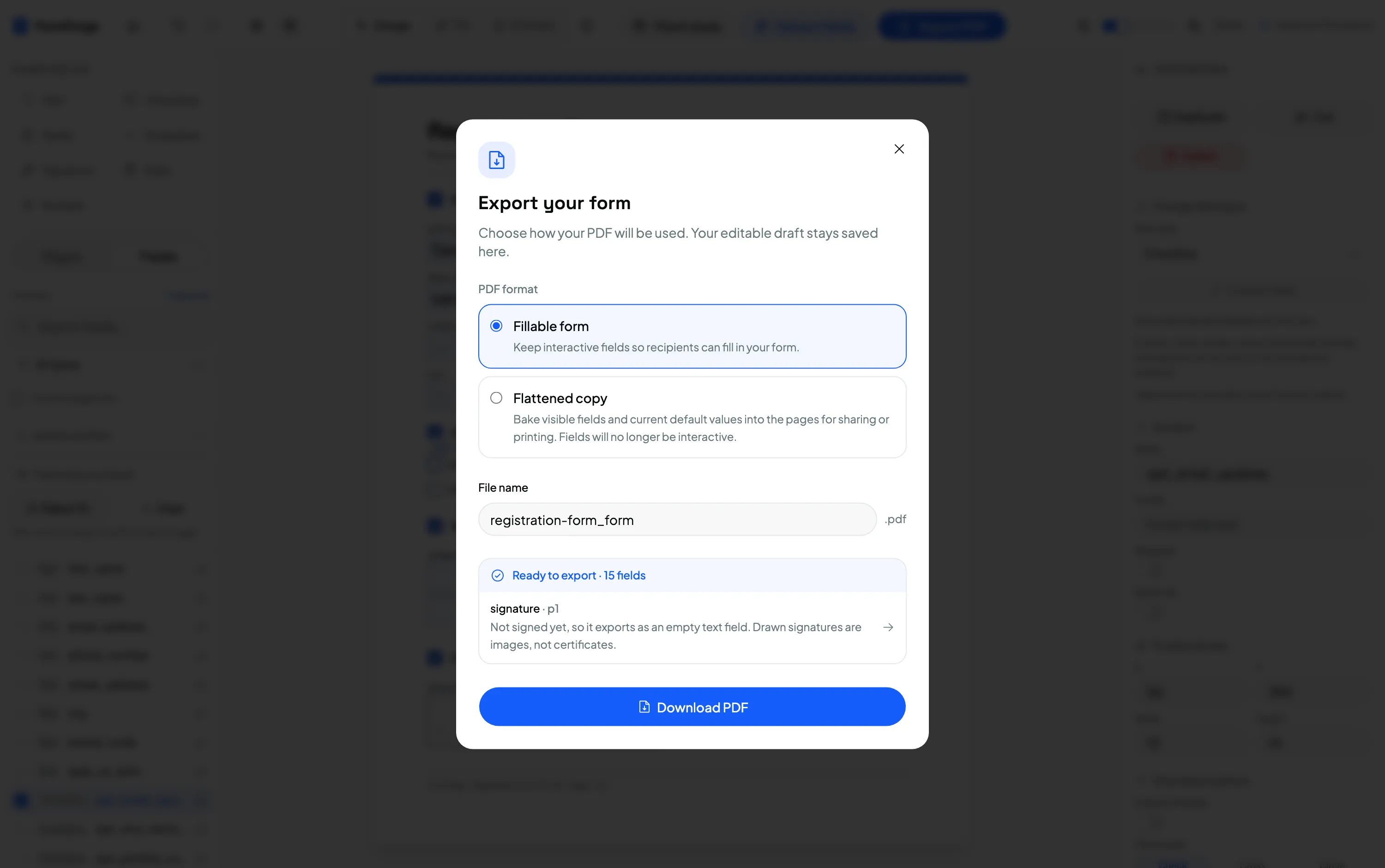
The best free fillable PDF form creator depends on what you value most: for privacy and zero install, a browser-based tool like FormForge is the strongest option; for dynamic, scripted forms, Adobe Acrobat Pro (paid) still leads; and for casual one-off edits, desktop LibreOffice or freemium web apps like PDFescape can do the job. This guide compares the honest trade-offs so you can pick the right one and start today.
We build one of these tools, so treat this as an informed-but-interested comparison — we’ve tried to be straight about where FormForge wins and where it deliberately doesn’t compete. If you just want the how-to, start with how to create a fillable PDF form for free.
What actually matters when choosing
Not every “free PDF form creator” means the same thing. Weigh these five factors:
- Privacy — does your file get uploaded to a server, or processed locally? This is decisive for contracts, HR and medical documents.
- Install & cost — browser app, desktop download, or paid subscription?
- Field types — can it add text, checkboxes, radio buttons, dropdowns, dates and signature fields, or just basic text?
- Output compatibility — does it export standard AcroForm fields that open everywhere, or something only Adobe reads?
- Limits — page caps, watermarks, daily task limits, or account requirements on the free tier.
The main free options in 2026
FormForge — browser-based, privacy-first
FormForge runs entirely in your browser. You import a PDF, draw the seven field types (text, checkbox, radio, dropdown, signature, date, number), configure them, and export standard AcroForm fields. Your file is never uploaded — everything is processed client-side, which you can verify in your browser’s network tab.
- Best for: private, quick form creation with no install and no account.
- Trade-offs: it adds a form-field layer; it does not edit underlying page text, run OCR, or handle scripted calculated fields. It can seal an export with a certificate-based digital signature, but only using your own or your employer’s certificate — there is no identity verification and no audit trail.
Adobe Acrobat Pro — the paid benchmark
Acrobat Pro is the most capable option: dynamic forms, calculated and scripted fields, OCR, page editing and certified signatures. It’s also a paid subscription, and far more than most people need to make a static PDF fillable. Adobe Reader is free but only fills existing forms — it doesn’t let you add fields.
- Best for: complex, scripted or high-volume enterprise forms.
- Trade-offs: ongoing cost; heavyweight for simple jobs.
LibreOffice Writer — free desktop suite
The open-source LibreOffice can add form controls and export to PDF. It’s genuinely free with no upload, but form-building is fiddly, the exported field fidelity varies, and it’s a full desktop install.
- Best for: people already using LibreOffice who want an offline option.
- Trade-offs: clunky form workflow; desktop install required.
Freemium web apps (PDFescape, Sejda, DocFly and similar)
These browser tools can add fields on a free tier, but most upload your file to their servers and impose limits — page counts, a few tasks per day, watermarks, or a nudge to a paid plan. Fine for a non-sensitive one-off; think twice for confidential documents.
- Best for: occasional edits to non-sensitive files.
- Trade-offs: server uploads, and free-tier caps that vary by tool.
macOS Preview — fills, but can’t build
Worth clearing up because Mac users reach for it first: Preview fills existing forms and adds annotations, but it cannot add new AcroForm fields. If your PDF is flat, Preview leaves you with floating text boxes, not real form fields. To actually build the form on a Mac, use a browser tool — Preview isn’t a form creator.
Quick comparison
| Tool | Runs where | Cost | Adds real form fields | File uploaded? |
|---|---|---|---|---|
| FormForge | Browser | Free | Yes (7 types) | No |
| Adobe Acrobat Pro | Desktop/web | Paid | Yes | Depends |
| Adobe Reader | Desktop | Free | No (fill only) | No |
| LibreOffice Writer | Desktop | Free | Yes (basic) | No |
| PDFescape / Sejda / DocFly | Browser | Freemium | Yes | Usually yes |
| macOS Preview | Desktop | Free | No (fill only) | No |
Being honest about what free tools can’t do
No free tool — ours included — is a full PDF suite. Set expectations correctly and you won’t waste an afternoon:
- Editing page content. Rewriting the paragraphs or graphics behind the form needs a full PDF editor.
- OCR on scans. Turning scanned text into editable text is a separate, usually paid, capability.
- Verified signer identity and audit trails. Tamper-evident sealing itself is no longer paid-only: FormForge can embed a standards-compliant digital signature on export, with the private key staying on your device. What it can’t do is vouch for who signed to a recipient who has never seen your certificate, or keep an evidence log of the exchange — that’s DocuSign or Adobe Sign. See add a signature field to a PDF for the distinction.
- Scripted calculations. Auto-totalling and cascading validation are Acrobat Pro territory.
Our honest recommendation
If your job is the common one — “make this PDF something people can type into, privately, without paying or installing anything” — a browser-based tool like FormForge is the best fit, and it’s what powers the walkthroughs across this blog. If you need dynamic scripted forms, or signatures backed by a verified identity and an audit trail, budget for Acrobat Pro or an e-signature service instead. Match the tool to the job and you’ll spend less and get a cleaner result.
Whatever you choose, the field types you’ll use are the same across tools — developers and small businesses alike get the most reliable, widely-readable output from standard AcroForm fields.
Frequently asked questions
What’s the best free tool to create fillable PDF forms?
It depends on your priority. For privacy and zero install, a browser-based tool like FormForge is ideal — it adds standard AcroForm fields free with no uploads. For dynamic layouts and scripted calculations, Adobe Acrobat Pro (paid) goes further. For casual one-off edits, LibreOffice or PDFescape can work.
Is there a free alternative to Adobe Acrobat for making PDF forms?
Yes. Several free tools create fillable PDFs without an Acrobat subscription, including FormForge (browser-based, private), LibreOffice Writer (desktop), and freemium web apps like PDFescape and Sejda. Each has trade-offs in privacy, field types and page limits.
Can I create a fillable PDF form without uploading my file?
Yes. FormForge processes everything in your browser, so your PDF is never uploaded to a server. Many other free web tools upload your file to their servers to process it, which matters for sensitive documents.
What can’t free PDF form creators do?
Most free tools don’t edit the underlying page text, run OCR on scans, or handle scripted calculated fields — those are jobs for a full PDF editor or Acrobat Pro. Certificate-based signing is less of a gap than it used to be — FormForge can seal an export with a standards-compliant digital signature. What no free tool gives you is identity verification, a hosted audit trail, or a certificate that readers trust automatically.
Do I need to pay to create a basic fillable PDF form?
No. Creating a standard fillable PDF with text fields, checkboxes, dropdowns and signature areas is possible with free tools, and FormForge can seal the export with a digital signature at no cost too. You’d typically only pay for advanced features like dynamic forms, OCR, batch processing, or a certificate from an authority that PDF readers trust automatically.
Next steps
- How to create a fillable PDF form for free — the full pillar guide
- How to make a PDF fillable without Acrobat
- AcroForm vs XFA: PDF form formats explained
Or open the editor and build your form now.
Build your fillable PDF now — free
Import any PDF, drag on the fields you need, and export an Adobe-ready form. It runs entirely in your browser — no uploads, no account.
Try FormForge Free