AcroForm vs XFA: PDF Form Formats Explained
AcroForm vs XFA explained: how the two PDF form formats differ, why it matters for compatibility, and which to pick for free, widely readable fillable PDFs.
 Aleksandar Jovanovic 6 min read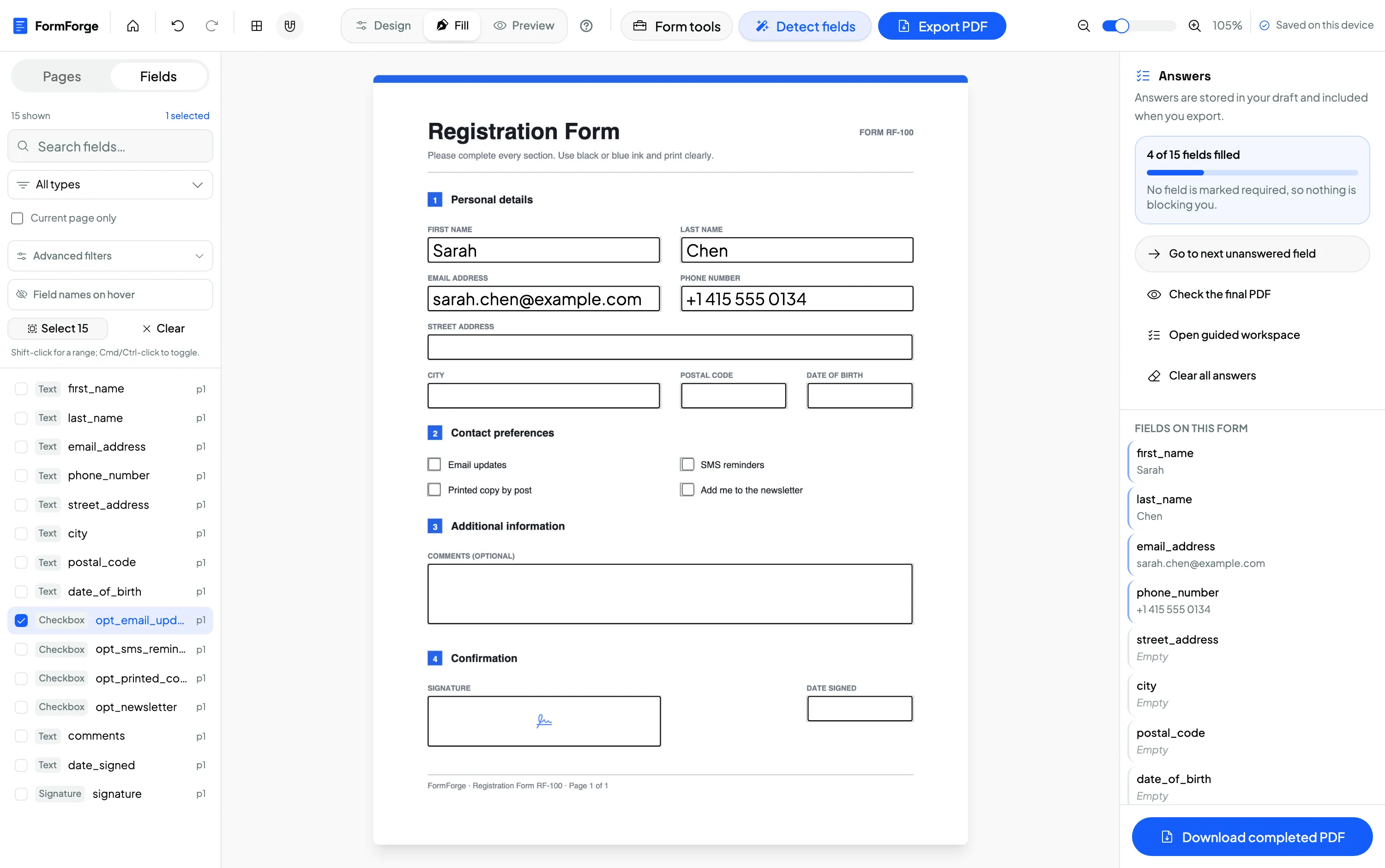
AcroForm and XFA are the two form technologies a PDF can use, and the difference decides whether your form works everywhere or only inside Adobe’s software. AcroForm is the native, universally supported form format built into the PDF specification; XFA is an XML-based Adobe format that’s more powerful for dynamic layouts but poorly supported outside Adobe and now deprecated. For a fillable form that “just works” for every recipient, you want AcroForm.
If you’ve ever sent a form and had someone reply that it “won’t open” or shows a grey warning page, you’ve probably run into this distinction the hard way. This explainer unpacks both formats, why compatibility diverges so sharply, and what it means when you create a fillable PDF form.
What is an AcroForm?
An AcroForm (short for Acrobat Form) is the interactive form technology defined directly in the PDF specification — ISO 32000, the open standard that governs PDF itself. Form fields live in the PDF’s native object structure as annotations layered over the page. Each field is a first-class PDF object with a type, a name, a position and an appearance.
AcroForm supports the field types that cover the vast majority of real forms:
- Text fields — single- or multi-line free text.
- Checkboxes — independent on/off options.
- Radio buttons — mutually exclusive choices within a group.
- Choice fields — dropdown (combo) and list boxes.
- Signature fields — a designated area to sign.
- Push buttons — actions like submit or reset.
Because AcroForm is part of the core spec, any conformant PDF reader can render and fill these fields — Adobe Reader and Acrobat, macOS Preview, Chrome, Firefox, and nearly every mobile PDF app. That universality is the whole reason it’s the sensible default.
What is XFA?
XFA (XML Forms Architecture) is a completely different approach that Adobe introduced with its LiveCycle product line. Instead of storing fields as native PDF objects, an XFA form embeds an XML description of the form inside the PDF. A capable renderer reads that XML and builds the form on the fly.
XFA’s advantage is dynamic behaviour: forms that reflow and grow as data is entered — adding rows to a table, showing and hiding sections, running rich validation. That flexibility made it popular for complex government and enterprise workflows built in Adobe LiveCycle (later AEM Forms).
The catch is support. XFA rendering was really only ever complete in Adobe’s own software. Open an XFA form in Chrome, Firefox or Preview and you typically get a placeholder page: “Please wait… if this message is not eventually replaced, your PDF viewer may not support this document.” For a recipient without Adobe Reader, an XFA form can be effectively unusable.
Why the difference matters
The practical upshot comes down to one question: will the person you send this to be able to fill it in?
- AcroForm — yes, almost certainly, whatever viewer they use. The fields are native, so nothing special is required.
- XFA — maybe not. If they don’t have a recent Adobe Reader, they may see only a warning and be unable to complete the form.
There’s a second nail in XFA’s coffin: PDF 2.0 (ISO 32000-2) deprecated XFA entirely. Adobe has been steadily reducing XFA support in its own products, and modern tooling has largely moved on. Building new forms in XFA today means building on a format that’s actively being retired.
This is exactly why compatibility-focused tools standardise on AcroForm. It’s the format that survives contact with the real world of mixed devices and viewers.
How to tell which one you have
You don’t need to inspect the file’s internals. A quick test:
- Open the PDF in Chrome, Firefox or macOS Preview.
- If the form fields appear and you can type into them, it’s AcroForm.
- If you see a grey “please open in Adobe Reader” placeholder instead of the form, it’s almost certainly XFA.
Older forms downloaded from government portals and large enterprises are the usual XFA suspects, since many were authored in Adobe LiveCycle. If you’re stuck with one, the practical fix is often to rebuild it as a clean AcroForm — import the underlying document and re-add the fields.
What this means for building forms
FormForge always writes standard AcroForm fields. That’s a deliberate design decision: the forms you build open and fill in Adobe Reader, Acrobat, Preview and every major browser, with no dependency on Adobe software and nothing to install.
For developers and QA teams, AcroForm is also far friendlier to work with programmatically. Fields are named objects you can read and populate with libraries like pdf-lib, iText or PDFBox — inspect the form dictionary, map field names to data, and fill or extract values without wrestling an opaque XML payload. If you generate or test PDFs in a pipeline, native AcroForm fields are the format you want flowing through it.
Frequently asked questions
What is an AcroForm?
An AcroForm is the native, interactive form technology built into the PDF specification (ISO 32000). It defines form fields — text boxes, checkboxes, radio buttons, dropdowns and signature fields — directly in the PDF’s object structure, so any compliant PDF reader can display and fill them.
What is XFA in a PDF?
XFA (XML Forms Architecture) is an XML-based form technology Adobe introduced with LiveCycle. Instead of native PDF fields, the form is described in an XML payload embedded in the file. XFA supports dynamic, reflowing layouts but is poorly supported outside Adobe’s own software and was deprecated in PDF 2.0.
Is AcroForm or XFA better for compatibility?
AcroForm, by a wide margin. AcroForm fields render in Adobe Reader, Acrobat, macOS Preview, Chrome, Firefox and virtually every mobile viewer. XFA forms often show only a warning page in non-Adobe readers, so a recipient may be unable to fill them at all.
How do I know if my PDF is an AcroForm or XFA?
If the form opens and fills correctly in Chrome, Firefox or macOS Preview, it’s almost certainly AcroForm. If it shows a “please open in Adobe Reader” placeholder in those viewers, it likely uses XFA. Government and enterprise forms built in older Adobe LiveCycle tools are the most common XFA source.
Does FormForge create AcroForm or XFA forms?
FormForge always writes standard AcroForm fields. That’s a deliberate choice for maximum compatibility, so the forms you build open and fill anywhere, without Adobe software.
Next steps
- How to create a fillable PDF form for free — the full pillar guide
- Fillable PDF forms for developers & QA
- How to make a PDF fillable without Acrobat
Or open the editor and build a compatible AcroForm now.
Build your fillable PDF now — free
Import any PDF, drag on the fields you need, and export an Adobe-ready form. It runs entirely in your browser — no uploads, no account.
Try FormForge Free