Free Fillable PDF Form Builder. Right in Your Browser.
Drop in any PDF and let the built-in AI find the fields for you — or place them yourself. Add signatures, checkboxes and dropdowns, then export a form that opens anywhere. On your laptop or your phone.
100% free. No account. No credit card. Everything — including the AI — runs inside your browser, so your files never leave your device.
- Nothing uploaded
- No account
- AI runs locally
- Works offline
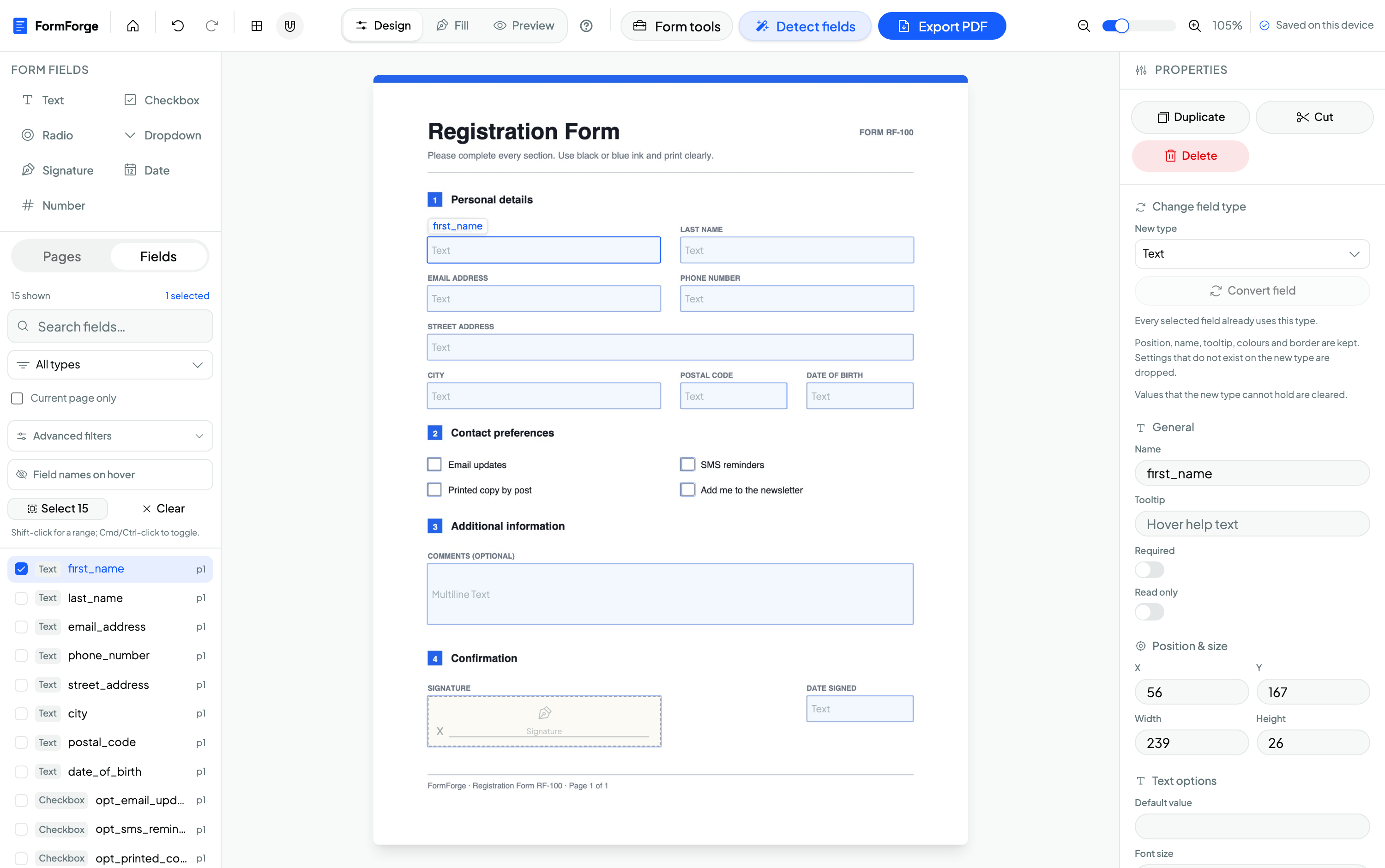
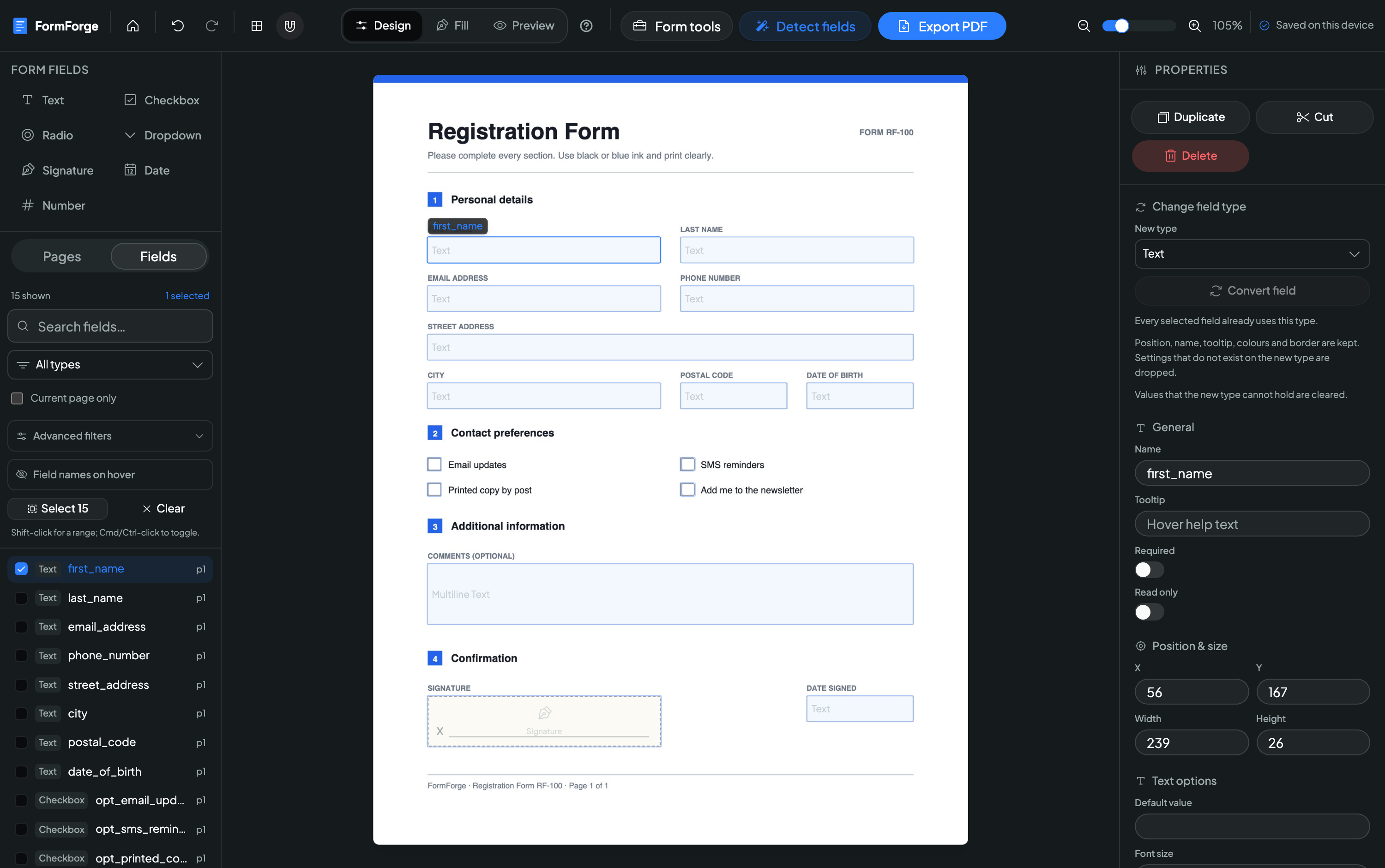
What is FormForge?
FormForge is a free, browser-based PDF form editor that turns any PDF into a fillable form — with no uploads, no account, and no software to install.
- Price
- Free — no account, no card
- Where files are processed
- Entirely in your browser
- Field types
- 7, including signature
- Automatic field detection
- Yes — a neural net that runs on your device
- Signatures
- Draw or type — plus optional certificate signing
- Phones & tablets
- Full touch editor, not a cut-down view
- Install as an app
- Yes — installable PWA, works offline
- Batch generation
- CSV in, a ZIP of filled PDFs out
- Built-in form checks
- 21 AcroForm checks with one-click fixes
- Export format
- Fillable PDF (AcroForm)
- App languages
- 7
The parts people tell us they didn’t expect
A local AI that finds your fields, real signatures, a phone editor that actually works, and repair tools most paid form builders don’t ship.
Point it at a flat PDF. Get fields back.
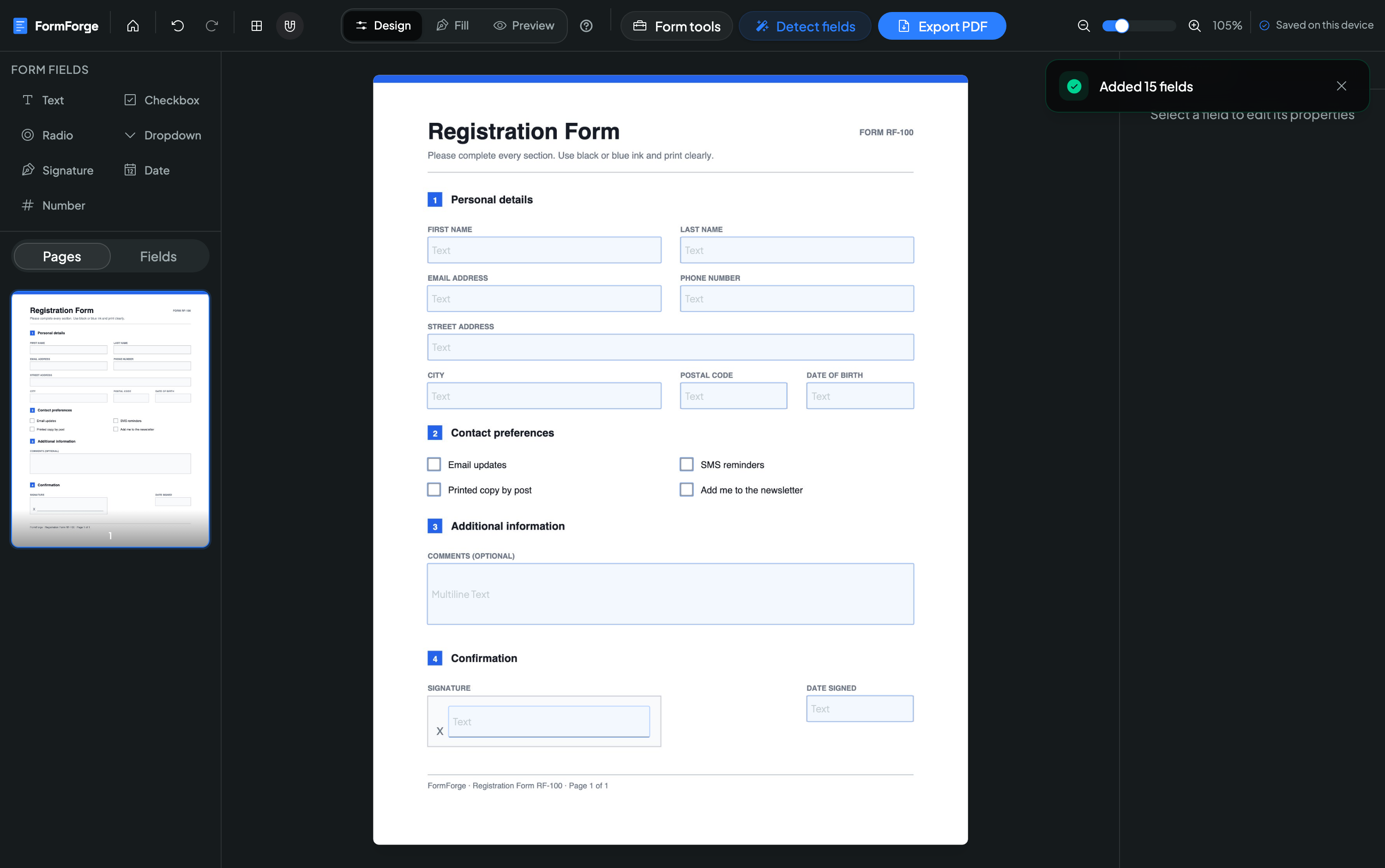
A scanned form with nothing but printed boxes? FormForge runs a purpose-built object-detection network over the page and places matching text fields, checkboxes and signature areas for you — then hands you the result as a single undo step.
- The model runs on your device via WebAssembly — the PDF is never sent anywhere
- Downloads once, caches, then works offline forever after
- Scan one page or the whole document, and cancel any time
Two model sizes. The small one is the default and is used automatically on phones.
How field detection works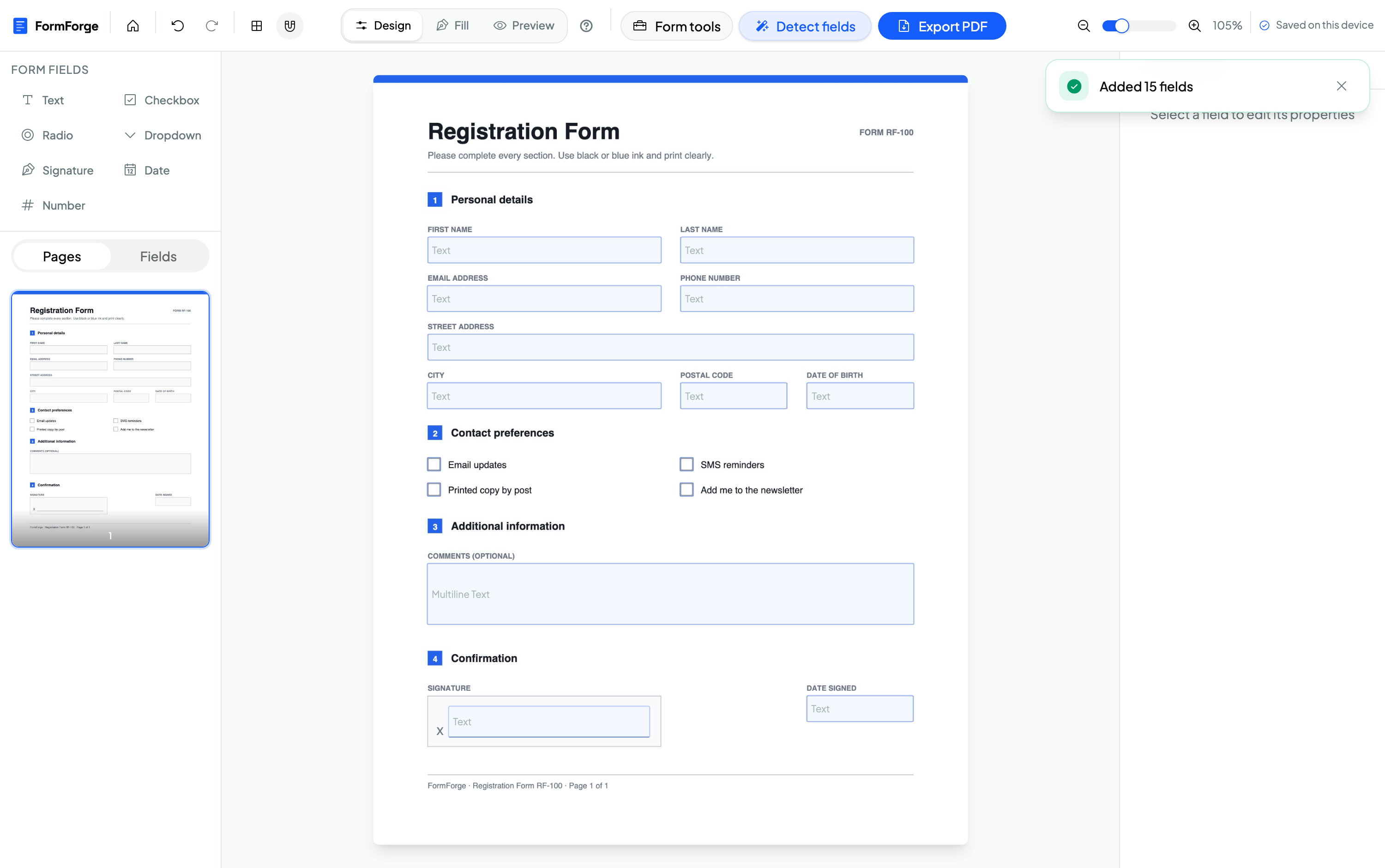
Sign with your finger. Or just type it.
Draw a signature straight onto the page — the stroke thins and thickens with speed, and with real pressure if you use an Apple Pencil or stylus. Prefer typing? Enter your name and pick a script. Either way it lands in the PDF as a crisp, transparent image.
- Pressure- and velocity-sensitive drawing, with per-stroke undo
- Embedded at print quality, cropped exactly to the ink
- Leave a field unsigned and it exports as a normal signature box for the recipient
A drawn signature is not a digital certificate — but you can add a real cryptographic one when you export.
A real editor on a phone, not a shrunken one.
Phones and tablets get their own interface: a draggable bottom sheet, a magnifier that keeps the page visible under your thumb, and nudge pads that move a field one point per tap. Install it to your home screen and it keeps working with no connection at all.
- Pinch to zoom, one finger to pan, tap to place a field
- Installs as an app — opens PDFs straight from your files, exports via the share sheet
- Works fully offline once installed
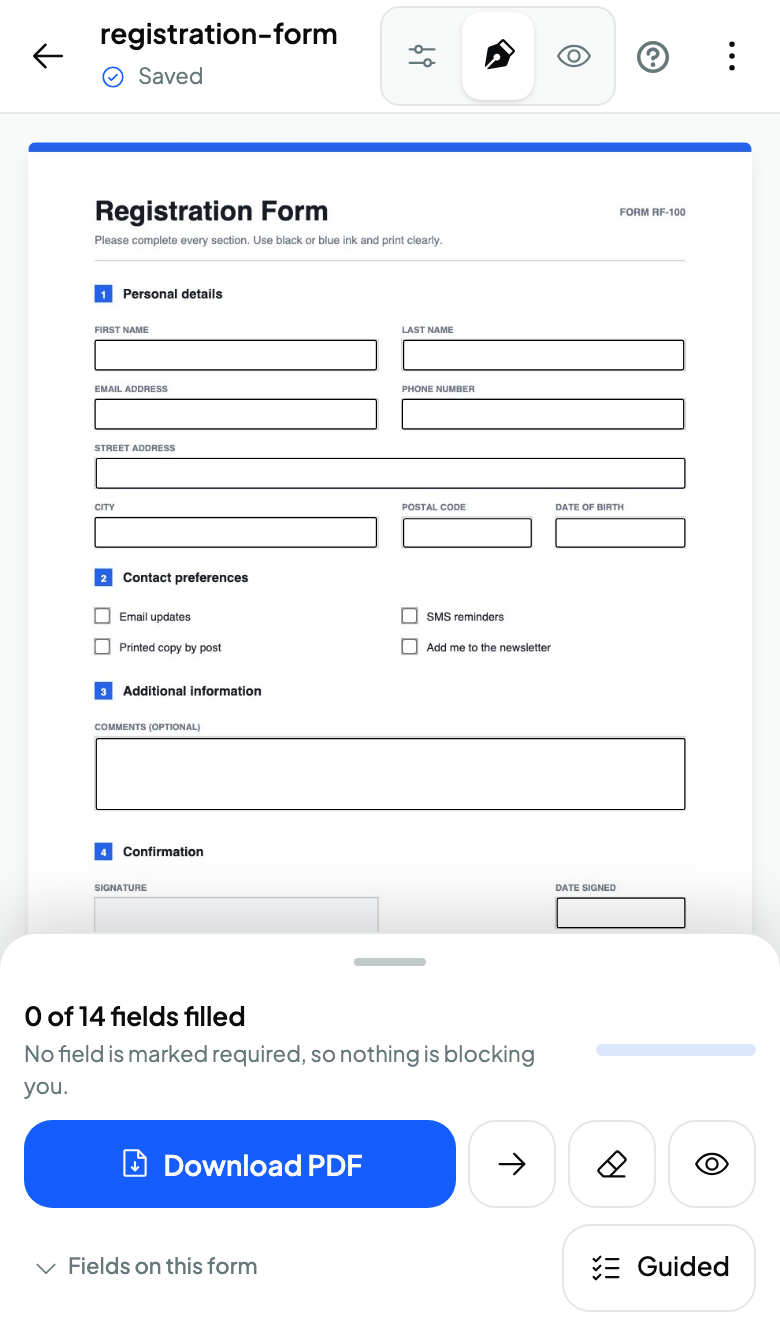
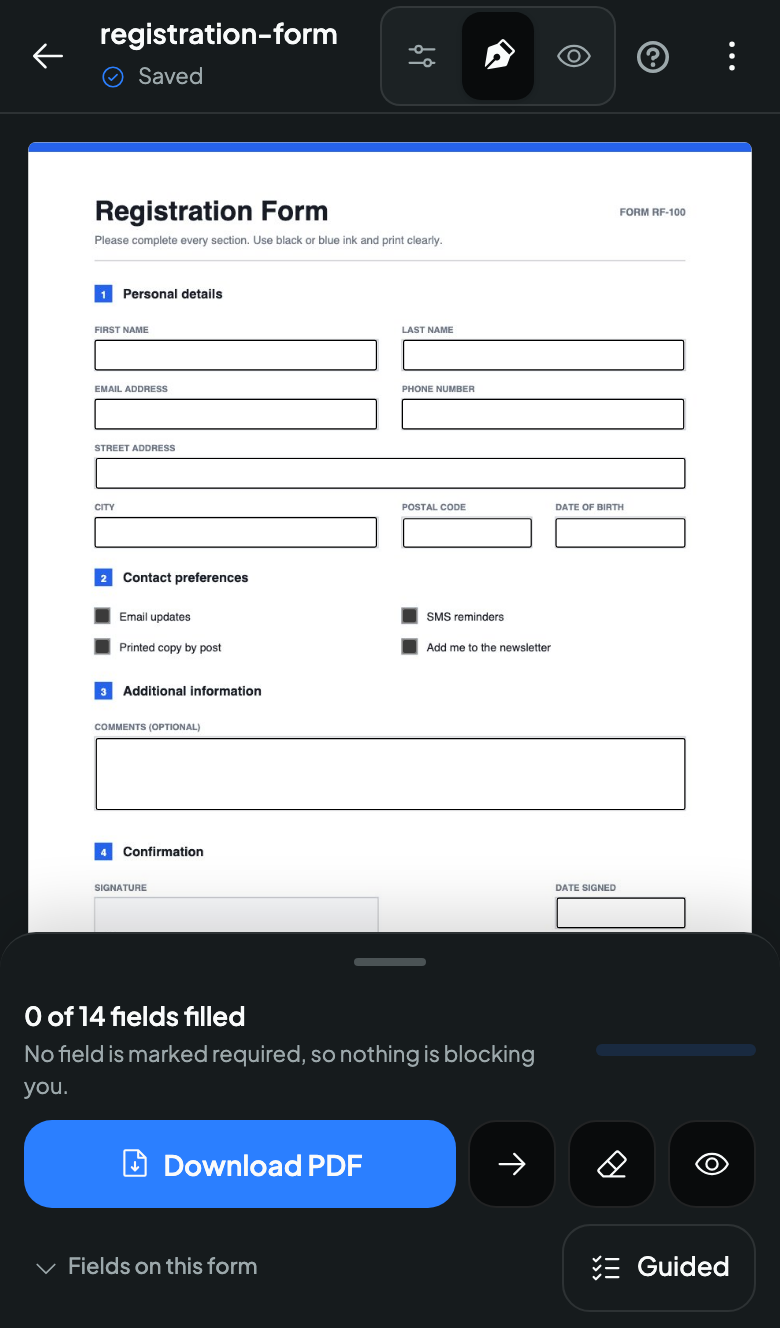
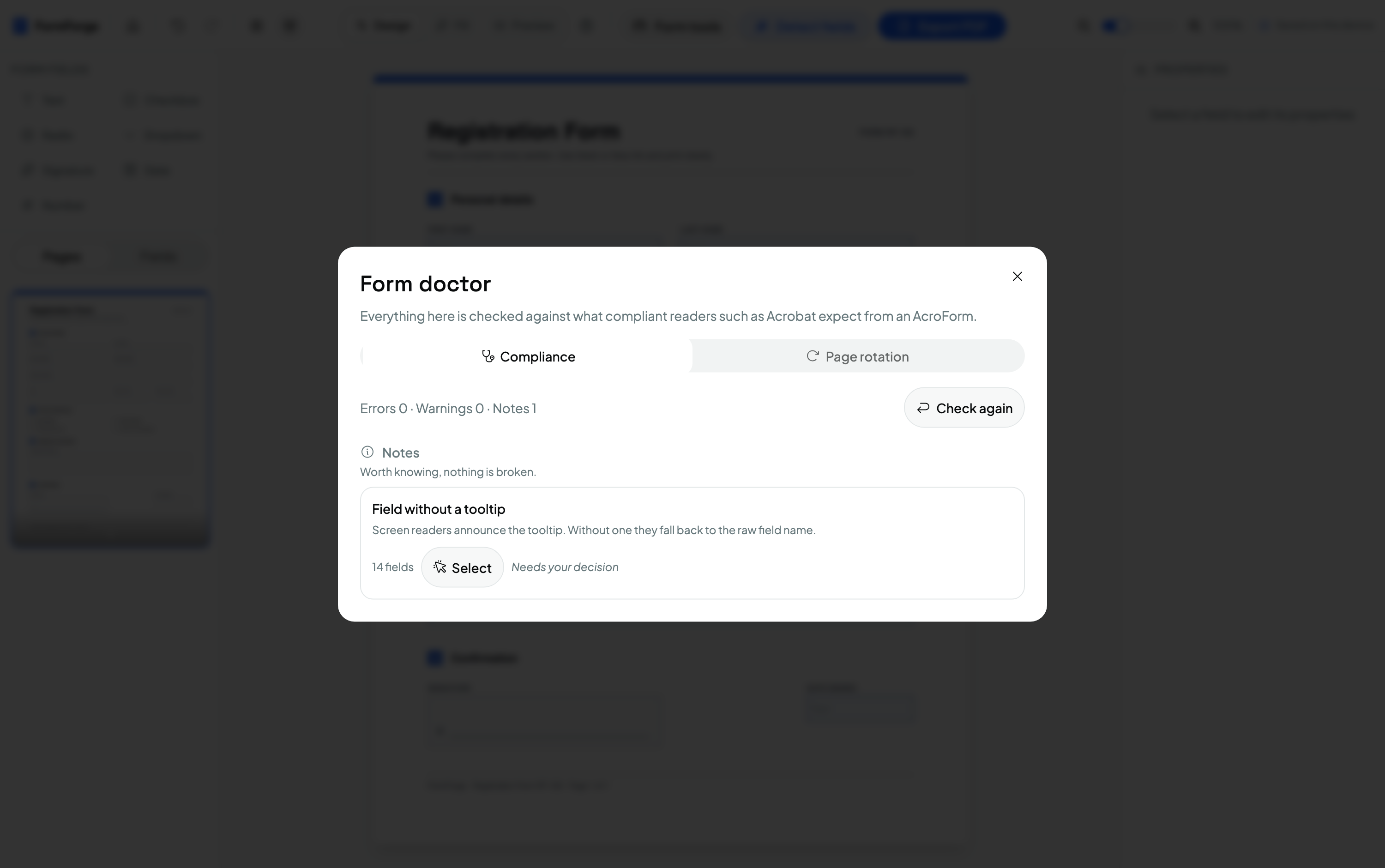
Catch the problems Acrobat would have caught.
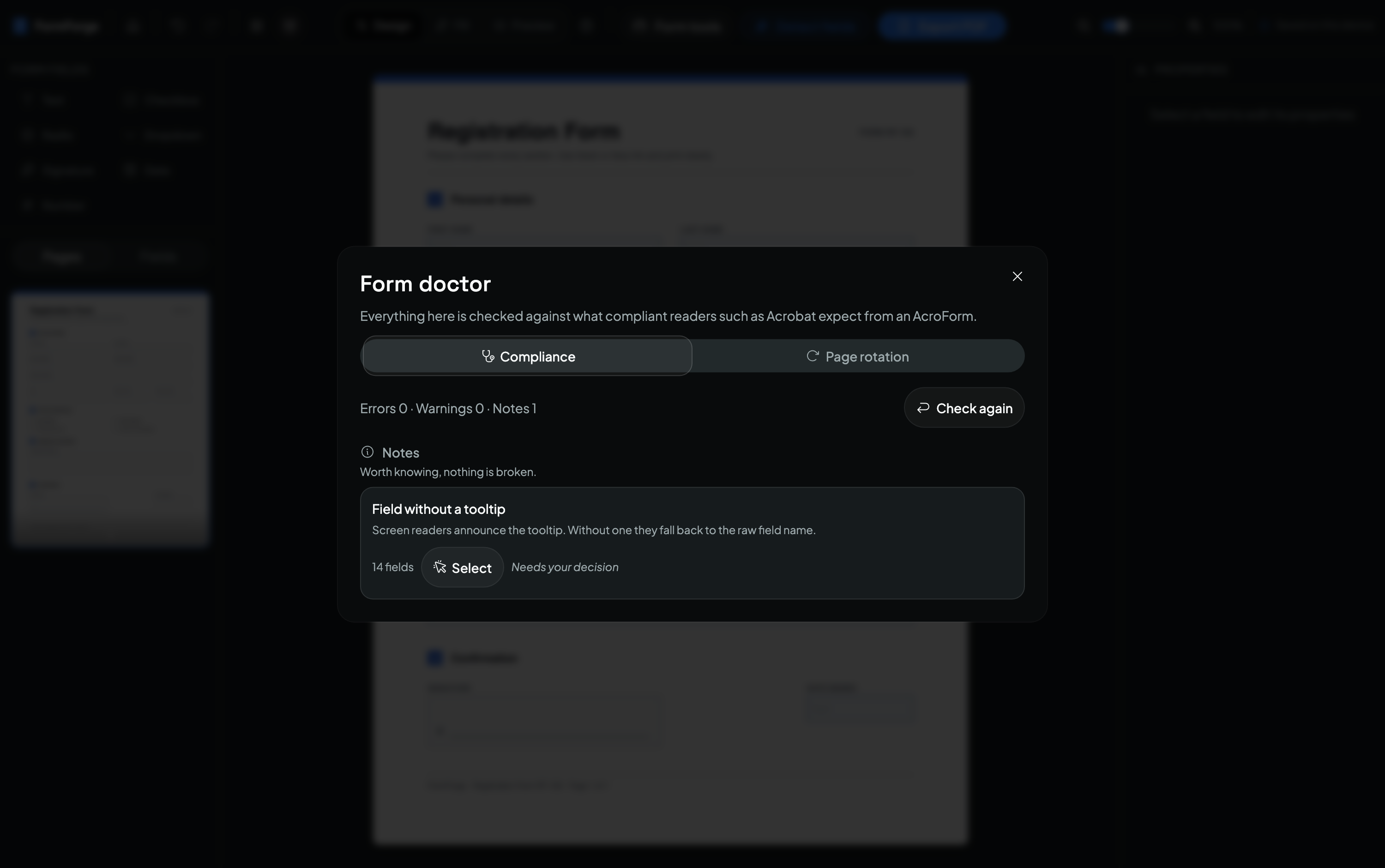
Form doctor runs 21 compliance checks against what strict readers expect from an AcroForm — duplicate names, fields too small to click, required-but-hidden, combs without a max length — and fixes most of them in one click. Harmonise then snaps almost-aligned fields into actually-aligned ones.
- One-click fixes, plus “fix everything fixable”
- Bake rotated pages upright so every reader renders the form identically
- Mail-merge a CSV into a ZIP of filled PDFs, generated on your machine
Everything you need to build professional PDF forms
Visual Drag & Drop
Click to drop fields exactly where you want them. Grid snap and zoom keep every field pixel-aligned — no coordinates, no code.
Import Any PDF
Open an existing PDF and start editing in seconds. Fields already in the document are detected and imported automatically.
Every Field Type
Text, checkbox, radio, dropdown, signature, date, and number fields — everything a professional form needs.
Live Preview
Fill your form in a real preview before you ship it, so you catch layout issues while they still take one click to fix.
Privacy by Design
Your documents never leave your device. Every PDF is processed in your browser — no uploads, no server, no exceptions.
Export Anywhere
Export a standards-compliant fillable PDF that just works in Adobe Reader, macOS Preview, Chrome, and Firefox.
Digital Signatures
Optionally seal your export with a standards-compliant signature that Adobe Acrobat and Preview verify — and the private key behind it stays on your device, never uploaded.
Three steps to a fillable PDF
No installs, no sign-up, no learning curve — go from a flat PDF to a working fillable form in minutes.
-
Import your PDF
Drag any PDF onto the canvas or pick a file — it opens instantly in your browser. Existing form fields are detected and imported automatically. Nothing is uploaded to a server.
01 / 03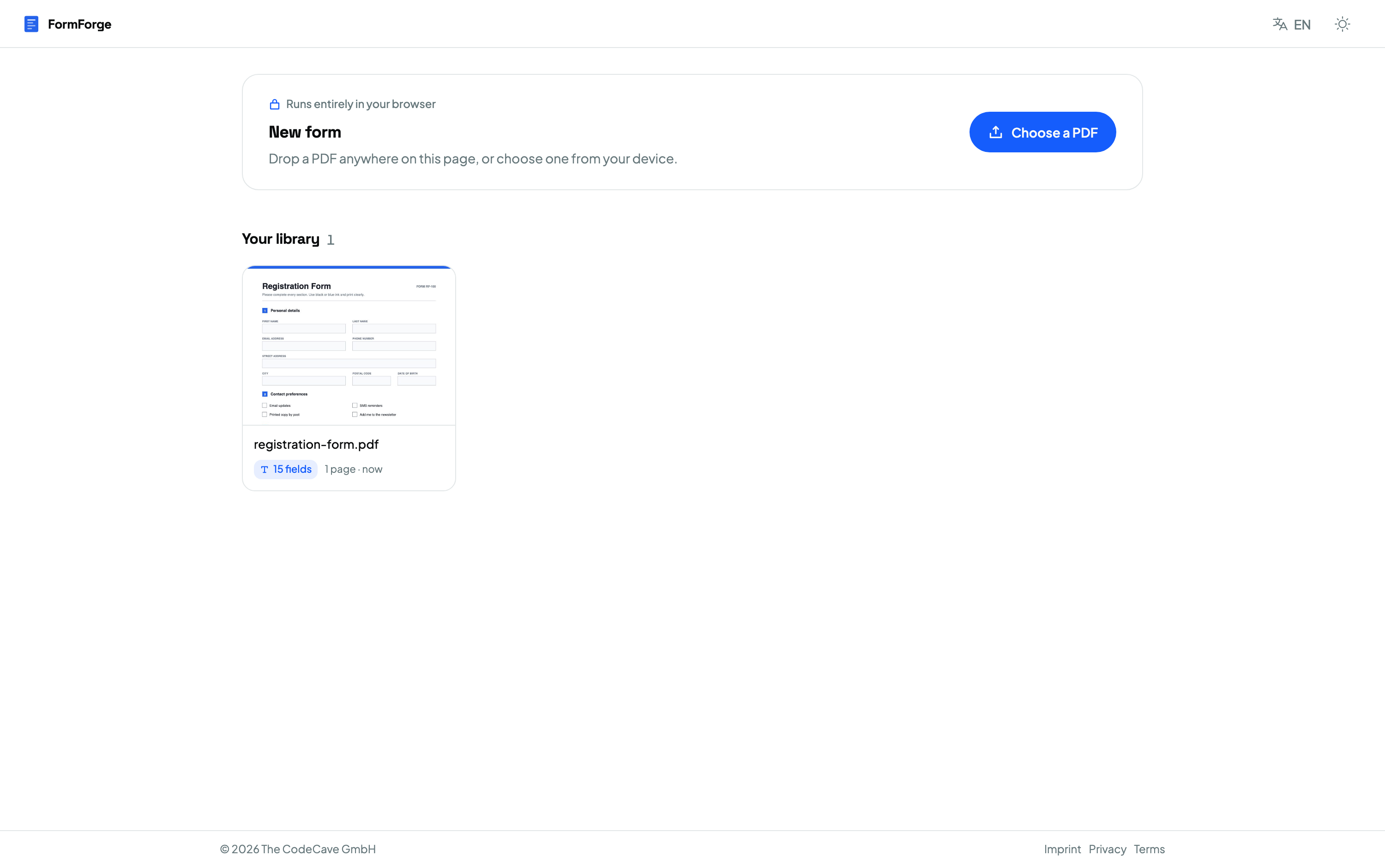
-
Place your fields
Pick a field type — text, checkbox, dropdown, signature, date, number — and click to drop it on the page. Fine-tune the name, size, and validation in the properties panel.
02 / 03 -
Preview & export
Toggle live preview to fill the form exactly as your recipients will, then export a fillable PDF that works in Adobe Reader, macOS Preview, and every major viewer.
03 / 03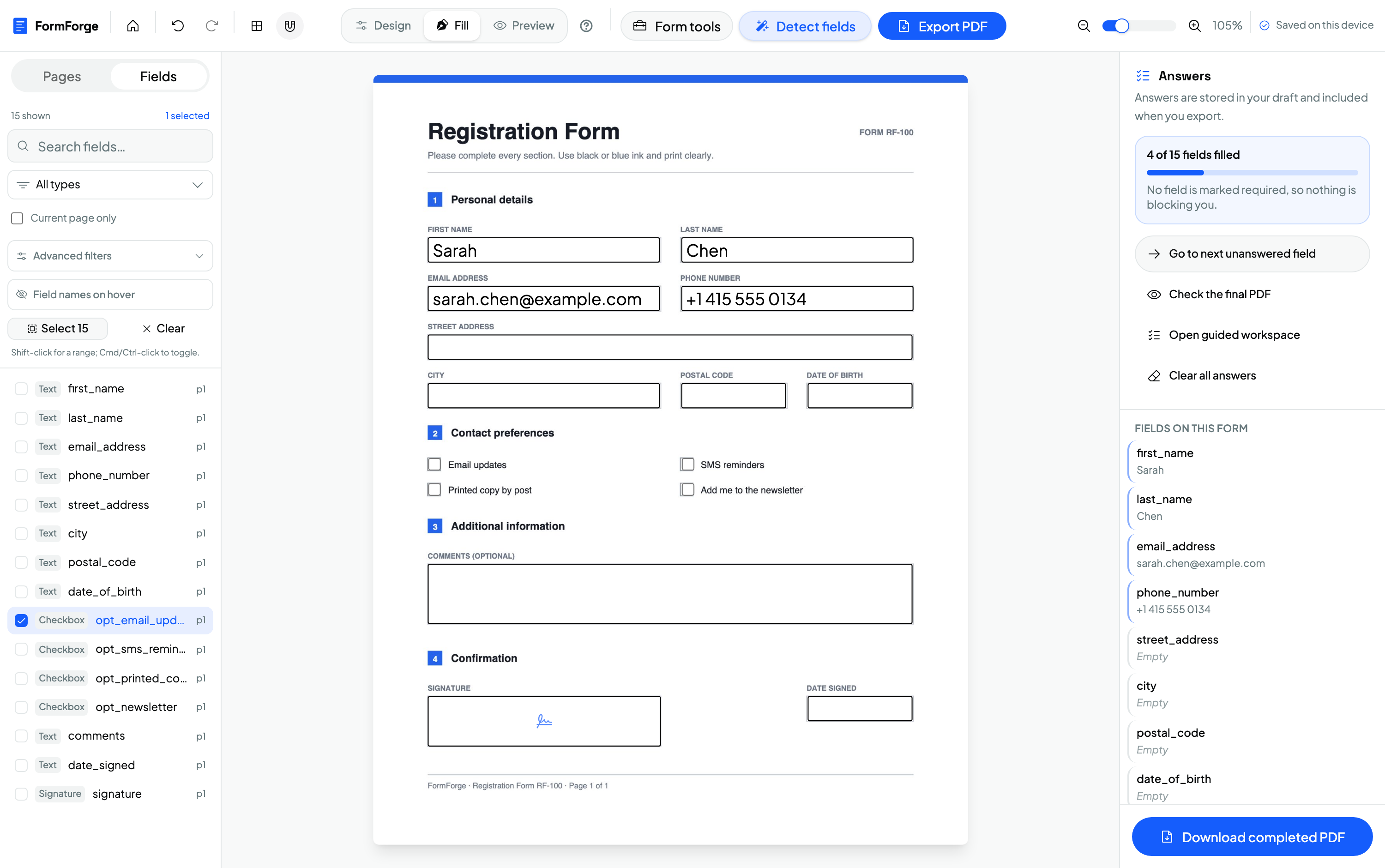
Want the detailed walkthrough with screenshots? Read the full guide to creating a fillable PDF form .
Every field type you'll ever need
Seven field types cover every form use case — from simple text inputs to legally-binding signature fields.
Single & multi-line inputs
Toggle options on or off
Select one from a group
Pick from a list of options
Capture handwritten signatures
Date input with validation
Numeric input with constraints
Built for every kind of form
See how teams and independents use FormForge to make paperwork fillable — privately, and for free.
HR & Recruiting
Offer letters, onboarding packs, and policy sign-offs — fillable and reusable.
ExploreGovernment & Administration
Turn public forms and applications into accessible fillable PDFs — no vendor lock-in.
ExploreLegal Professionals
Intake forms, engagement letters, and contracts with signature and date fields.
ExploreSmall Business & Freelancers
Invoices, waivers, and client agreements — built free, kept entirely on your device.
ExploreSoftware Developers
Prototype AcroForm layouts and export Adobe-compatible fillable PDFs in the browser.
ExploreYour Documents Never Leave Your Device
Unlike cloud-based PDF tools, FormForge runs entirely in your browser. There's no server processing your files, no uploads, and no third-party access to your documents. Ever.
Read our privacy policyPDF.js handles all document rendering directly in your browser tab.
Drafts and form data persist in your browser's local database.
No document data is ever transmitted. Check your network tab to verify.
Digital signing runs in your browser — your private key is never uploaded, and no account is involved.
No hidden telemetry. Only privacy-respecting, self-hosted analytics (Rybbit) on both the landing page and the app — no cookies, no personal data, just aggregate usage stats.
The questions people actually ask
Short, checkable answers — including the things FormForge deliberately does not do.
01 How do I make a PDF fillable for free?
Open FormForge at app.pdf-forms.tools, drag your PDF in, and either run automatic field detection or click to place text fields, checkboxes, dropdowns, dates and signature boxes yourself. Then choose Export → Fillable form. There is no account, no watermark and no page limit, and the file is never uploaded — the whole editor runs in your browser.
02 Is FormForge really free, or is there a paid tier?
FormForge is entirely free with no paid tier, no trial and no feature gating. There is nothing to sign up for, because there are no accounts and no servers holding your documents — the app is a static site that runs on your own device.
03 Do my documents get uploaded anywhere?
No. FormForge reads, edits, analyses and exports the PDF entirely inside your browser using PDF.js and pdf-lib, and saves drafts to your device’s own IndexedDB storage. Even the AI field detection runs locally in WebAssembly — the model is downloaded to you, rather than your document being sent to a model.
04 Can I use it on an iPhone or Android phone?
Yes. FormForge ships a dedicated touch interface for phones and tablets with a bottom sheet, pinch-zoom, a drag magnifier and precision nudge pads, and it can be installed to the home screen as an app that works completely offline.
05 Can I add a signature field to a PDF?
Yes. You can place signature fields anywhere on the page, and sign them by drawing with a finger or stylus or by typing your name. The signature is embedded into the exported PDF as a high-resolution transparent image. That is a handwritten-style signature; separately, you can switch on a cryptographic digital signature when you export, which seals the whole file.
06 Will the exported form open in Adobe Acrobat Reader?
Yes. FormForge exports a standards-compliant AcroForm, which opens and stays fillable in Adobe Acrobat Reader, macOS Preview, Chrome, Firefox and other standard PDF viewers. A built-in Form doctor checks the document against AcroForm rules before you export.
07 What can FormForge not do?
FormForge does not reorder, delete, rotate or merge pages, and embeds text using the standard Helvetica font only. It is a form builder, not a general PDF editor — it does not edit the underlying page content.
08 How does FormForge compare to Adobe Acrobat for making forms?
FormForge covers the form-building job — placing fields, detecting them automatically, checking AcroForm compliance and exporting — for free and without uploading anything, while Acrobat is a paid desktop subscription that also edits page content. If you only need to turn a PDF into a fillable form, FormForge does it in a browser tab; if you need to rewrite the document itself, you still need a full PDF editor.
FormForge vs. the usual options
| FormForge | Adobe Acrobat Pro | Online PDF sites | |
|---|---|---|---|
| Price | Free, no account | Paid subscription | Freemium, usually capped |
| Your file is uploaded to a server | Never | No (desktop app) | Yes |
| Install required | No — optional as an app | Yes | No |
| Automatic field detection | Yes, runs on your device | Yes, on your device | Rarely |
| Works on a phone | Yes, dedicated touch editor | Limited | Limited |
| Works offline | Yes | Yes | No |
| Cryptographic digital signatures | Yes, optional on export | Yes | Sometimes |
| Your signing key is uploaded to a server | Never | No (desktop app) | Yes, when they sign |
| Edit the page content itself | No | Yes | Sometimes |
Common questions
Is FormForge really free?
Are my PDF files uploaded anywhere?
Do I need to install anything or create an account?
Can I make an existing PDF fillable?
Can I edit a PDF that already has form fields?
Can FormForge add form fields to a PDF that has none?
Is my PDF uploaded when I use field detection?
Can I edit many fields at once?
Which field types are supported?
Will the exported PDF work in Adobe Reader, Preview, and mobile viewers?
Does it work offline?
Can I add a signature field?
Are the digital signatures legally binding?
Is there a file size or page limit?
How is this different from Adobe Acrobat or other paid tools?
Does it work on Mac, Windows, Linux, and tablets?
What happens to my work if I close the tab?
Make Your First Fillable PDF Now
100% free. No account, no credit card, no uploads. Runs entirely in your browser — your files never leave your device.